IATA air baggage tag — 50×220 mm
Airport baggage tag in IATA BTS format: airline, flight, route, sequence, weight, ITF (Interleaved 2 of 5) license plate and passenger data.
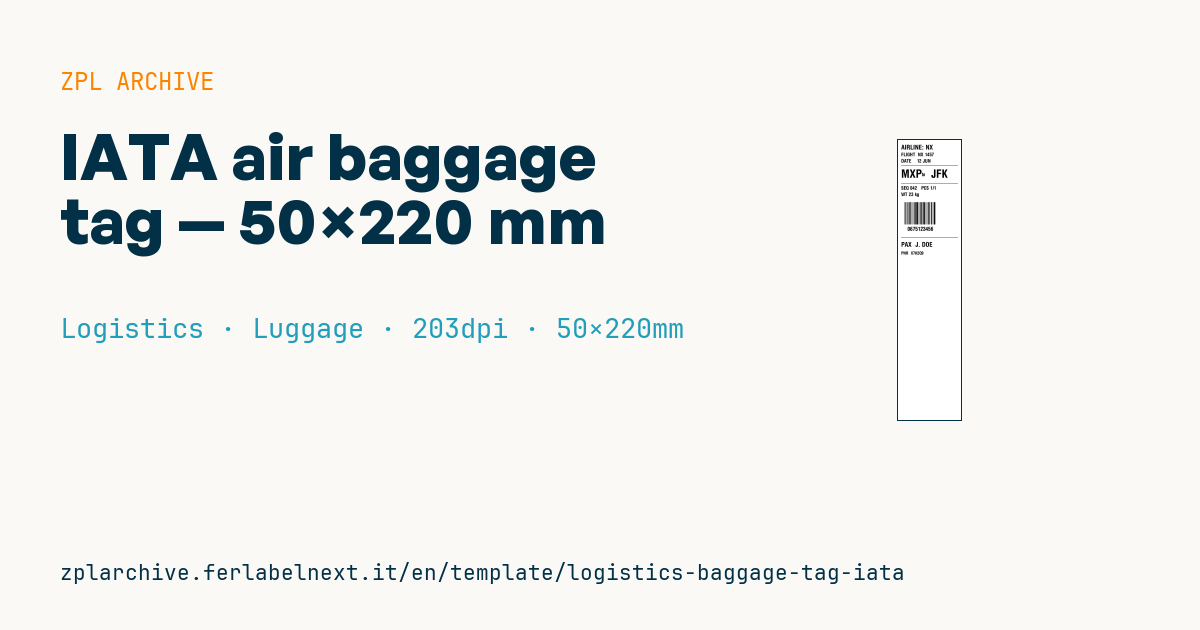
IATA air baggage tag
50×220 mm @ 203 dpi. Long strip (wraps around the bag handle) following the IATA Baggage Tag standard. The license plate is a 10-digit Interleaved 2 of 5 (airline prefix + serial) read by sortation systems.
Placeholders
airline— airline codeflight— flight numberdate— departure dateorigin,destination— IATA airport codessequence— sequence numberpiece— piece n. of total (e.g. 1/1)weightlicense_plate— 10-digit number in the Interleaved 2 of 5 barcodepassenger,pnr
When to use it
The baggage tag is printed at check-in, at the desk or a self bag drop kiosk, and closed in a loop around the bag handle. From then on it is the only link between bag and passenger: the baggage handling system reads the license plate and routes the bag to the right flight. It has to survive conveyors, rain on the apron, cold holds and rough handling.
That is why dedicated bag tag rolls are used: topcoated direct thermal paper or synthetic stock, an adhesive end to close the loop and tear-off stubs for the passenger. This template is useful for trials, training, small airports or printer tests; in production the content is generated by the airline's or ground handler's departure control system.
Standards and requirements
The reference is IATA Resolution 740 (Form of Interline Baggage Tags), which defines the layout, dimensions and the 10-digit license plate: a leading digit, the airline's three-digit numeric code and a six-digit serial. In the IATA specification the license plate is encoded as Interleaved 2 of 5; this layout prints it with ^B2 and a 3:1 ratio in ^BY. For integration with a real sortation system, still check the airline's or handler's specifications. On the long strip, set ^LL correctly and use ^FWR or field rotation for codes that must read along the tag.
Common mistakes
- Reusing a license plate already issued: two bags with the same number get mis-sorted.
- Rotating the barcode so that the adhesive overlap covers it once the loop is closed.
- Printing on ordinary thermal paper that cannot cope with moisture and conveyor friction.
FAQ
Is the license plate the same as the PNR?
No. The PNR identifies the booking; the license plate identifies one individual bag.
Can I print bag tags on a desktop printer?
Technically yes, if it takes the width and the roll; check-in desks, however, use dedicated printers approved by the airline.
ZPL code
^XA
^LL1758
^CI28
^PW400
^CF0,40^FO20,30^FDAIRLINE: {{airline}}^FS
^CF0,30^FO20,80^FDFLIGHT  {{flight}}^FS
^FO20,120^FDDATE    {{date}}^FS
^FO20,160^GB360,2,2^FS
^CF0,70^FO20,185^FD{{origin}}^FS
^CF0,30^FO150,205^FDto^FS
^CF0,70^FO210,185^FD{{destination}}^FS
^FO20,270^GB360,2,2^FS
^CF0,30^FO20,290^FDSEQ {{sequence}}   PCS {{piece}}^FS
^FO20,330^FDWT {{weight}}^FS
^BY2,3,140
^FO40,390^B2N,140,N,N,N^FD{{license_plate}}^FS
^CF0,34^FO60,545^FD{{license_plate}}^FS
^FO20,610^GB360,2,2^FS
^CF0,40^FO20,640^FDPAX  {{passenger}}^FS
^CF0,26^FO20,700^FDPNR  {{pnr}}^FS
^XZWhat this label contains
Barcodes
- Interleaved 2 of 5
- Numeric-only barcode, mostly used as ITF-14 on corrugated cartons.
Elements
- 11 text fields
- 11 variable fields to fill in
- boxes and separator lines
Variable fields
| Field | Description | Example |
|---|---|---|
airline | Airline | NX |
flight | Flight | NX 1457 |
date | Date | 12 JUN |
origin | Origin | MXP |
destination | Destination | JFK |
sequence | Sequence | 042 |
piece | Piece | 1/1 |
weight | Weight | 23 kg |
license_plate | License plate | 0675123456 |
passenger | Passenger | J. DOE |
pnr | PNR | X7K2Q9 |
Format and printing
50×220 mm (1.97×8.66″) at 203 dpi: 400×1758 dots. Portrait.
Compatible Zebra printers
You need a printer with a 2″ printhead at 203 dpi, for example:
- Zebra ZD411 (desktop)
- Zebra ZD611 (desktop)
- Zebra ZQ220 (mobile)
- Zebra ZQ310 (mobile)
Any Zebra printer with a wider printhead and the same resolution works too.
The code is written for 203 dpi: on a printer with a different resolution the label prints larger or smaller and needs rescaling.
How to use it
- Open “Customize placeholders” and enter your data in the variable fields listed above.
- Check the preview: it is rendered from the same ZPL code you will send to the printer.
- Download the .zpl file or copy the code and send it to the printer: with “Print” through Zebra Browser Print, or as a raw file to port 9100 if the printer is on the network.
- Load 50×220 mm labels and make sure the printer is set to 203 dpi. For a different size use “Duplicate & edit” and adapt the layout in the builder.
Edit it in the editor
To change the layout, use “Duplicate & edit”: the template opens in the online ZPL editor, where you modify it and save it to your account for free.
Related templates
- Fragile / Handle with care — 100×70 mm 203 dpi · Logistics · Express
- DHL Express Worldwide AWB — 100×150 mm 203 dpi · Logistics · Express
- Pallet Label GS1 SSCC — 148×210 mm (A5) 203 dpi · Logistics · Pallet
- ISO 6346 sea container label — 100×70 mm 203 dpi · Logistics · Express
- Generic Return Label — 100×150 mm 203 dpi · Logistics · Return
- Cross-dock routing label (QR) — 100×50 mm 203 dpi · Logistics · Express
- Basic Sender/Recipient — 100×70 mm 203 dpi · Logistics · Express
- FedEx International AWB — 100×150 mm 203 dpi · Logistics · Air