UPS Worldship — 100×150 mm
UPS Worldship label with service level, full sender/recipient and Code128 tracking.
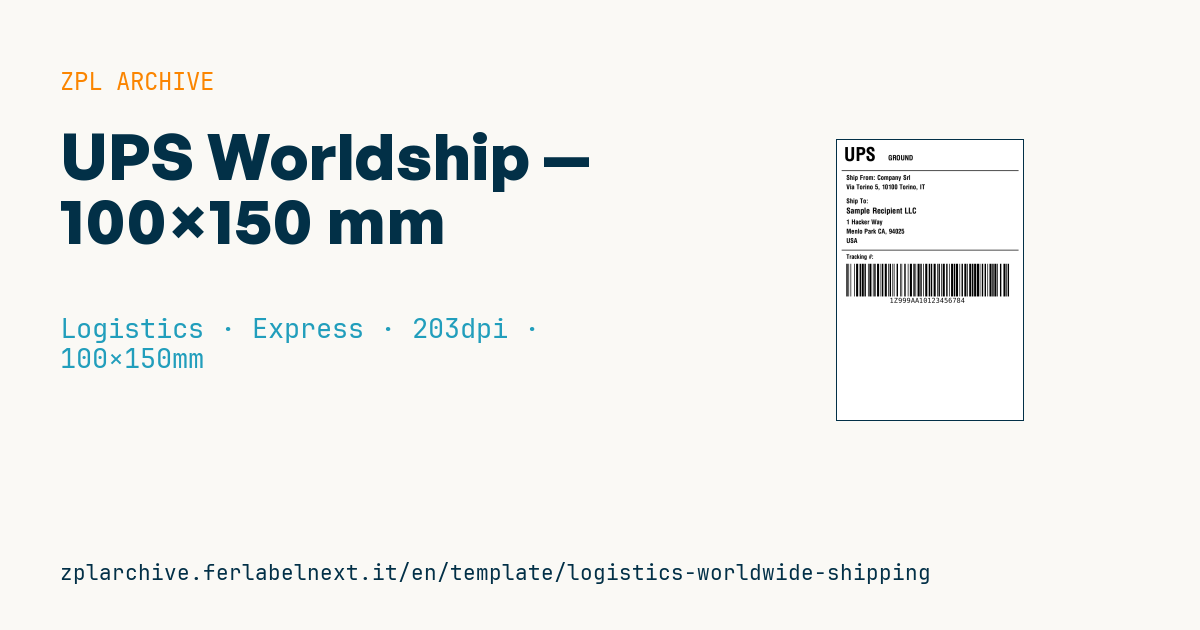
UPS Worldship label
Standard 4×6" format generated by UPS WorldShip. UPS tracking number is 18 alphanumeric characters in the format 1ZXXXXXXXXXXXXXXXX.
Placeholders
service_level—GROUND,2ND DAY AIR,NEXT DAY AIR, etc.from_name,from_address— senderto_name,to_address,to_city,to_postal,to_country— recipienttracking_number— 1Z + 16 alphanumeric
Notes
For UPS compliance the tracking must be Code128 with MOD10 check digit on the numeric part. Labelary renders it correctly.
When to use it
This layout mirrors the structure of a UPS WorldShip-style label and helps anyone integrating an ERP or WMS with a Zebra printer understand how the blocks are arranged: service, shipper, recipient, tracking. It is a layout example: in production, the valid label is the one generated by the carrier's software or APIs under your account, not a manual reconstruction. International parcels pass through several hubs and vehicles: direct thermal stock is fine, but protect the label from rain and abrasion.
Standards and requirements
UPS sets the requirements: printing your own labels generally needs layout certification from the carrier, so check the current UPS specifications. Real UPS labels usually also carry a MaxiCode (^BD in ZPL) and other routing elements that this template does not include. The 1Z tracking number has 18 characters: shipper account number, service code, package identifier and a final check digit. Shipments leaving the EU also need customs paperwork (commercial invoice), which the label does not replace. For addresses with accents or non-Latin characters, use ^CI28 and a font that supports them.
Common mistakes
- Making up or recycling a
1Znumber: the parcel is not recognised in the network. - Printing the tracking barcode with bars too narrow at 203 dpi: keep the
^BYmodule at 2 dots or more. - Writing only the ISO country code when the full city and postcode are also required.
- Forgetting that the printed service level must match the one you paid for.
FAQ
Can I use this template to ship with UPS?
As a study base, yes, but the label you apply must be generated or certified by UPS for your account.
What does the part after 1Z mean?
It holds the shipper's account number, a service code and a package sequence number, closed by a check digit.
Is a MaxiCode needed?
On standard UPS labels it usually is: check the UPS labelling guide for your service.
ZPL code
^XA
^PW799
^LL1199
^CI28
^CF0,80^FO30,30^FDUPS^FS
^CF0,30^FO220,65^FD{{service_level}}^FS
^FO20,130^GB760,3,3^FS
^CF0,28
^FO40,150^FDShip From: {{from_name}}^FS
^FO40,190^FD{{from_address}}^FS
^FO40,250^FDShip To:^FS
^CF0,34^FO40,290^FD{{to_name}}^FS
^CF0,28
^FO40,340^FD{{to_address}}^FS
^FO40,380^FD{{to_city}}, {{to_postal}}^FS
^FO40,420^FD{{to_country}}^FS
^FO20,470^GB760,3,3^FS
^CF0,26^FO40,490^FDTracking #:^FS
^BY3,2,140
^FO40,530^BCN,140,Y,N,N^FD{{tracking_number}}^FS
^XZWhat this label contains
Barcodes
- Code 128
- High-density linear barcode that encodes the full ASCII set: ideal for tracking numbers, internal codes and alphanumeric IDs.
Elements
- 10 text fields
- 9 variable fields to fill in
- boxes and separator lines
Variable fields
| Field | Description | Example |
|---|---|---|
service_level | Service level | GROUND |
from_name | Sender | Company Srl |
from_address | Sender address | Via Torino 5, 10100 Torino, IT |
to_name | Recipient | Sample Recipient LLC |
to_address | Address | 1 Hacker Way |
to_city | City | Menlo Park CA |
to_postal | ZIP | 94025 |
to_country | Country | USA |
tracking_number | Tracking | 1Z999AA10123456784 |
Format and printing
100×150 mm (3.94×5.91″) at 203 dpi: 799×1199 dots. Portrait.
Compatible Zebra printers
You need a printer with a 4″ printhead at 203 dpi, for example:
- Zebra ZD421 (desktop)
- Zebra ZD621 (desktop)
- Zebra GK420 (desktop)
- Zebra ZT231 (industrial)
- Zebra ZT411 (industrial)
- Zebra ZT610 (industrial)
- Zebra ZQ521 (mobile)
- Zebra ZQ630 (mobile)
Any Zebra printer with a wider printhead and the same resolution works too.
The code is written for 203 dpi: on a printer with a different resolution the label prints larger or smaller and needs rescaling.
How to use it
- Open “Customize placeholders” and enter your data in the variable fields listed above.
- Check the preview: it is rendered from the same ZPL code you will send to the printer.
- Download the .zpl file or copy the code and send it to the printer: with “Print” through Zebra Browser Print, or as a raw file to port 9100 if the printer is on the network.
- Load 100×150 mm labels and make sure the printer is set to 203 dpi. For a different size use “Duplicate & edit” and adapt the layout in the builder.
Edit it in the editor
To change the layout, use “Duplicate & edit”: the template opens in the online ZPL editor, where you modify it and save it to your account for free.
Related templates
- IATA air baggage tag — 50×220 mm 203 dpi · Logistics · Luggage
- Fragile / Handle with care — 100×70 mm 203 dpi · Logistics · Express
- DHL Express Worldwide AWB — 100×150 mm 203 dpi · Logistics · Express
- Pallet Label GS1 SSCC — 148×210 mm (A5) 203 dpi · Logistics · Pallet
- Cross-dock routing label (QR) — 100×50 mm 203 dpi · Logistics · Express
- Generic Return Label — 100×150 mm 203 dpi · Logistics · Return
- ISO 6346 sea container label — 100×70 mm 203 dpi · Logistics · Express
- Basic Sender/Recipient — 100×70 mm 203 dpi · Logistics · Express