Power adapter spec label — 60×30 mm
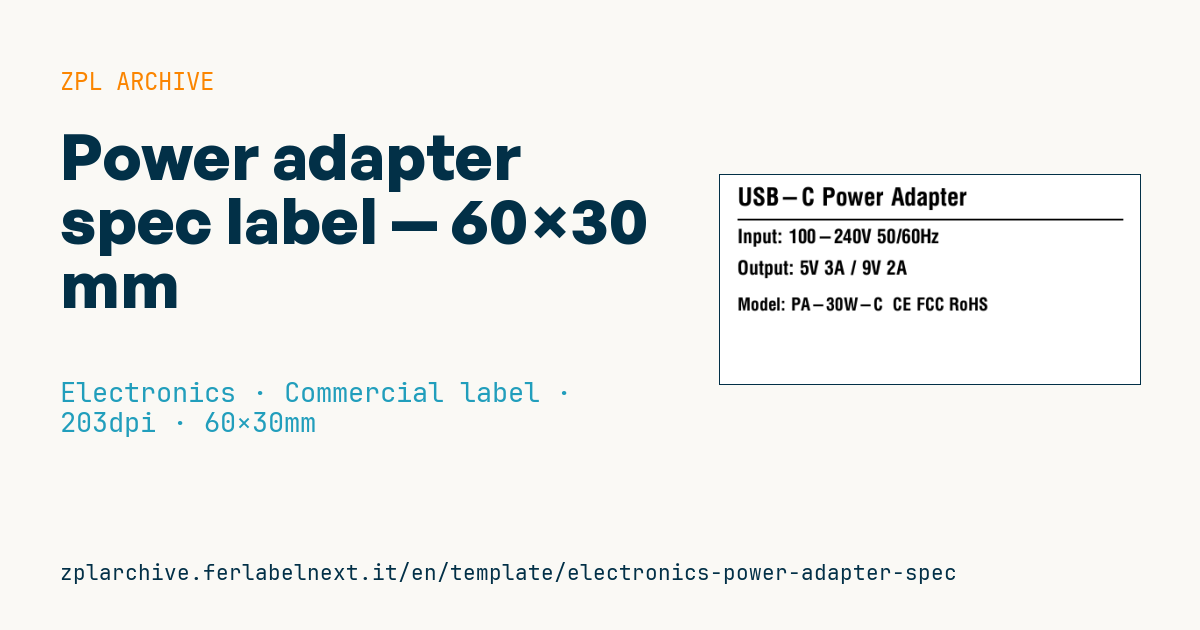
Technical label for power adapters/chargers: name, input, output, model and compliance marks. Clean two-line input/output layout.
Power adapter spec label
60×30 mm @ 203 dpi. Name, separator, Input line, Output line, model and compliance marks.
Placeholders
product_name— product nameinput_spec— input rating (e.g.100-240V 50/60Hz)output_spec— output rating (e.g.5V 2A)model_code— model codemarks— marks (e.g.CE FCC)
When to use it
It is the rating label for external power supplies, USB chargers and desktop adapters, used by manufacturers, importers and brand owners who sell third-party supplies under their own name. Its readers are the end user checking whether a supply fits the device, the service technician and the market surveillance inspector.
The housing warms up in use and ends up in bags and drawers: use polyester or polycarbonate with a resin ribbon in thermal transfer, which withstand heat, rubbing and alcohol. Paper and direct thermal are not suitable for a rating label that must stay legible for the product's life.
Standards and requirements
In the EU, external power supplies fall under Ecodesign Regulation (EU) 2019/1782, which sets efficiency and product information requirements. For safety, the reference is IEC 62368-1, which defines the ratings to be marked and includes marking durability tests. Marks such as CE, UKCA or FCC are printed only after the conformity assessment for that market is complete; the WEEE symbol follows Directive 2012/19/EU.
For symbols such as direct current or double insulation, a ^GF graphic works better than a character: many resident fonts do not include them, even with ^CI28.
Common mistakes
- Printing the output voltage without the rated current or power.
- Leaving out the DC connector polarity on a barrel-plug adapter.
- Printing conformity marks copied from the supplier's datasheet without your own documentation.
- Using text that is too small on a curved or textured surface.
FAQ
What information must a power adapter label show?
At least manufacturer or brand, model, input (voltage and frequency), output (voltage and current) and the applicable marks. The exact list depends on the safety standards and the market.
Can I use the CE mark if my supplier is certified?
If you sell under your own name you become the manufacturer and take responsibility for conformity. You need technical documentation and a declaration of conformity in your name.
ZPL code
^XA
^PW480
^LL240
^CI28
^CF0,28^FO20,14^FD{{product_name}}^FS
^FO20,50^GB440,2,2^FS
^CF0,22^FO20,62^FDInput: {{input_spec}}^FS
^CF0,22^FO20,98^FDOutput: {{output_spec}}^FS
^CF0,20^FO20,140^FDModel: {{model_code}}  {{marks}}^FS
^XZ- Industry: Electronics
- Category: Commercial label
- DPI: 203
- Size: 60×30 mm
- Tags: Compliance 2024, Electronics, Specifications
What this label contains
Barcodes
This label contains no barcodes: it is made of text and graphics.
Elements
- 4 text fields
- 5 variable fields to fill in
- boxes and separator lines
Variable fields
| Field | Description | Example |
|---|---|---|
product_name | Product | USB-C Power Adapter |
input_spec | Input | 100-240V 50/60Hz |
output_spec | Output | 5V 3A / 9V 2A |
model_code | Model | PA-30W-C |
marks | Marks | CE FCC RoHS |
Format and printing
60×30 mm (2.36×1.18″) at 203 dpi: 480×240 dots. Landscape.
Compatible Zebra printers
You need a printer with a 4″ printhead at 203 dpi, for example:
- Zebra ZD421 (desktop)
- Zebra ZD621 (desktop)
- Zebra GK420 (desktop)
- Zebra ZT231 (industrial)
- Zebra ZT411 (industrial)
- Zebra ZT610 (industrial)
- Zebra ZQ521 (mobile)
- Zebra ZQ630 (mobile)
Any Zebra printer with a wider printhead and the same resolution works too.
The code is written for 203 dpi: on a printer with a different resolution the label prints larger or smaller and needs rescaling.
How to use it
- Open “Customize placeholders” and enter your data in the variable fields listed above.
- Check the preview: it is rendered from the same ZPL code you will send to the printer.
- Download the .zpl file or copy the code and send it to the printer: with “Print” through Zebra Browser Print, or as a raw file to port 9100 if the printer is on the network.
- Load 60×30 mm labels and make sure the printer is set to 203 dpi. For a different size use “Duplicate & edit” and adapt the layout in the builder.
Edit it in the editor
To change the layout, use “Duplicate & edit”: the template opens in the online ZPL editor, where you modify it and save it to your account for free.
Related templates
- Instrument calibration tag (QR) — 40×30 mm 600 dpi · Electronics · Asset
- Cable/connector label (flag wrap) — 50×25 mm 300 dpi · Electronics · Commercial label
- ESD / voltage warning label — 50×30 mm 203 dpi · Electronics · Commercial label
- Battery rating label — 50×30 mm 203 dpi · Electronics · Commercial label
- DataMatrix PCB label — 25×25 mm 300 dpi · Electronics · Traceability
- RMA return tag — 70×50 mm 203 dpi · Electronics · Return
- Device manual/support QR — 40×40 mm 300 dpi · Electronics · Commercial label
- IT asset tag with QR — 50×25 mm 300 dpi · Electronics · Asset