Battery rating label — 50×30 mm
Battery specification label: type, voltage, capacity, chemistry and a battery pictogram drawn in ZPL with + and − terminals. For battery packs and cells.
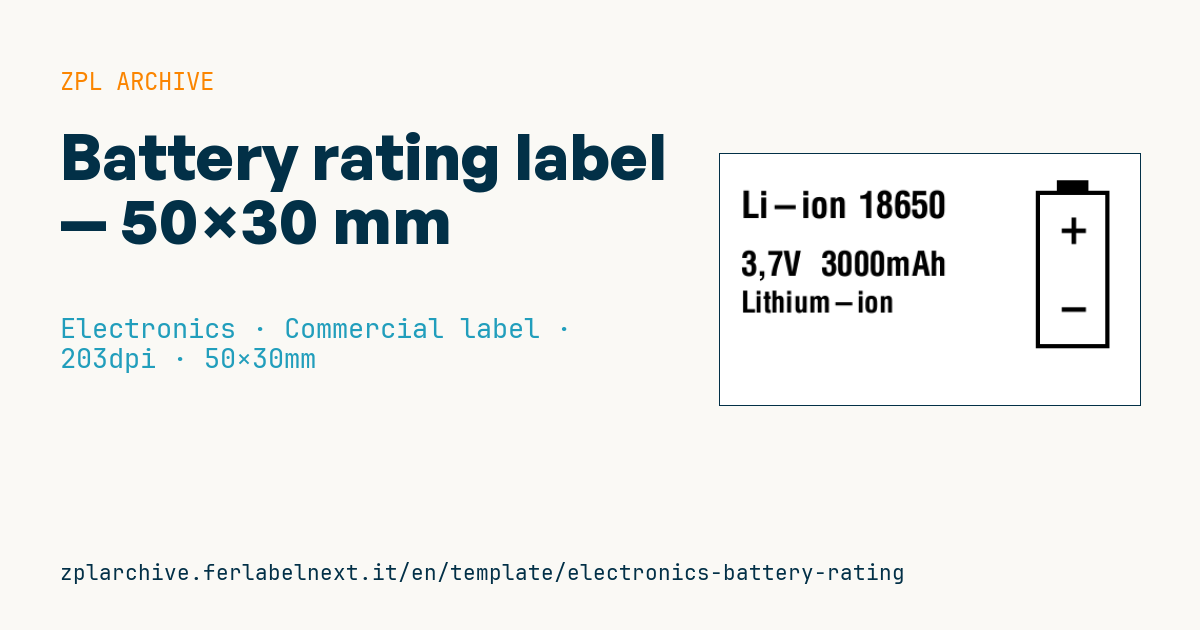
Battery rating label
50×30 mm @ 203 dpi. On the left type, voltage+capacity and chemistry; on the right a battery pictogram (body ^GB, terminal and poles) drawn in ZPL.
Placeholders
-
battery_type— type (e.g.Li-ion 18650) -
voltage— voltage (e.g.3.7V) -
capacity— capacity (e.g.3000mAh) -
chemistry— chemistry/code
When to use it
Battery pack assemblers, portable device manufacturers and refurbishers use it on the pack housing or on the blister of a single cell to identify nominal voltage, capacity and chemistry unambiguously.
A battery pack warms up while charging, gets rubbed and may come into contact with electrolyte or cleaning agents: use polyester or polypropylene with a resin ribbon in thermal transfer. Direct thermal paper yellows with heat and is not suitable.
Standards and requirements
In the EU batteries fall under Regulation (EU) 2023/1542, which phases in labelling obligations (including capacity, chemistry and the crossed-out wheeled bin symbol): check the application dates for your battery category. For shipping lithium batteries, the UN Manual of Tests and Criteria, section 38.3, and the ADR or IATA DGR rules apply; for air transport of Li-ion batteries the watt-hour (Wh) rating must be shown. Safety of portable cells is covered by IEC 62133.
On the ZPL side, the pictogram is drawn with ^GB: if you print at a different resolution, recalculate thicknesses and coordinates or the + and − terminals will distort.
Common mistakes
- Showing only mAh without Wh: air shipments need the watt-hour value (V × Ah).
- Mixing up nominal voltage and end-of-charge voltage (3.6/3.7 V versus 4.2 V for a Li-ion cell).
- Writing a vague chemistry such as "Lithium" instead of Li-ion, LiFePO4 or Li-metal: transport rules differ.
- Using an adhesive that lets go when the pack heats up during charging.
FAQ
How do I calculate a battery's watt-hours?
Multiply nominal voltage by capacity in amp-hours: 3.7 V × 3 Ah = 11.1 Wh. For a pack, use the pack's voltage and capacity, not those of a single cell.
Is this label enough to ship lithium batteries?
No. Shipping also requires the lithium battery mark and the documents your carrier asks for; check your carrier's specifications.
ZPL code
^XA
^PW400
^LL240
^CI28
^CF0,35^FO20,35^FD{{battery_type}}^FS
^CF0,32^FO20,92^FD{{voltage}}  {{capacity}}^FS
^CF0,28^FO20,130^FD{{chemistry}}^FS
^FO300,35^GB70,150,4^FS
^FO320,25^GB30,12,12^FS
^CF0,40^FO318,55^FD+^FS
^CF0,40^FO318,130^FD-^FS
^XZ- Industry: Electronics
- Category: Commercial label
- DPI: 203
- Size: 50×30 mm
- Tags: Battery, Compliance 2024, Electronics, Specifications
What this label contains
Barcodes
This label contains no barcodes: it is made of text and graphics.
Elements
- 5 text fields
- 4 variable fields to fill in
- boxes and separator lines
Variable fields
| Field | Description | Example |
|---|---|---|
battery_type | Type | Li-ion 18650 |
voltage | Voltage | 3,7V |
capacity | Capacity | 3000mAh |
chemistry | Chemistry | Lithium-ion |
Format and printing
50×30 mm (1.97×1.18″) at 203 dpi: 400×240 dots. Landscape.
Compatible Zebra printers
You need a printer with a 2″ printhead at 203 dpi, for example:
- Zebra ZD411 (desktop)
- Zebra ZD611 (desktop)
- Zebra ZQ220 (mobile)
- Zebra ZQ310 (mobile)
Any Zebra printer with a wider printhead and the same resolution works too.
The code is written for 203 dpi: on a printer with a different resolution the label prints larger or smaller and needs rescaling.
How to use it
- Open “Customize placeholders” and enter your data in the variable fields listed above.
- Check the preview: it is rendered from the same ZPL code you will send to the printer.
- Download the .zpl file or copy the code and send it to the printer: with “Print” through Zebra Browser Print, or as a raw file to port 9100 if the printer is on the network.
- Load 50×30 mm labels and make sure the printer is set to 203 dpi. For a different size use “Duplicate & edit” and adapt the layout in the builder.
Edit it in the editor
To change the layout, use “Duplicate & edit”: the template opens in the online ZPL editor, where you modify it and save it to your account for free.
Related templates
- Instrument calibration tag (QR) — 40×30 mm 600 dpi · Electronics · Asset
- Cable/connector label (flag wrap) — 50×25 mm 300 dpi · Electronics · Commercial label
- ESD / voltage warning label — 50×30 mm 203 dpi · Electronics · Commercial label
- DataMatrix PCB label — 25×25 mm 300 dpi · Electronics · Traceability
- RMA return tag — 70×50 mm 203 dpi · Electronics · Return
- Device manual/support QR — 40×40 mm 300 dpi · Electronics · Commercial label
- Warranty label — 60×40 mm 203 dpi · Electronics · Commercial label
- IT asset tag with QR — 50×25 mm 300 dpi · Electronics · Asset