RMA return tag — 70×50 mm
Return/repair (RMA) tag: RMA number, product, return reason and a scannable Code 128 barcode. To manage reverse logistics of electronic devices.
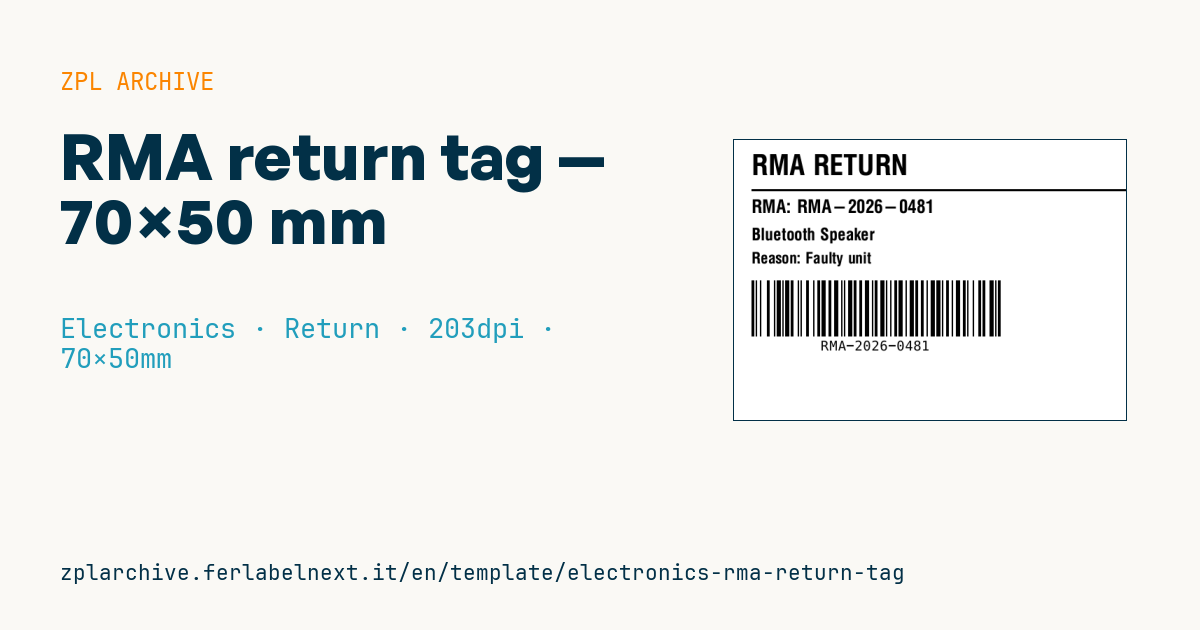
RMA return tag
70×50 mm @ 203 dpi. Title, separator, RMA number, product, return reason and a Code 128 barcode carrying the RMA number.
Placeholders
title_label— heading (e.g.RMA RETURN)rma_number— RMA numberproduct_name— returned productreason_label/reason— label and reason
When to use it
It is used in the reverse logistics of manufacturers, distributors and service centres: the tag is printed when a return is authorised and travels with the device from goods-in through diagnosis, repair or replacement. At receiving, the operator scans the RMA number and the system opens the right case, with no need to read papers tucked into the box.
It goes on the device or its bag, not only on the outer carton, which is often thrown away on opening. For a short cycle direct thermal paper is enough; if the unit sits in the lab for weeks or goes through cleaning, choose polypropylene in thermal transfer.
Standards and requirements
There is no specific standard for RMA labels: the requirements come from your process, namely a unique number, readable by the receiving scanner and linked to the product serial. If the return contains lithium batteries, the shipment still follows dangerous goods rules (for example UN3481 for batteries contained in equipment): check your carrier's specifications.
The barcode is Code 128: ^BCN,h,Y,N,N,A lets the printer pick subsets automatically, useful when the RMA number mixes letters and digits. Leave the quiet zones at both sides of the code.
Common mistakes
- Using the RMA tag instead of the carrier's shipping label: they are two different documents.
- Writing the return reason as free text instead of standard codes that can be analysed.
- Covering the device's original serial number plate with the tag.
- Reusing a closed RMA number for a new return from the same customer.
FAQ
What should an RMA number look like?
A unique identifier generated by the service system, ideally short and free of ambiguous characters such as O and 0. The link to customer and serial stays in the system.
Does returning a device with a battery need special labels?
Yes, lithium batteries require the transport marks for dangerous goods. The rules vary by carrier and mode of transport.
ZPL code
^XA
^PW559
^LL400
^CI28
^CF0,40^FO25,20^FD{{title_label}}^FS
^FO25,70^GB540,3,3^FS
^CF0,26^FO25,85^FDRMA: {{rma_number}}^FS
^CF0,24^FO25,125^FD{{product_name}}^FS
^CF0,22^FO25,160^FD{{reason_label}}: {{reason}}^FS
^BY2,2,80
^FO25,200^BCN,80,Y,N,N^FD{{rma_number}}^FS
^XZ- Industry: Electronics
- Category: Return
- DPI: 203
- Size: 70×50 mm
- Tags: Code 128, Electronics, RMA, Tracking
What this label contains
Barcodes
- Code 128
- High-density linear barcode that encodes the full ASCII set: ideal for tracking numbers, internal codes and alphanumeric IDs.
Elements
- 4 text fields
- 5 variable fields to fill in
- boxes and separator lines
Variable fields
| Field | Description | Example |
|---|---|---|
title_label | Heading | RMA RETURN |
rma_number | RMA number | RMA-2026-0481 |
product_name | Product | Bluetooth Speaker |
reason_label | Reason | Reason |
reason | Reason detail | Faulty unit |
Format and printing
70×50 mm (2.76×1.97″) at 203 dpi: 559×400 dots. Landscape.
Compatible Zebra printers
You need a printer with a 4″ printhead at 203 dpi, for example:
- Zebra ZD421 (desktop)
- Zebra ZD621 (desktop)
- Zebra GK420 (desktop)
- Zebra ZT231 (industrial)
- Zebra ZT411 (industrial)
- Zebra ZT610 (industrial)
- Zebra ZQ521 (mobile)
- Zebra ZQ630 (mobile)
Any Zebra printer with a wider printhead and the same resolution works too.
The code is written for 203 dpi: on a printer with a different resolution the label prints larger or smaller and needs rescaling.
How to use it
- Open “Customize placeholders” and enter your data in the variable fields listed above.
- Check the preview: it is rendered from the same ZPL code you will send to the printer.
- Download the .zpl file or copy the code and send it to the printer: with “Print” through Zebra Browser Print, or as a raw file to port 9100 if the printer is on the network.
- Load 70×50 mm labels and make sure the printer is set to 203 dpi. For a different size use “Duplicate & edit” and adapt the layout in the builder.
Edit it in the editor
To change the layout, use “Duplicate & edit”: the template opens in the online ZPL editor, where you modify it and save it to your account for free.
Related templates
- Instrument calibration tag (QR) — 40×30 mm 600 dpi · Electronics · Asset
- Cable/connector label (flag wrap) — 50×25 mm 300 dpi · Electronics · Commercial label
- ESD / voltage warning label — 50×30 mm 203 dpi · Electronics · Commercial label
- Battery rating label — 50×30 mm 203 dpi · Electronics · Commercial label
- DataMatrix PCB label — 25×25 mm 300 dpi · Electronics · Traceability
- Device manual/support QR — 40×40 mm 300 dpi · Electronics · Commercial label
- IT asset tag with QR — 50×25 mm 300 dpi · Electronics · Asset
- Warranty label — 60×40 mm 203 dpi · Electronics · Commercial label