Device manual/support QR — 40×40 mm
Label with a large QR code to the product manual or support page, device name and a scan prompt. Cuts down on paper manuals.
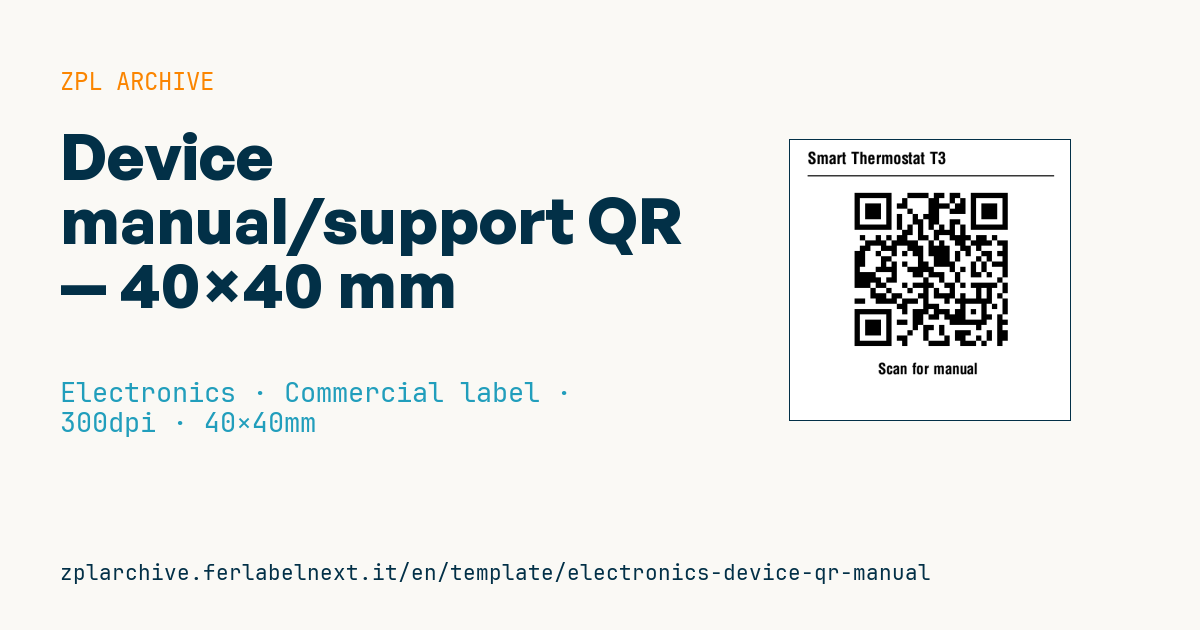
Device manual/support QR
40×40 mm @ 300 dpi. Product name, separator, a large central QR to the manual/support and a scan prompt.
Placeholders
-
product_name— device name -
manual_url— manual/support page URL -
scan_label— prompt (e.g.Scan for manual)
When to use it
Manufacturers and importers of small electronic devices (routers, sensors, accessories, consumer electronics) use it to send the user to the manual, drivers or an up-to-date support page. It goes on the back of the device, inside the box or on the outer carton, and must keep working for the whole product life, even years later.
On the device, use polyester in thermal transfer, resistant to rubbing and heat; on the carton or an insert, coated paper is enough, even direct thermal if the packaging stays protected.
Standards and requirements
The symbol is a QR Code under ISO/IEC 18004, with a quiet zone of 4 modules on every side. A QR does not automatically replace the instructions and safety warnings that product legislation requires on paper or in the language of the country of sale: check what the rules for your product say, for example the Radio Equipment Directive 2014/53/EU or the General Product Safety Regulation (EU) 2023/988.
In ZPL use ^BQN,2,m (model 2) and choose m so the symbol fills most of the area; ^FDQA, sets error correction Q and automatic mode.
Common mistakes
- Encoding a long URL with tracking parameters: the QR becomes dense and hard to read.
- Pointing to an address that will change with the next website redesign; use a stable path with a redirect you control.
- Printing the QR on a dark background or a glossy, curved surface.
- Using the same QR for every model, so users have to hunt for their own manual.
FAQ
Can a digital manual replace the printed one?
It depends on the product category and market: some safety information must still be supplied on paper. Check the applicable rules before dropping the printed manual.
How large should the QR be for a smartphone?
With a short URL, a symbol of about 20-25 mm per side reads on any phone at normal distance. Always test with several devices.
ZPL code
^XA
^PW472
^LL472
^CI28
^CF0,28^FO30,20^FD{{product_name}}^FS
^FO30,60^GB420,2,2^FS
^FO110,80^BQN,2,9^FDQA,{{manual_url}}^FS
^CF0,26^FO150,380^FD{{scan_label}}^FS
^XZ- Industry: Electronics
- Category: Commercial label
- DPI: 300
- Size: 40×40 mm
- Tags: Electronics, QR Code, Specifications
What this label contains
Barcodes
- QR Code
- 2D code for links, text and structured data, readable by any smartphone.
Elements
- 2 text fields
- 3 variable fields to fill in
- boxes and separator lines
Variable fields
| Field | Description | Example |
|---|---|---|
product_name | Product | Smart Thermostat T3 |
manual_url | Manual URL | https://support.example/t3 |
scan_label | Scan prompt | Scan for manual |
Format and printing
40×40 mm (1.57×1.57″) at 300 dpi: 472×472 dots. Square.
Compatible Zebra printers
You need a printer with a 2″ printhead at 300 dpi, for example:
- Zebra ZD411 (desktop)
- Zebra ZD611 (desktop)
Any Zebra printer with a wider printhead and the same resolution works too.
The code is written for 300 dpi: on a printer with a different resolution the label prints larger or smaller and needs rescaling.
How to use it
- Open “Customize placeholders” and enter your data in the variable fields listed above.
- Check the preview: it is rendered from the same ZPL code you will send to the printer.
- Download the .zpl file or copy the code and send it to the printer: with “Print” through Zebra Browser Print, or as a raw file to port 9100 if the printer is on the network.
- Load 40×40 mm labels and make sure the printer is set to 300 dpi. For a different size use “Duplicate & edit” and adapt the layout in the builder.
Edit it in the editor
To change the layout, use “Duplicate & edit”: the template opens in the online ZPL editor, where you modify it and save it to your account for free.
Related templates
- Instrument calibration tag (QR) — 40×30 mm 600 dpi · Electronics · Asset
- Cable/connector label (flag wrap) — 50×25 mm 300 dpi · Electronics · Commercial label
- ESD / voltage warning label — 50×30 mm 203 dpi · Electronics · Commercial label
- Battery rating label — 50×30 mm 203 dpi · Electronics · Commercial label
- DataMatrix PCB label — 25×25 mm 300 dpi · Electronics · Traceability
- RMA return tag — 70×50 mm 203 dpi · Electronics · Return
- Warranty label — 60×40 mm 203 dpi · Electronics · Commercial label
- IT asset tag with QR — 50×25 mm 300 dpi · Electronics · Asset