Cable/connector label (flag wrap) — 50×25 mm
Flag-style label for network cables: two mirrored halves (wrap around the cable) with cable ID, location and VLAN.
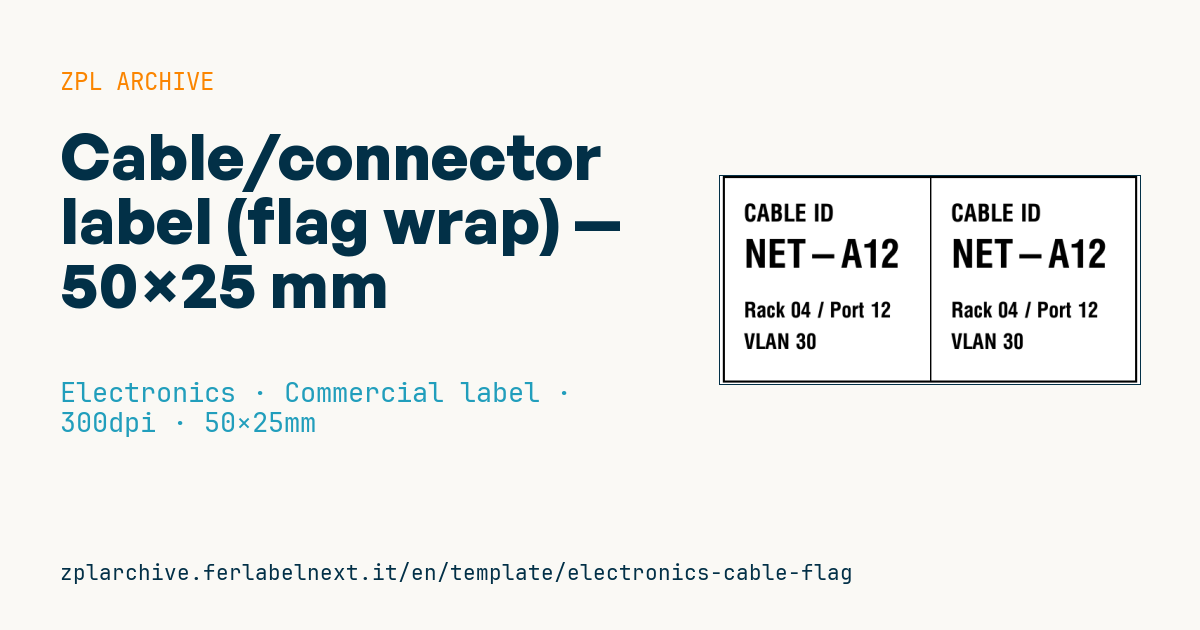
Cable/connector label (flag wrap)
50×25 mm @ 300 dpi. Flag-style label: the two identical halves, split by the center line, wrap around the cable and meet, so the ID stays readable from both sides. For structured network cabling.
Placeholders
cable_id— cable identifierlocation— rack/portvlan— VLAN
When to use it
Structured cabling installers and IT teams in data centres and server rooms use it to identify patch cords and horizontal copper or fibre runs. The flag sticks out from the cable and stays readable even when connectors sit side by side in a high-density patch panel, where a spiral wrap label would disappear.
Typical stock is flexible vinyl or polyester with a resin or wax-resin ribbon in thermal transfer: the label gets folded, handled during moves and sits in warm environments for years. On very thin cables, choose a thinner material or the flag tends to open up.
Standards and requirements
The reference for telecommunications infrastructure administration is the ANSI/TIA-606 series (internationally also ISO/IEC 14763-2), which calls for unique identifiers that stay consistent between cable, patch panel port and documentation. The actual coding scheme is set by the project or the customer: check which revision and format the specification requires.
In ZPL both halves carry the same content: if you change the layout, recalculate the position of the second half relative to the centre line and check ^PW and ^LL on the real label.
Common mistakes
- Labelling only one end of the cable: the ID belongs on both ends.
- Picking a flag too short for the cable diameter, so the halves do not line up and the text is offset.
- Placing the flag so close to the connector that it blocks adjacent ports.
- Using the VLAN as the only identifier: VLANs change, the cable ID should not.
FAQ
How far from the connector should the label go?
Close enough to be seen next to the port, but without blocking the connector latch or neighbouring ports. If the specification sets a distance, follow it.
Flag label or self-laminating wrap?
A self-laminating wrap is tougher but harder to see in crowded panels; a flag reads better but takes up space at the side.
ZPL code
^XA
^LL295
^CI28
^PW590
^FO0,0^GB590,295,3^FS
^FO295,0^GB2,295,2^FS
^CF0,34^FO30,40^FDCABLE ID^FS
^CF0,55^FO30,90^FD{{cable_id}}^FS
^CF0,30^FO30,180^FD{{location}}^FS
^FO30,225^FDVLAN {{vlan}}^FS
^CF0,34^FO325,40^FDCABLE ID^FS
^CF0,55^FO325,90^FD{{cable_id}}^FS
^CF0,30^FO325,180^FD{{location}}^FS
^FO325,225^FDVLAN {{vlan}}^FS
^XZ- Industry: Electronics
- Category: Commercial label
- DPI: 300
- Size: 50×25 mm
- Tags: Electronics, Location, Specifications
What this label contains
Barcodes
This label contains no barcodes: it is made of text and graphics.
Elements
- 8 text fields
- 3 variable fields to fill in
- boxes and separator lines
Variable fields
| Field | Description | Example |
|---|---|---|
cable_id | Cable ID | NET-A12 |
location | Location | Rack 04 / Port 12 |
vlan | VLAN | 30 |
Format and printing
50×25 mm (1.97×0.98″) at 300 dpi: 591×295 dots. Landscape.
Compatible Zebra printers
You need a printer with a 2″ printhead at 300 dpi, for example:
- Zebra ZD411 (desktop)
- Zebra ZD611 (desktop)
Any Zebra printer with a wider printhead and the same resolution works too.
The code is written for 300 dpi: on a printer with a different resolution the label prints larger or smaller and needs rescaling.
How to use it
- Open “Customize placeholders” and enter your data in the variable fields listed above.
- Check the preview: it is rendered from the same ZPL code you will send to the printer.
- Download the .zpl file or copy the code and send it to the printer: with “Print” through Zebra Browser Print, or as a raw file to port 9100 if the printer is on the network.
- Load 50×25 mm labels and make sure the printer is set to 300 dpi. For a different size use “Duplicate & edit” and adapt the layout in the builder.
Edit it in the editor
To change the layout, use “Duplicate & edit”: the template opens in the online ZPL editor, where you modify it and save it to your account for free.
Related templates
- Instrument calibration tag (QR) — 40×30 mm 600 dpi · Electronics · Asset
- ESD / voltage warning label — 50×30 mm 203 dpi · Electronics · Commercial label
- Battery rating label — 50×30 mm 203 dpi · Electronics · Commercial label
- DataMatrix PCB label — 25×25 mm 300 dpi · Electronics · Traceability
- Device manual/support QR — 40×40 mm 300 dpi · Electronics · Commercial label
- RMA return tag — 70×50 mm 203 dpi · Electronics · Return
- IT asset tag with QR — 50×25 mm 300 dpi · Electronics · Asset
- Warranty label — 60×40 mm 203 dpi · Electronics · Commercial label