IT asset tag with QR — 50×25 mm
IT inventory label: QR code to the asset record, identification code, department and contact. For tracking company PCs, monitors and peripherals.
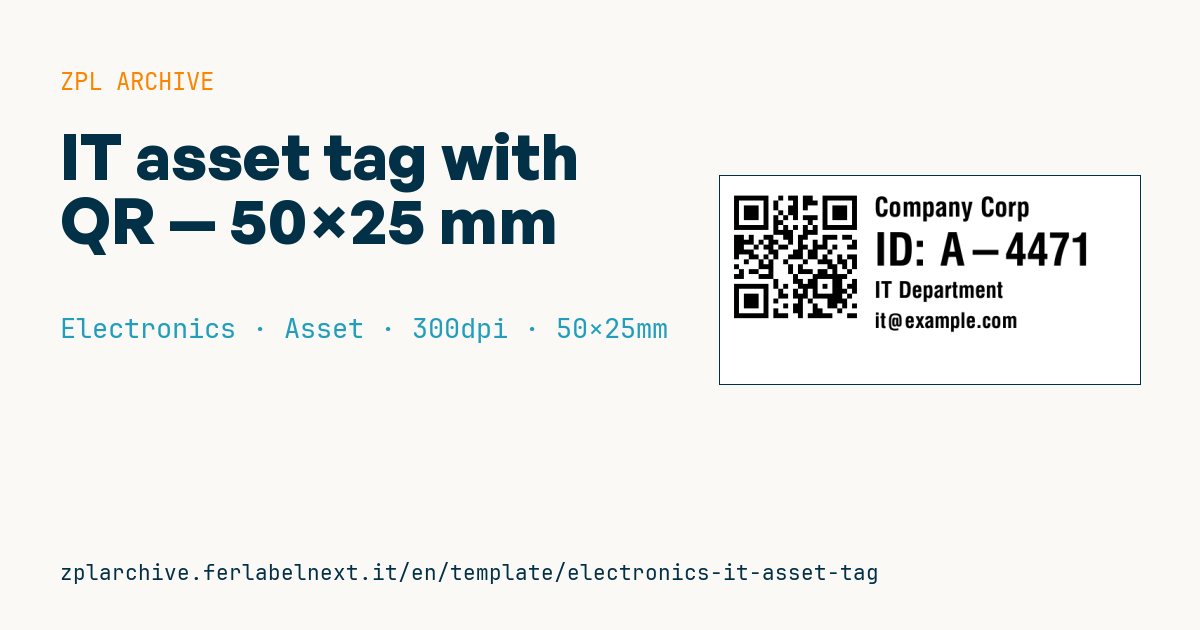
IT asset tag with QR
50×25 mm @ 300 dpi. QR on the left (link to the asset record), on the right company, asset ID, department and contact.
Placeholders
asset_url— asset record URLcompany— company/ownerasset_id— asset identification codedepartment— departmentcontact— IT contact (email/phone)
When to use it
IT departments, managed service providers and purchasing teams use it to register PCs, monitors, docking stations, printers and network gear, both on arrival and during periodic inventories. A technician scanning the QR goes straight to the asset record in the management tool and logs moves, assignments and repairs without typing the code.
The label stays on the device for its whole life and is touched and cleaned often: white or silver polyester with a resin ribbon in thermal transfer, optionally tamper-evident to discourage removal. Direct thermal paper fades within months under office lighting.
Standards and requirements
There is no mandatory labelling standard for asset tags: ISO/IEC 19770-1 describes IT asset management processes, while code format and content are up to you and your inventory software. The practical requirements are a unique, permanent ID, a QR readable by the device used for inventory, and durability matching the asset's life.
The QR follows ISO/IEC 18004. With ^BQN,2,m keep a 4-module quiet zone and a short URL, such as domain plus ID, so the symbol stays large even on a 25 mm tall label.
Common mistakes
- Using a technician's personal name and phone number as the contact instead of a helpdesk address.
- Encoding a URL reachable only from the internal network, useless for remote inventory.
- Sticking the tag on removable parts such as battery covers, or over ventilation grilles.
- Reusing the ID of a retired asset for a new device.
FAQ
QR or linear barcode for IT inventory?
A QR can be read by any smartphone and can hold the record URL; a Code 128 with just the ID suits dedicated laser scanners.
Where should the asset tag go on a laptop?
On a flat area visible with the lid closed or on the underside, away from vents and from manufacturer labels such as the serial number label.
ZPL code
^XA
^PW591
^LL295
^CI28
^FO20,18^BQN,2,7^FDLA,{{asset_url}}^FS
^CF0,38^FO220,30^FD{{company}}^FS
^CF0,64^FO220,80^FDID: {{asset_id}}^FS
^CF0,32^FO220,150^FD{{department}}^FS
^CF0,30^FO220,195^FD{{contact}}^FS
^XZ- Industry: Electronics
- Category: Asset
- DPI: 300
- Size: 50×25 mm
- Tags: Asset tag, Electronics, QR Code, Serial number
What this label contains
Barcodes
- QR Code
- 2D code for links, text and structured data, readable by any smartphone.
Elements
- 4 text fields
- 5 variable fields to fill in
Variable fields
| Field | Description | Example |
|---|---|---|
asset_url | Asset URL | https://it.example/asset/A-4471 |
company | Company | Company Corp |
asset_id | Asset ID | A-4471 |
department | Department | IT Department |
contact | Contact | it@example.com |
Format and printing
50×25 mm (1.97×0.98″) at 300 dpi: 591×295 dots. Landscape.
Compatible Zebra printers
You need a printer with a 2″ printhead at 300 dpi, for example:
- Zebra ZD411 (desktop)
- Zebra ZD611 (desktop)
Any Zebra printer with a wider printhead and the same resolution works too.
The code is written for 300 dpi: on a printer with a different resolution the label prints larger or smaller and needs rescaling.
How to use it
- Open “Customize placeholders” and enter your data in the variable fields listed above.
- Check the preview: it is rendered from the same ZPL code you will send to the printer.
- Download the .zpl file or copy the code and send it to the printer: with “Print” through Zebra Browser Print, or as a raw file to port 9100 if the printer is on the network.
- Load 50×25 mm labels and make sure the printer is set to 300 dpi. For a different size use “Duplicate & edit” and adapt the layout in the builder.
Edit it in the editor
To change the layout, use “Duplicate & edit”: the template opens in the online ZPL editor, where you modify it and save it to your account for free.
Related templates
- Instrument calibration tag (QR) — 40×30 mm 600 dpi · Electronics · Asset
- Cable/connector label (flag wrap) — 50×25 mm 300 dpi · Electronics · Commercial label
- ESD / voltage warning label — 50×30 mm 203 dpi · Electronics · Commercial label
- Battery rating label — 50×30 mm 203 dpi · Electronics · Commercial label
- DataMatrix PCB label — 25×25 mm 300 dpi · Electronics · Traceability
- RMA return tag — 70×50 mm 203 dpi · Electronics · Return
- Device manual/support QR — 40×40 mm 300 dpi · Electronics · Commercial label
- Warranty label — 60×40 mm 203 dpi · Electronics · Commercial label