Event admission ticket — 100×50 mm
General admission ticket for concerts and events: event name, type, date, doors time, venue, order, price and gate-access QR.
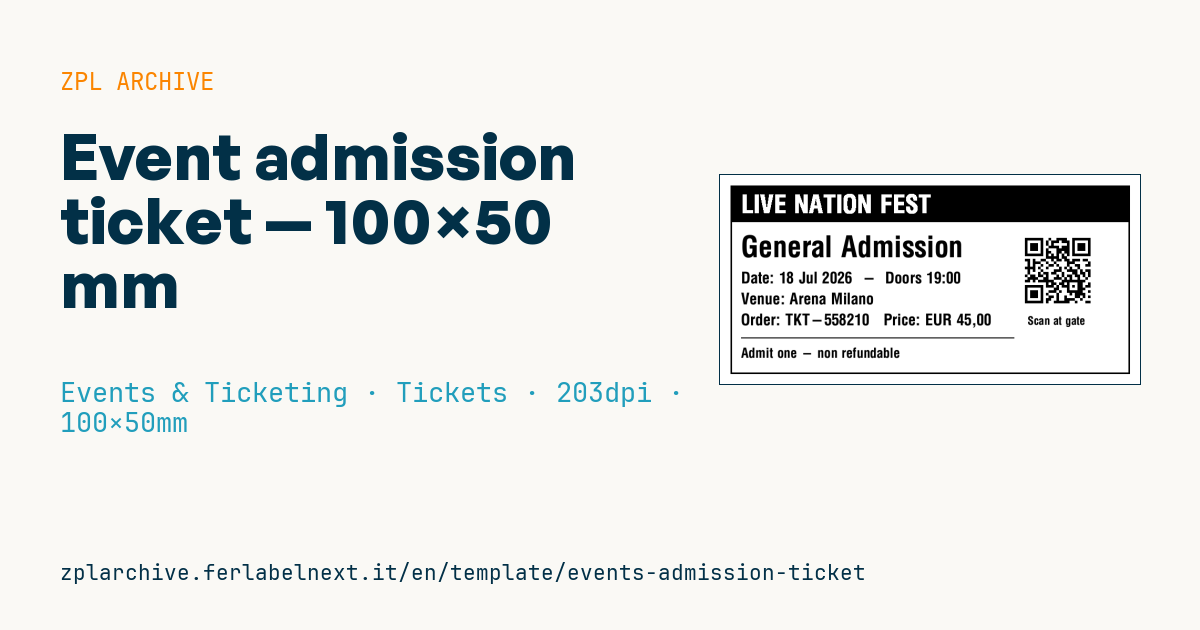
Event admission ticket
100×50 mm format for event and concert ticketing. The QR encodes the ticket URL for gate validation. Black banner with the event name for recognizability.
Placeholders
event_name— event name (banner)ticket_type— admission type (e.g.General Admission)event_date,doors_time— date and doors openingvenueorder_no— order numberprice— price (EUR)ticket_url— URL in the QR (gate validation)
When to use it
Promoters, clubs and concert organisers use it for general admission without assigned seats: it is printed at the box office on the night, at physical presale outlets or in batches for guest lists. At the gate, staff scan the QR with a phone or handheld linked to the ticketing system, which marks the ticket as used and blocks a second entry with the same code.
The usual media is direct thermal ticket stock, often with a black mark for registration. It only has to last until the show, but must survive pockets, light rain and dim entrance lighting, with the QR still readable after a fold.
Standards and requirements
QR is defined by ISO/IEC 18004, and 2D print quality is graded under ISO/IEC 15415. There is no single standard for event ticket content: the practical requirements are a unique, unpredictable code and reliable close-range scanning. Tax rules for admission tickets vary by country, so check with your ticketing provider what must appear on the ticket.
In ZPL, use ^BQN,2, with a magnification of at least 4-5 at 203 dpi and a 4-module quiet zone. With black-mark stock set ^MNM; for venue names with accents add ^CI28.
Common mistakes
- Encoding a URL with sequential numbers: anyone who sees one ticket can guess the rest. Use a random token.
- Placing the black banner so close to the QR that it eats the quiet zone.
- Reprinting a ticket without voiding the previous code.
- Ignoring printhead wear: vertical white lines make the QR unreadable.
FAQ
Can a ticket QR code be photocopied?
Yes. The protection lies in access control: each code is accepted once and any second scan is rejected.
Should the QR contain a URL or a plain code?
A URL lets the holder open the ticket on a phone, while a short code keeps the QR smaller and easier to scan. Choose based on your validation software.
ZPL code
^XA
^LL400
^CI28
^PW800
^FO20,20^GB760,360,3^FS
^FO20,20^GB760,70,70^FS
^CF0,48^FO40,37^FR^FD{{event_name}}^FS
^CF0,56^FO40,115^FD{{ticket_type}}^FS
^CF0,30^FO40,185^FDDate: {{event_date}}  -  Doors {{doors_time}}^FS
^FO40,225^FDVenue: {{venue}}^FS
^FO40,265^FDOrder: {{order_no}}   Price: {{price}}^FS
^FO40,310^GB520,2,2^FS
^CF0,26^FO40,330^FDAdmit one - non refundable^FS
^FO580,110^BQN,2,5^FDLA,{{ticket_url}}^FS
^CF0,22^FO585,270^FDScan at gate^FS
^XZ- Industry: Events & Ticketing
- Category: Tickets
- DPI: 203
- Size: 100×50 mm
- Tags: Access control, Event, QR Code, Ticket, Ticketing
What this label contains
Barcodes
- QR Code
- 2D code for links, text and structured data, readable by any smartphone.
Elements
- 7 text fields
- 8 variable fields to fill in
- boxes and separator lines
Variable fields
| Field | Description | Example |
|---|---|---|
event_name | Event | LIVE NATION FEST |
ticket_type | Ticket type | General Admission |
event_date | Date | 18 Jul 2026 |
doors_time | Doors | 19:00 |
venue | Venue | Arena Milano |
order_no | Order | TKT-558210 |
price | Price | EUR 45,00 |
ticket_url | Ticket URL | https://tix.example/t/TKT-558210 |
Format and printing
100×50 mm (3.94×1.97″) at 203 dpi: 799×400 dots. Landscape.
Compatible Zebra printers
You need a printer with a 4″ printhead at 203 dpi, for example:
- Zebra ZD421 (desktop)
- Zebra ZD621 (desktop)
- Zebra GK420 (desktop)
- Zebra ZT231 (industrial)
- Zebra ZT411 (industrial)
- Zebra ZT610 (industrial)
- Zebra ZQ521 (mobile)
- Zebra ZQ630 (mobile)
Any Zebra printer with a wider printhead and the same resolution works too.
The code is written for 203 dpi: on a printer with a different resolution the label prints larger or smaller and needs rescaling.
How to use it
- Open “Customize placeholders” and enter your data in the variable fields listed above.
- Check the preview: it is rendered from the same ZPL code you will send to the printer.
- Download the .zpl file or copy the code and send it to the printer: with “Print” through Zebra Browser Print, or as a raw file to port 9100 if the printer is on the network.
- Load 100×50 mm labels and make sure the printer is set to 203 dpi. For a different size use “Duplicate & edit” and adapt the layout in the builder.
Edit it in the editor
To change the layout, use “Duplicate & edit”: the template opens in the online ZPL editor, where you modify it and save it to your account for free.
Related templates
- Press pass — 100×70 mm 203 dpi · Events & Ticketing · Accreditation & access
- Boarding pass (PDF417) — 100×60 mm 203 dpi · Events & Ticketing · Tickets
- Concert seated ticket — 100×60 mm 203 dpi · Events & Ticketing · Seating & cloakroom
- Gift voucher — 85×54 mm CR80 300 dpi · Events & Ticketing · Vouchers & tokens
- Retail gift card with logo — 65×40 mm 300 dpi · Events & Ticketing · Vouchers & tokens
- Cashless festival wristband — 250×25 mm 203 dpi · Events & Ticketing · Accreditation & access
- Drink token — 40×40 mm 203 dpi · Events & Ticketing · Vouchers & tokens
- Stadium / sports ticket — 100×70 mm 203 dpi · Events & Ticketing · Seating & cloakroom