Stadium / sports ticket — 100×70 mm
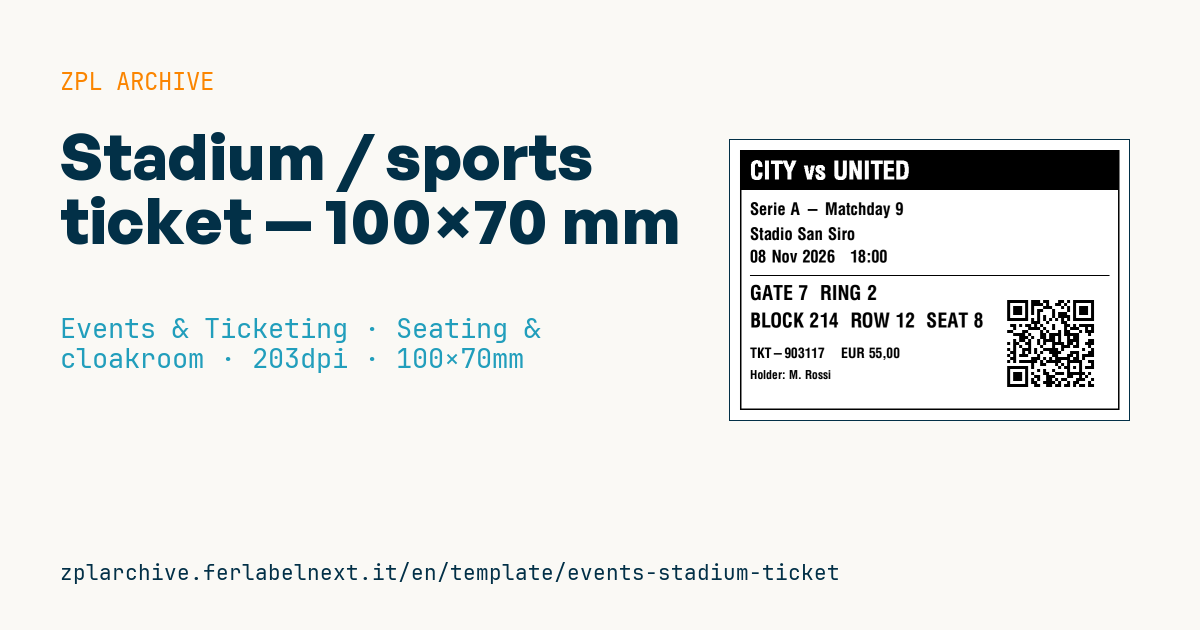
Ticket for matches and sporting events: match, competition, stadium, date, gate/ring/block/row/seat, holder and access QR.
Stadium / sports ticket
100×70 mm format for stadiums and sports arenas. Gate and block/row/seat are prominent to route the crowd; the QR encodes the named ticket URL for turnstile checks.
Placeholders
match— fixture (banner)competition,stadium,event_date,kickoffgate,ring,block,row,seatorder_no,price,holderticket_url— URL in the QR
When to use it
Clubs, leagues and stadium or arena operators use it for football, basketball, rugby and other sporting events with assigned seats. Fans are routed first to the right gate, then to the ring and block, so those details must be readable from a distance, even in the queue in front of the turnstiles. At the turnstile a fixed reader scans the QR, while stewards may compare the holder with an ID.
The ticket is printed at the box office, at retail outlets or in batches for season ticket holders and guests, on direct thermal ticket stock. It is often used outdoors in rain or cold, so the QR must stay readable even when the card is damp or slightly crumpled.
Standards and requirements
QR is defined by ISO/IEC 18004 and 2D print quality is graded under ISO/IEC 15415. There is no international standard for sports ticket layout, but in several countries and competitions football tickets must be named and checkable against an ID: check local law and league regulations.
For foreign names use ^CI28 so accented and special characters print correctly. At outdoor turnstiles a QR with error correction Q (^FDQA,) copes better with rain and scratches.
Common mistakes
- Printing the gate small or faint: fans end up at the wrong turnstile and create queues.
- Truncating the holder's name, making a check against the ID impossible.
- Not voiding the original ticket when issuing a duplicate or a name change.
- Placing the QR too close to the edge: in slot-type turnstile readers the edge falls outside the reading window.
FAQ
Why are stadium tickets issued in the holder's name?
In many competitions safety rules require knowing who occupies each seat and being able to check ID at the entrance. The exact rules depend on the country and the league.
What happens if the QR will not scan at the turnstile?
Stewards usually check the ticket with a handheld or by entering the order number. To reduce failures, test tickets on the actual turnstiles before match day.
ZPL code
^XA
^LL559
^CI28
^PW800
^FO20,20^GB760,520,3^FS
^FO20,20^GB760,80,80^FS
^CF0,50^FO40,42^FR^FD{{match}}^FS
^CF0,34^FO40,125^FD{{competition}}^FS
^FO40,175^FD{{stadium}}^FS
^FO40,220^FD{{event_date}}   {{kickoff}}^FS
^FO40,270^GB720,2,2^FS
^CF0,40^FO40,290^FDGATE {{gate}}  RING {{ring}}^FS
^CF0,40^FO40,345^FDBLOCK {{block}}  ROW {{row}}  SEAT {{seat}}^FS
^CF0,28^FO40,415^FD{{order_no}}    {{price}}^FS
^CF0,24^FO40,460^FDHolder: {{holder}}^FS
^FO555,310^BQN,2,6^FDQA,{{ticket_url}}^FS
^XZ- Industry: Events & Ticketing
- Category: Seating & cloakroom
- DPI: 203
- Size: 100×70 mm
- Tags: Event, QR Code, Seating, Sport, Ticket
What this label contains
Barcodes
- QR Code
- 2D code for links, text and structured data, readable by any smartphone.
Elements
- 8 text fields
- 14 variable fields to fill in
- boxes and separator lines
Variable fields
| Field | Description | Example |
|---|---|---|
match | Match | CITY vs UNITED |
competition | Competition | Serie A - Matchday 9 |
stadium | Stadium | Stadio San Siro |
event_date | Date | 08 Nov 2026 |
kickoff | Kick-off | 18:00 |
gate | Gate | 7 |
ring | Ring | 2 |
block | Block | 214 |
row | Row | 12 |
seat | Seat | 8 |
order_no | Order | TKT-903117 |
price | Price | EUR 55,00 |
holder | Holder | M. Rossi |
ticket_url | Ticket URL | https://tix.example/s/TKT-903117 |
Format and printing
100×70 mm (3.94×2.76″) at 203 dpi: 799×559 dots. Landscape.
Compatible Zebra printers
You need a printer with a 4″ printhead at 203 dpi, for example:
- Zebra ZD421 (desktop)
- Zebra ZD621 (desktop)
- Zebra GK420 (desktop)
- Zebra ZT231 (industrial)
- Zebra ZT411 (industrial)
- Zebra ZT610 (industrial)
- Zebra ZQ521 (mobile)
- Zebra ZQ630 (mobile)
Any Zebra printer with a wider printhead and the same resolution works too.
The code is written for 203 dpi: on a printer with a different resolution the label prints larger or smaller and needs rescaling.
How to use it
- Open “Customize placeholders” and enter your data in the variable fields listed above.
- Check the preview: it is rendered from the same ZPL code you will send to the printer.
- Download the .zpl file or copy the code and send it to the printer: with “Print” through Zebra Browser Print, or as a raw file to port 9100 if the printer is on the network.
- Load 100×70 mm labels and make sure the printer is set to 203 dpi. For a different size use “Duplicate & edit” and adapt the layout in the builder.
Edit it in the editor
To change the layout, use “Duplicate & edit”: the template opens in the online ZPL editor, where you modify it and save it to your account for free.
Related templates
- Press pass — 100×70 mm 203 dpi · Events & Ticketing · Accreditation & access
- Event admission ticket — 100×50 mm 203 dpi · Events & Ticketing · Tickets
- Boarding pass (PDF417) — 100×60 mm 203 dpi · Events & Ticketing · Tickets
- Concert seated ticket — 100×60 mm 203 dpi · Events & Ticketing · Seating & cloakroom
- Gift voucher — 85×54 mm CR80 300 dpi · Events & Ticketing · Vouchers & tokens
- Retail gift card with logo — 65×40 mm 300 dpi · Events & Ticketing · Vouchers & tokens
- Cashless festival wristband — 250×25 mm 203 dpi · Events & Ticketing · Accreditation & access
- Drink token — 40×40 mm 203 dpi · Events & Ticketing · Vouchers & tokens