Gift voucher — 85×54 mm CR80
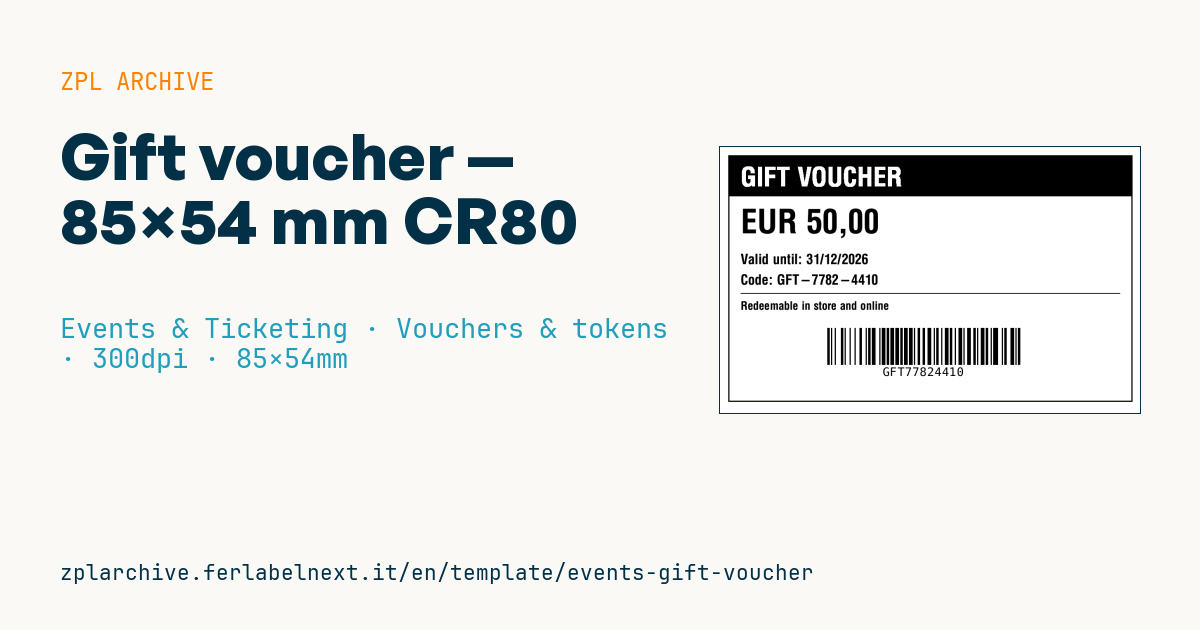
Gift voucher in card format: GIFT VOUCHER banner, amount in large type, validity, code and Code 128 for in-store or online redemption.
Gift voucher
Card format 85×54 mm CR80 at 300 dpi. Amount in large type, Code 128 with the redemption code. display_code is the human-readable version (with dashes) and barcode_code the clean encoded string.
Placeholders
amount— amount (e.g.EUR 50,00)valid_until— expirydisplay_code— shown code (e.g.GFT-7782-4410)barcode_code— code in the barcode (e.g.GFT77824410)
When to use it
Shops, restaurants, spas, theatres and event organisers use it to sell gift vouchers at the counter or to prepare them in batches for promotions and holiday campaigns. The customer brings the voucher to the till or enters the code online; the till scans the Code 128, checks the balance in the system and deducts the amount.
The credit-card format slips into a wallet and often goes inside a greeting card, so it may be around for months. On a 300 dpi label printer it is printed on CR80-size tags or labels: to last until expiry, thermal transfer on coated paper or synthetic is preferable to direct thermal.
Standards and requirements
CR80 corresponds to ID-1 in ISO/IEC 7810 (85.60×53.98 mm), the same size as payment cards. Code 128 is defined by ISO/IEC 15417 and print quality is graded under ISO/IEC 15416. Rules on expiry, refunds and remaining balance for gift vouchers depend on your country's law, so check them before setting the validity.
At 300 dpi, ^BY2 gives modules of about 0.17 mm, fine for a short code; if the till uses budget scanners, try ^BY3. PVC card printers normally use their own drivers and languages: this template is meant for label printers.
Common mistakes
- Letting
display_codeandbarcode_codedrift apart: someone typing the code online must find the same value the till scans. - Using ambiguous characters such as O and 0 or I and 1, which cause typing errors.
- Issuing sequential codes: anyone holding a voucher can try the neighbouring numbers.
- Printing in direct thermal a voucher that will spend months in a wallet.
FAQ
Can a gift voucher have an expiry date?
It depends on the country's law and your terms of sale. Always print the validity clearly on the voucher and check the limits set by local rules.
Can I print gift vouchers on a label printer?
Yes, using CR80-size tags or labels. For a rigid PVC voucher you need a card printer instead.
ZPL code
^XA
^LL638
^CI28
^PW1020
^FO20,20^GB980,600,3^FS
^FO20,20^GB980,100,100^FS
^CF0,64^FO50,48^FR^FDGIFT VOUCHER^FS
^CF0,80^FO50,150^FD{{amount}}^FS
^CF0,34^FO50,260^FDValid until: {{valid_until}}^FS
^FO50,310^FDCode: {{display_code}}^FS
^FO50,355^GB920,2,2^FS
^CF0,28^FO50,375^FDRedeemable in store and online^FS
^BY3,2,90^FO260,440^BCN,90,Y,N,N^FD{{barcode_code}}^FS
^XZ- Industry: Events & Ticketing
- Category: Vouchers & tokens
- DPI: 300
- Size: 85×54 mm
- Tags: Code 128, Event, Gift card, Ticketing, Voucher
What this label contains
Barcodes
- Code 128
- High-density linear barcode that encodes the full ASCII set: ideal for tracking numbers, internal codes and alphanumeric IDs.
Elements
- 5 text fields
- 4 variable fields to fill in
- boxes and separator lines
Variable fields
| Field | Description | Example |
|---|---|---|
amount | Amount | EUR 50,00 |
valid_until | Valid until | 31/12/2026 |
display_code | Code | GFT-7782-4410 |
barcode_code | Barcode code | GFT77824410 |
Format and printing
85×54 mm (3.35×2.13″) at 300 dpi: 1004×638 dots. Landscape.
Compatible Zebra printers
You need a printer with a 4″ printhead at 300 dpi, for example:
- Zebra ZD421 (desktop)
- Zebra ZD621 (desktop)
- Zebra ZT231 (industrial)
- Zebra ZT411 (industrial)
- Zebra ZT610 (industrial)
Any Zebra printer with a wider printhead and the same resolution works too.
The code is written for 300 dpi: on a printer with a different resolution the label prints larger or smaller and needs rescaling.
How to use it
- Open “Customize placeholders” and enter your data in the variable fields listed above.
- Check the preview: it is rendered from the same ZPL code you will send to the printer.
- Download the .zpl file or copy the code and send it to the printer: with “Print” through Zebra Browser Print, or as a raw file to port 9100 if the printer is on the network.
- Load 85×54 mm labels and make sure the printer is set to 300 dpi. For a different size use “Duplicate & edit” and adapt the layout in the builder.
Edit it in the editor
To change the layout, use “Duplicate & edit”: the template opens in the online ZPL editor, where you modify it and save it to your account for free.
Related templates
- Press pass — 100×70 mm 203 dpi · Events & Ticketing · Accreditation & access
- Event admission ticket — 100×50 mm 203 dpi · Events & Ticketing · Tickets
- Boarding pass (PDF417) — 100×60 mm 203 dpi · Events & Ticketing · Tickets
- Concert seated ticket — 100×60 mm 203 dpi · Events & Ticketing · Seating & cloakroom
- Retail gift card with logo — 65×40 mm 300 dpi · Events & Ticketing · Vouchers & tokens
- Cashless festival wristband — 250×25 mm 203 dpi · Events & Ticketing · Accreditation & access
- Drink token — 40×40 mm 203 dpi · Events & Ticketing · Vouchers & tokens
- Stadium / sports ticket — 100×70 mm 203 dpi · Events & Ticketing · Seating & cloakroom