Boutique price + brand — 60×40 mm
Elegant price label for boutique: large brand, product name, prominent price, material and country.
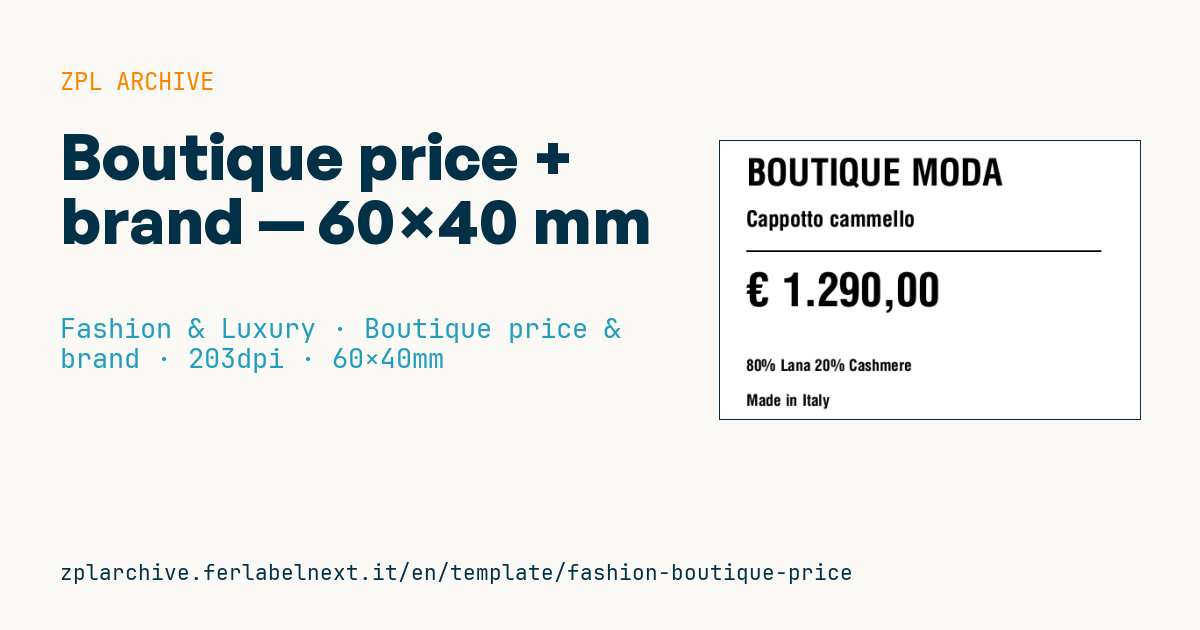
Boutique label
60×40 mm @ 203 dpi. Clean layout with generous spacing, designed for boutique/luxury retail where presentation matters as much as price.
Placeholders
-
brand,product_name -
currency,price -
material_short— main material -
country_origin— e.g.Made in Italy
When to use it
This label is for single-brand boutiques, high-end multi-brand stores and showrooms that price individual pieces or small runs: tickets hung on bags and accessories, stickers on boxes, cases or display items. The label is part of the presentation, so print by thermal transfer on matte coated paper or board for a solid, even black; direct thermal is fine only for temporary prices, as it looks greyer and glossier and darkens with heat and light.
The layout has no barcode: it is meant for stores where the till works from a SKU or item code shown elsewhere, for example on the inner tag or in the store system.
Standards and requirements
In the EU, Directive 98/6/EC on price indication requires the final consumer price, including VAT and taxes, to be shown. Since Directive (EU) 2019/2161 (Omnibus), when you announce a price reduction you must also show the lowest price applied in the previous 30 days. Country of origin is generally not mandatory on fashion items in the EU, but if you state it, it must be true and not misleading.
For the euro sign and accented letters use ^CI28 and send UTF-8 data, checking that the chosen font contains the glyph. For a more refined look you can download a TrueType font to the printer and call it with ^A@; for product names of varying length use ^FB with centred alignment and a single line.
Common mistakes
- Showing a price excluding VAT, which only works on trade price lists.
- Putting the sale price over the old one without stating the lowest price of the previous 30 days.
- Writing "Made in" based on where the item was designed rather than produced.
- Letting a long product name run off the edge or overlap the price.
FAQ
Does a boutique price have to include VAT?
Yes. For sales to consumers in the EU, the displayed price must be the final one, including VAT and other taxes.
How do I print the euro sign in ZPL?
Set ^CI28, send the text in UTF-8 and use a font that contains the symbol. Alternatively, print the currency code EUR.
ZPL code
^XA
^PW480
^LL320
^CI28
^CF0,42^FO30,20^FD{{brand}}^FS
^CF0,25^FO30,80^FD{{product_name}}^FS
^FO30,125^GB405,2,2^FS
^CF0,52^FO30,150^FD{{currency}} {{price}}^FS
^CF0,18
^FO30,250^FD{{material_short}}^FS
^FO30,290^FD{{country_origin}}^FS
^XZ- Industry: Fashion & Luxury
- Category: Boutique price & brand
- DPI: 203
- Size: 60×40 mm
- Tags: Boutique, Luxury
What this label contains
Barcodes
This label contains no barcodes: it is made of text and graphics.
Elements
- 5 text fields
- 6 variable fields to fill in
- boxes and separator lines
Variable fields
| Field | Description | Example |
|---|---|---|
brand | Brand | BOUTIQUE MODA |
product_name | Product | Cappotto cammello |
currency | Currency | € |
price | Price | 1.290,00 |
material_short | Material | 80% Lana 20% Cashmere |
country_origin | Origin | Made in Italy |
Format and printing
60×40 mm (2.36×1.57″) at 203 dpi: 480×320 dots. Landscape.
Compatible Zebra printers
You need a printer with a 4″ printhead at 203 dpi, for example:
- Zebra ZD421 (desktop)
- Zebra ZD621 (desktop)
- Zebra GK420 (desktop)
- Zebra ZT231 (industrial)
- Zebra ZT411 (industrial)
- Zebra ZT610 (industrial)
- Zebra ZQ521 (mobile)
- Zebra ZQ630 (mobile)
Any Zebra printer with a wider printhead and the same resolution works too.
The code is written for 203 dpi: on a printer with a different resolution the label prints larger or smaller and needs rescaling.
How to use it
- Open “Customize placeholders” and enter your data in the variable fields listed above.
- Check the preview: it is rendered from the same ZPL code you will send to the printer.
- Download the .zpl file or copy the code and send it to the printer: with “Print” through Zebra Browser Print, or as a raw file to port 9100 if the printer is on the network.
- Load 60×40 mm labels and make sure the printer is set to 203 dpi. For a different size use “Duplicate & edit” and adapt the layout in the builder.
Edit it in the editor
To change the layout, use “Duplicate & edit”: the template opens in the online ZPL editor, where you modify it and save it to your account for free.
Related templates
- Garment hangtag — 50×80 mm 203 dpi · Fashion & Luxury · Hangtag
- Premium hangtag with anti-counterfeit QR — 60×90 mm 300 dpi · Fashion & Luxury · Hangtag
- Swing ticket with logo — 45×80 mm 300 dpi · Fashion & Luxury · Hangtag
- Authenticity tag with logo — 50×50 mm 300 dpi · Fashion & Luxury · Anti-counterfeit
- Premium care label with logo — 40×60 mm 300 dpi · Fashion & Luxury · Care label
- Multilingual textile care label — 40×60 mm 203 dpi · Fashion & Luxury · Care label
- Jewelry certificate + serial — 50×30 mm 300 dpi · Fashion & Luxury · Jewelry & watches
- Shoe box label with logo — 70×50 mm 203 dpi · Fashion & Luxury · Boutique price & brand