Premium care label with logo — 40×60 mm
Premium care label with logo area, brand, composition, care instructions, size and country.
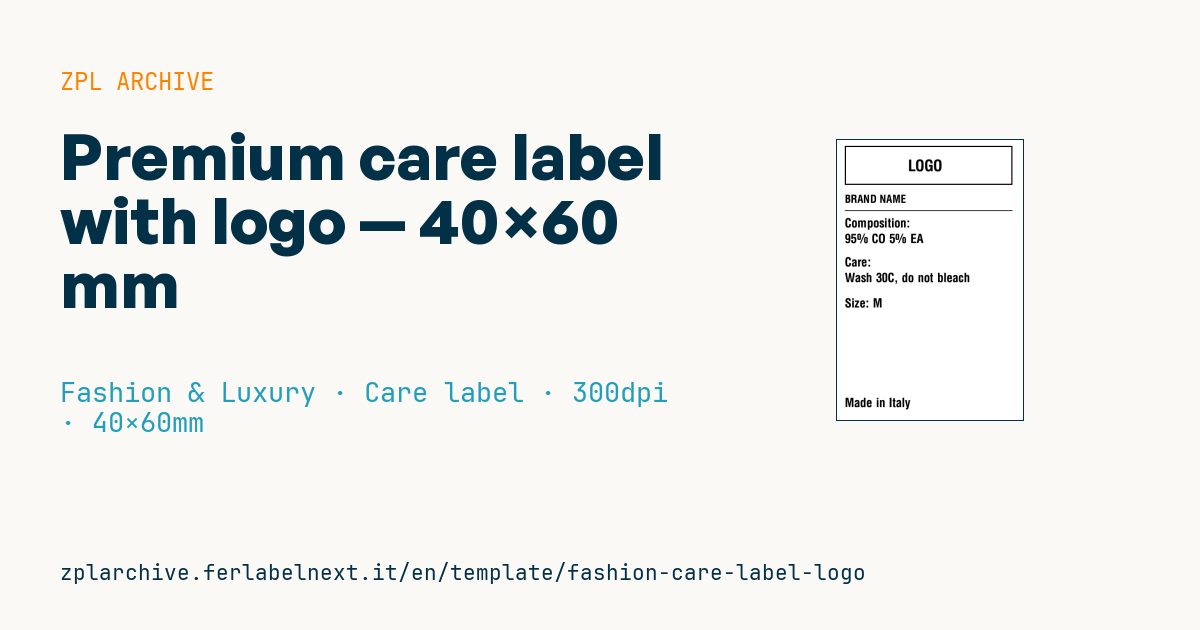
Premium care label with logo
40×60 mm @ 300 dpi. Care label sewn inside the garment. At the top the logo area: a placeholder frame with "LOGO" text, to be replaced with the real brand logo (^GF image).
Placeholders
brandcomposition— composition (e.g.95% CO 5% EA)care_short— abbreviated care instructionssizecountry— production country
The "LOGO" frame is a placeholder: replace it with your logo as a graphic (
^GF).
When to use it
The premium care label with logo is sewn inside the garment, usually into the side seam or under the neck label, and must stay legible for the whole life of the product, wash after wash. It is printed on textile tape (polyester satin, nylon or coated cotton) using a thermal transfer printer and a resin ribbon made for textiles: direct thermal and wax ribbons do not survive washing. It suits brands producing small runs that want their logo on the inner label without ordering woven labels.
Standards and requirements
In the EU, fibre composition is mandatory under Regulation (EU) No 1007/2011: you must use the fibre names listed in Annex I, in the language of the country of sale, so abbreviations such as CO or EA are generally not enough for consumers. Care instructions are voluntary in the EU; if you use symbols, the reference is ISO 3758, whose symbols are GINETEX registered trademarks. In the United States, care labels are mandatory under the FTC Care Labeling Rule.
On textile tape, lower the speed with ^PR and adjust darkness with ~SD or ^MD until wash tests give a stable result. The internal fonts do not contain care symbols, so you need graphics (^GF, or images stored in printer memory and recalled with ^XG or ^IM) or a downloaded font that includes them.
Common mistakes
- Using wax or wax-resin ribbon: the print flakes off after a few washes.
- Placing the logo or text in the millimetres reserved for the seam, where they get covered or pierced.
- Reproducing a logo with hairlines that fray on satin.
- Writing the composition with fibre abbreviations only.
FAQ
Can I print care labels on a Zebra printer?
Yes, with a thermal transfer model, suitable textile tape and a resin ribbon for fabrics. Before production, run a wash test at the temperature stated on the label.
Are care symbols mandatory?
Not in the EU, where fibre composition is the mandatory element. If you do give care instructions, they must be correct for the garment.
ZPL code
^XA
^PW472
^LL709
^CI28
^FO20,15^GB430,100,3^FS
^CF0,40^FO170,50^FD LOGO ^FS
^CF0,28^FO20,140^FD{{brand}}^FS
^FO20,180^GB430,2,2^FS
^CF0,32^FO20,200^FDComposition:^FS
^FO20,240^FD{{composition}}^FS
^FO20,300^FDCare:^FS
^FO20,340^FD{{care_short}}^FS
^FO20,405^FDSize: {{size}}^FS
^FO20,660^FDMade in {{country}}^FS
^XZ- Industry: Fashion & Luxury
- Category: Care label
- DPI: 300
- Size: 40×60 mm
- Tags: Logo, Made in Italy, Premium
What this label contains
Barcodes
This label contains no barcodes: it is made of text and graphics.
Elements
- 8 text fields
- 5 variable fields to fill in
- boxes and separator lines
Variable fields
| Field | Description | Example |
|---|---|---|
brand | Brand | BRAND NAME |
composition | Composition | 95% CO 5% EA |
care_short | Care | Wash 30C, do not bleach |
size | Size | M |
country | Country | Italy |
Format and printing
40×60 mm (1.57×2.36″) at 300 dpi: 472×709 dots. Portrait.
Compatible Zebra printers
You need a printer with a 2″ printhead at 300 dpi, for example:
- Zebra ZD411 (desktop)
- Zebra ZD611 (desktop)
Any Zebra printer with a wider printhead and the same resolution works too.
The code is written for 300 dpi: on a printer with a different resolution the label prints larger or smaller and needs rescaling.
How to use it
- Open “Customize placeholders” and enter your data in the variable fields listed above.
- Check the preview: it is rendered from the same ZPL code you will send to the printer.
- Download the .zpl file or copy the code and send it to the printer: with “Print” through Zebra Browser Print, or as a raw file to port 9100 if the printer is on the network.
- Load 40×60 mm labels and make sure the printer is set to 300 dpi. For a different size use “Duplicate & edit” and adapt the layout in the builder.
Edit it in the editor
To change the layout, use “Duplicate & edit”: the template opens in the online ZPL editor, where you modify it and save it to your account for free.
Related templates
- Garment hangtag — 50×80 mm 203 dpi · Fashion & Luxury · Hangtag
- Swing ticket with logo — 45×80 mm 300 dpi · Fashion & Luxury · Hangtag
- Premium hangtag with anti-counterfeit QR — 60×90 mm 300 dpi · Fashion & Luxury · Hangtag
- Boutique price + brand — 60×40 mm 203 dpi · Fashion & Luxury · Boutique price & brand
- Authenticity tag with logo — 50×50 mm 300 dpi · Fashion & Luxury · Anti-counterfeit
- Multilingual textile care label — 40×60 mm 203 dpi · Fashion & Luxury · Care label
- Shoe box label with logo — 70×50 mm 203 dpi · Fashion & Luxury · Boutique price & brand
- Jewelry certificate + serial — 50×30 mm 300 dpi · Fashion & Luxury · Jewelry & watches