Shoe box label with logo — 70×50 mm
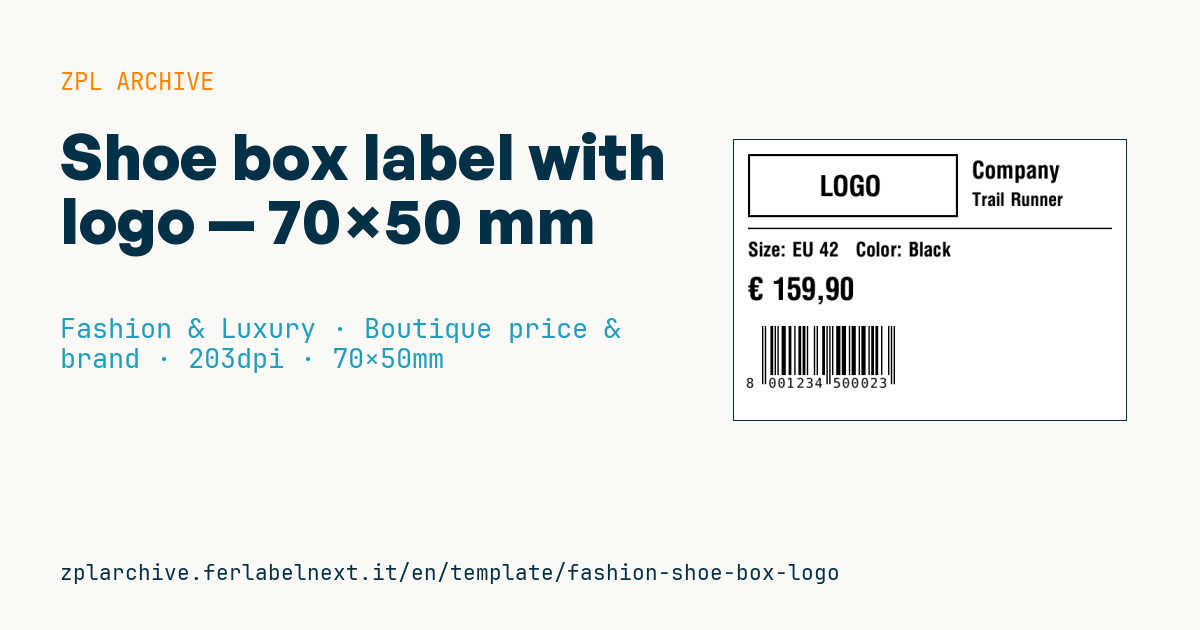
Shoe box label with logo area, brand, model, size, color, price and EAN13 barcode.
Shoe box label with logo
70×50 mm @ 203 dpi. Applied on the side of the shoe box. At the top the logo area: a placeholder frame with "LOGO" text, to be replaced with the real brand logo (^GF image).
Placeholders
brandmodelsizecolorcurrency,priceean13
The "LOGO" frame is a placeholder: replace it with your logo as a graphic (
^GF).
When to use it
The label goes on the end panel of the shoe box, the short side that stays visible when boxes are stacked in the warehouse or the stockroom. Footwear makers, distributors and stores use it for picking by size and for replenishment: staff need to find a black size 42 without opening boxes. For boxes that sit in stock for a few months direct thermal is enough; for long-term stock or hot warehouses, thermal transfer is safer.
Standards and requirements
GTIN-13 follows the GS1 General Specifications: every combination of model, colour and size has its own GTIN, and the same one must appear on the box and in the data sent to the retailer. For point-of-sale scanning, the nominal EAN-13 X-dimension is 0.33 mm, with a range from 80% to 200%. At 203 dpi ^BY2 gives 0.25 mm, below the minimum; ^BY3 gives 0.375 mm, about 114%. You need quiet zones of 11 modules on the left and 7 on the right. With ^BE you can send 12 digits and let the printer calculate the check digit.
Material labelling of the footwear itself (upper, lining, sole) under Directive 94/11/EC applies to the shoe: the box label does not replace it.
Common mistakes
- Using
^BY2at 203 dpi: the EAN-13 is undersized and many POS scanners reject it. - Shortening the bars to make room for the logo: GS1 advises against truncation for codes scanned at the till.
- Printing the size as small as the other data, when in the stockroom it has to be read from a distance.
- Leaving out the size system (EU, UK, US) when boxes travel between markets.
FAQ
Must the EAN on the box match the one on the shoe?
Yes, it identifies the same item in the same size and colour. Different codes between box and system cause inventory errors and returns.
Why won't the till scan my EAN-13?
The usual causes are a module that is too small, insufficient quiet zones, a wrong check digit or low contrast. Also check that the GTIN is in the store's item master.
ZPL code
^XA
^LL400
^CI28
^PW560
^FO20,20^GB300,90,3^FS
^CF0,40^FO110,50^FD LOGO ^FS
^CF0,34^FO340,30^FD{{brand}}^FS
^CF0,26^FO340,75^FD{{model}}^FS
^FO20,125^GB520,2,2^FS
^CF0,28^FO20,145^FDSize: {{size}}   Color: {{color}}^FS
^CF0,44^FO20,195^FD{{currency}} {{price}}^FS
^BY2,2,70
^FO40,265^BEN,70,Y,N^FD{{ean13}}^FS
^XZ- Industry: Fashion & Luxury
- Category: Boutique price & brand
- DPI: 203
- Size: 70×50 mm
- Tags: Boutique, EAN-13, Logo, Premium
What this label contains
Barcodes
- EAN-13
- 13-digit product code (GTIN-13) scanned at retail checkouts.
Elements
- 5 text fields
- 7 variable fields to fill in
- boxes and separator lines
Variable fields
| Field | Description | Example |
|---|---|---|
brand | Brand | Company |
model | Model | Trail Runner |
size | Size | EU 42 |
color | Color | Black |
currency | Currency | € |
price | Price | 159,90 |
ean13 | EAN13 | 8001234500023 |
Format and printing
70×50 mm (2.76×1.97″) at 203 dpi: 559×400 dots. Landscape.
Compatible Zebra printers
You need a printer with a 4″ printhead at 203 dpi, for example:
- Zebra ZD421 (desktop)
- Zebra ZD621 (desktop)
- Zebra GK420 (desktop)
- Zebra ZT231 (industrial)
- Zebra ZT411 (industrial)
- Zebra ZT610 (industrial)
- Zebra ZQ521 (mobile)
- Zebra ZQ630 (mobile)
Any Zebra printer with a wider printhead and the same resolution works too.
The code is written for 203 dpi: on a printer with a different resolution the label prints larger or smaller and needs rescaling.
How to use it
- Open “Customize placeholders” and enter your data in the variable fields listed above.
- Check the preview: it is rendered from the same ZPL code you will send to the printer.
- Download the .zpl file or copy the code and send it to the printer: with “Print” through Zebra Browser Print, or as a raw file to port 9100 if the printer is on the network.
- Load 70×50 mm labels and make sure the printer is set to 203 dpi. For a different size use “Duplicate & edit” and adapt the layout in the builder.
Edit it in the editor
To change the layout, use “Duplicate & edit”: the template opens in the online ZPL editor, where you modify it and save it to your account for free.
Related templates
- Garment hangtag — 50×80 mm 203 dpi · Fashion & Luxury · Hangtag
- Swing ticket with logo — 45×80 mm 300 dpi · Fashion & Luxury · Hangtag
- Premium hangtag with anti-counterfeit QR — 60×90 mm 300 dpi · Fashion & Luxury · Hangtag
- Boutique price + brand — 60×40 mm 203 dpi · Fashion & Luxury · Boutique price & brand
- Premium care label with logo — 40×60 mm 300 dpi · Fashion & Luxury · Care label
- Authenticity tag with logo — 50×50 mm 300 dpi · Fashion & Luxury · Anti-counterfeit
- Multilingual textile care label — 40×60 mm 203 dpi · Fashion & Luxury · Care label
- Jewelry certificate + serial — 50×30 mm 300 dpi · Fashion & Luxury · Jewelry & watches