Garment hangtag — 50×80 mm
Vertical fashion hangtag with brand, style, color, EU size, composition, price and SKU. Replaces RFID slot excluded from MVP.
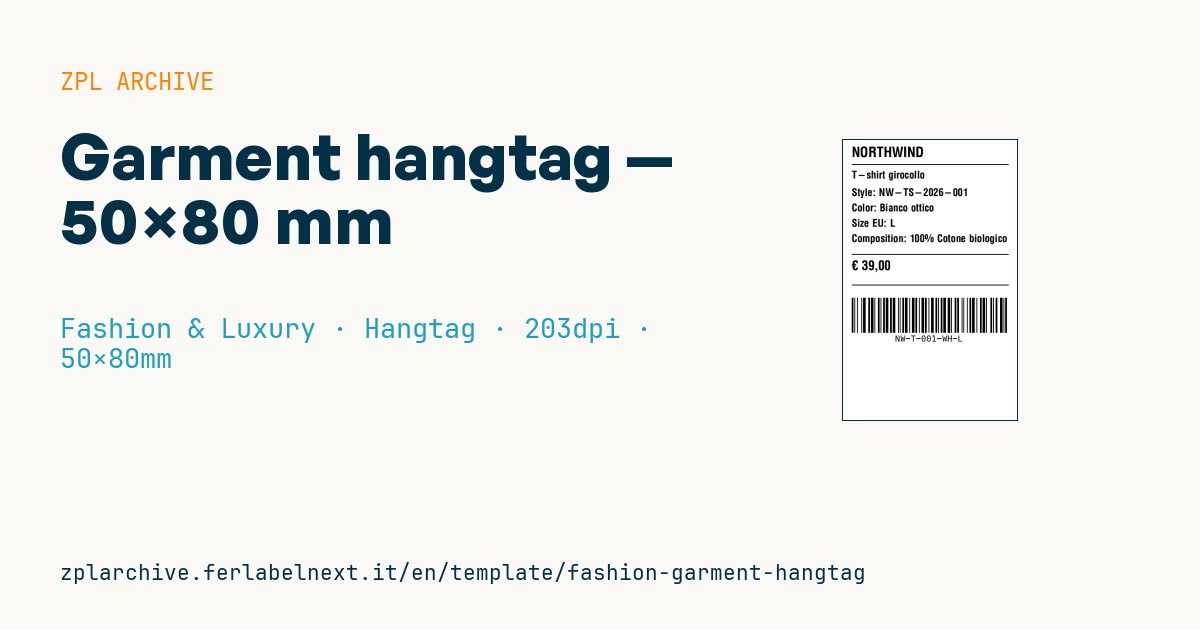
Garment hangtag
50×80 mm vertical format (standard hangtag size). Originally designed for RFID slot, MVP template uses Code128 only.
Placeholders
brand,product_namestyle_code— production model codecolor,size_eu— product variantcomposition— textile composition (e.g.60% Cotton 40% Polyester)currency,pricesku— unique variant SKU
When to use it
The vertical hangtag is attached with a plastic tag pin through the hole, usually during finishing or in the warehouse before shipping to stores, or in store when merchandise is re-ticketed. It is printed on tag stock: direct thermal if the garment stays in store for one season, thermal transfer if the tag must stay black and sharp for longer or the board is coated. It must identify the variant (style, colour, size) unambiguously at the till and in stock counts.
Standards and requirements
Code 128 with an internal SKU works in your own stores. If you sell to department stores or marketplaces, they will usually ask for a GTIN for each colour/size combination, as set out in the GS1 General Specifications: check your customer's requirements. In practice, the fibre composition required by Regulation (EU) No 1007/2011 goes on the sewn-in label; the hangtag repeats it but does not replace it, because it is removed after purchase. Sizes can follow EN 13402.
In ZPL use ^BCN,100,Y,N,N,A: mode A automatically picks the most compact subset. At 203 dpi ^BY2 gives a 0.25 mm module, suitable for till scanners. If the retailer requires RFID, you need an RFID printer and the ^RS and ^RF commands, with EPC encoding according to the GS1 EPC Tag Data Standard.
Common mistakes
- Encoding only the style code: different sizes and colours become indistinguishable at the till.
- Placing the barcode near the tag pin hole, where the punch or the fastener covers it.
- Printing the price at the factory when the garment ships to countries with different currencies or price lists.
- Leaving less than 10 modules of quiet zone on either side of the Code 128.
FAQ
Should a hangtag use Code 128 or EAN-13?
For internal use, Code 128 is more flexible because it accepts letters. For wholesale distribution you almost always need a GTIN in EAN-13, because the retailer's POS works with it.
What is the difference between a SKU and a GTIN?
A SKU is a code you define and it only works in your own system. A GTIN is assigned using a GS1 company prefix and is recognised by any retailer.
ZPL code
^XA
^PW400
^LL639
^CI28
^CF0,32^FO20,15^FD{{brand}}^FS
^FO20,55^GB360,2,2^FS
^CF0,24
^FO20,70^FD{{product_name}}^FS
^FO20,110^FDStyle: {{style_code}}^FS
^FO20,145^FDColor: {{color}}^FS
^FO20,180^FDSize EU: {{size_eu}}^FS
^FO20,215^FDComposition: {{composition}}^FS
^FO20,260^GB360,2,2^FS
^CF0,30^FO20,275^FD{{currency}} {{price}}^FS
^FO20,330^GB360,2,2^FS
^BY2,1,80
^FO20,360^BCN,80,Y,N,N^FD{{sku}}^FS
^XZ- Industry: Fashion & Luxury
- Category: Hangtag
- DPI: 203
- Size: 50×80 mm
- Tags: Code 128, EU size, Fabric composition, Hangtag
What this label contains
Barcodes
- Code 128
- High-density linear barcode that encodes the full ASCII set: ideal for tracking numbers, internal codes and alphanumeric IDs.
Elements
- 7 text fields
- 9 variable fields to fill in
- boxes and separator lines
Variable fields
| Field | Description | Example |
|---|---|---|
brand | Brand | NORTHWIND |
product_name | Product | T-shirt girocollo |
style_code | Style code | NW-TS-2026-001 |
color | Color | Bianco ottico |
size_eu | EU size | L |
composition | Composition | 100% Cotone biologico |
currency | Currency | € |
price | Price | 39,00 |
sku | SKU | NW-T-001-WH-L |
Format and printing
50×80 mm (1.97×3.15″) at 203 dpi: 400×639 dots. Portrait.
Compatible Zebra printers
You need a printer with a 2″ printhead at 203 dpi, for example:
- Zebra ZD411 (desktop)
- Zebra ZD611 (desktop)
- Zebra ZQ220 (mobile)
- Zebra ZQ310 (mobile)
Any Zebra printer with a wider printhead and the same resolution works too.
The code is written for 203 dpi: on a printer with a different resolution the label prints larger or smaller and needs rescaling.
How to use it
- Open “Customize placeholders” and enter your data in the variable fields listed above.
- Check the preview: it is rendered from the same ZPL code you will send to the printer.
- Download the .zpl file or copy the code and send it to the printer: with “Print” through Zebra Browser Print, or as a raw file to port 9100 if the printer is on the network.
- Load 50×80 mm labels and make sure the printer is set to 203 dpi. For a different size use “Duplicate & edit” and adapt the layout in the builder.
Edit it in the editor
To change the layout, use “Duplicate & edit”: the template opens in the online ZPL editor, where you modify it and save it to your account for free.
Related templates
- Premium hangtag with anti-counterfeit QR — 60×90 mm 300 dpi · Fashion & Luxury · Hangtag
- Swing ticket with logo — 45×80 mm 300 dpi · Fashion & Luxury · Hangtag
- Boutique price + brand — 60×40 mm 203 dpi · Fashion & Luxury · Boutique price & brand
- Premium care label with logo — 40×60 mm 300 dpi · Fashion & Luxury · Care label
- Authenticity tag with logo — 50×50 mm 300 dpi · Fashion & Luxury · Anti-counterfeit
- Multilingual textile care label — 40×60 mm 203 dpi · Fashion & Luxury · Care label
- Shoe box label with logo — 70×50 mm 203 dpi · Fashion & Luxury · Boutique price & brand
- Jewelry certificate + serial — 50×30 mm 300 dpi · Fashion & Luxury · Jewelry & watches