Swing ticket with logo — 45×80 mm
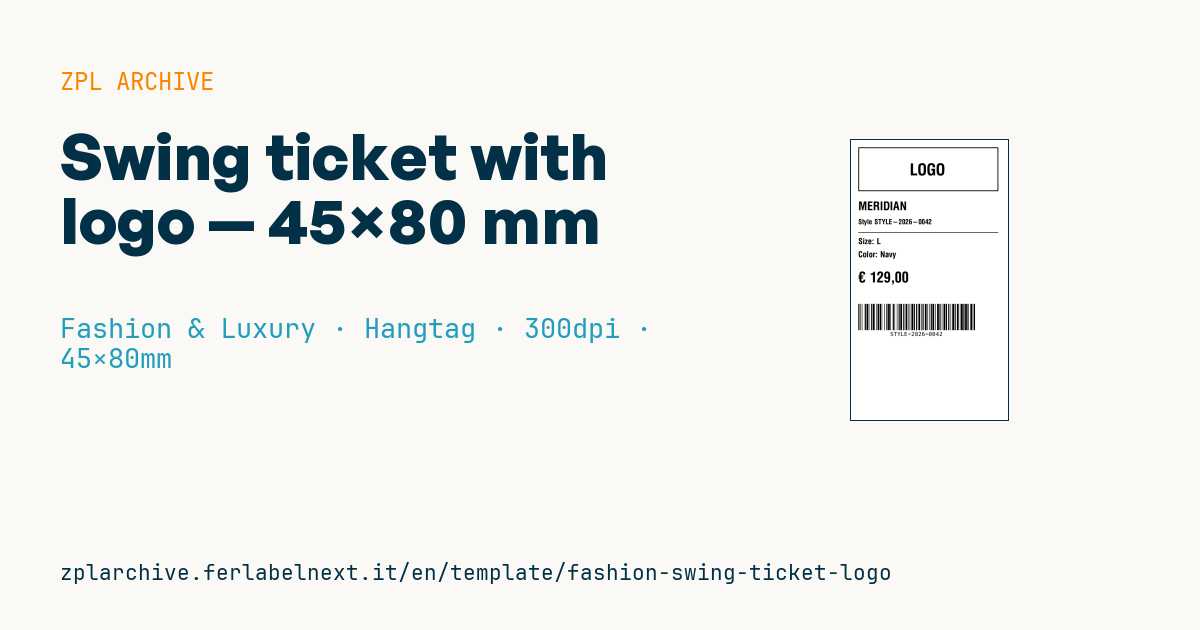
Vertical swing tag with logo area, brand, style code, size, color, price and Code 128 barcode.
Swing ticket with logo
45×80 mm @ 300 dpi. Vertical tag hung on the garment. At the top the logo area: a placeholder frame with "LOGO" text, to be replaced with the real brand logo (^GF image). The Code 128 encodes the style code for the till.
Placeholders
-
brand -
style_code -
size -
color -
currency,price -
barcode_code— data in the Code 128
The "LOGO" frame is a placeholder: replace it with your logo as a graphic (
^GF).
When to use it
A swing ticket is the narrow vertical tag hung on the garment with a string or fastener, typical of shirts, denim and ready-to-wear. Brands and stores use it when they want the logo at the top, a prominent price and a barcode scanned at the till with a handheld scanner. It is printed on thick board by thermal transfer, which withstands handling in fitting rooms and stays black all season; direct thermal board is cheaper but scuffs easily.
Standards and requirements
There is no specific layout standard for swing tickets: the technical references are ISO/IEC 15417 for the Code 128 symbology and ISO/IEC 15416 for print quality verification, if your customer requires a minimum grade. The practical constraint is width: at 300 dpi ^BY3 gives a module of about 0.25 mm, and on 45 mm, after 10-module quiet zones on each side, only around ten alphanumeric characters fit. If the code is numeric, automatic mode ^BCN,,Y,N,N,A uses subset C and halves the length. Alternatively, rotate the barcode with ^BCR and use the 80 mm height.
Prepare the logo at the right width for 300 dpi: 45 mm is about 531 dots, which you also set in ^PW.
Common mistakes
- Encoding only the style code when the till needs to deduct the variant: sizes and colours end up under the same item.
- Using codes too long for the ticket width, so the barcode touches the edges and loses its quiet zones.
- Punching the string hole too close to the logo or price.
- Shrinking the module to
^BY2to make the code fit: at 300 dpi it becomes about 0.17 mm, hard for many scanners.
FAQ
How many characters fit in a Code 128 on 45 mm?
With a 0.25 mm module, about ten alphanumeric characters, nearly twice as many if they are digits in even numbers. Beyond that, rotate the barcode or shorten the code.
Can a vertical barcode be scanned at the till?
Yes, handheld scanners read Code 128 in any orientation. What matters is that the quiet zones stay clear.
ZPL code
^XA
^PW531
^LL945
^CI28
^FO25,25^GB480,150,3^FS
^CF0,55^FO185,80^FD LOGO ^FS
^CF0,40^FO25,210^FD{{brand}}^FS
^CF0,24^FO25,270^FDStyle {{style_code}}^FS
^FO25,315^GB480,2,2^FS
^CF0,28^FO25,335^FDSize: {{size}}^FS
^FO25,380^FDColor: {{color}}^FS
^CF0,50^FO25,450^FD{{currency}} {{price}}^FS
^BY2,2,90
^FO25,560^BCN,90,Y,N,N^FD{{barcode_code}}^FS
^XZ- Industry: Fashion & Luxury
- Category: Hangtag
- DPI: 300
- Size: 45×80 mm
- Tags: Code 128, Logo, Premium, Price tag
What this label contains
Barcodes
- Code 128
- High-density linear barcode that encodes the full ASCII set: ideal for tracking numbers, internal codes and alphanumeric IDs.
Elements
- 6 text fields
- 7 variable fields to fill in
- boxes and separator lines
Variable fields
| Field | Description | Example |
|---|---|---|
brand | Brand | MERIDIAN |
style_code | Style code | STYLE-2026-0042 |
size | Size | L |
color | Color | Navy |
currency | Currency | € |
price | Price | 129,00 |
barcode_code | Barcode | STYLE-2026-0042 |
Format and printing
45×80 mm (1.77×3.15″) at 300 dpi: 531×945 dots. Portrait.
Compatible Zebra printers
You need a printer with a 2″ printhead at 300 dpi, for example:
- Zebra ZD411 (desktop)
- Zebra ZD611 (desktop)
Any Zebra printer with a wider printhead and the same resolution works too.
The code is written for 300 dpi: on a printer with a different resolution the label prints larger or smaller and needs rescaling.
How to use it
- Open “Customize placeholders” and enter your data in the variable fields listed above.
- Check the preview: it is rendered from the same ZPL code you will send to the printer.
- Download the .zpl file or copy the code and send it to the printer: with “Print” through Zebra Browser Print, or as a raw file to port 9100 if the printer is on the network.
- Load 45×80 mm labels and make sure the printer is set to 300 dpi. For a different size use “Duplicate & edit” and adapt the layout in the builder.
Edit it in the editor
To change the layout, use “Duplicate & edit”: the template opens in the online ZPL editor, where you modify it and save it to your account for free.
Related templates
- Garment hangtag — 50×80 mm 203 dpi · Fashion & Luxury · Hangtag
- Premium hangtag with anti-counterfeit QR — 60×90 mm 300 dpi · Fashion & Luxury · Hangtag
- Boutique price + brand — 60×40 mm 203 dpi · Fashion & Luxury · Boutique price & brand
- Authenticity tag with logo — 50×50 mm 300 dpi · Fashion & Luxury · Anti-counterfeit
- Premium care label with logo — 40×60 mm 300 dpi · Fashion & Luxury · Care label
- Multilingual textile care label — 40×60 mm 203 dpi · Fashion & Luxury · Care label
- Shoe box label with logo — 70×50 mm 203 dpi · Fashion & Luxury · Boutique price & brand
- Jewelry certificate + serial — 50×30 mm 300 dpi · Fashion & Luxury · Jewelry & watches