Bakery gift label with logo — 60×40 mm
Artisan bakery gift label with logo area, brand, product name, net weight, best-before date and allergens.
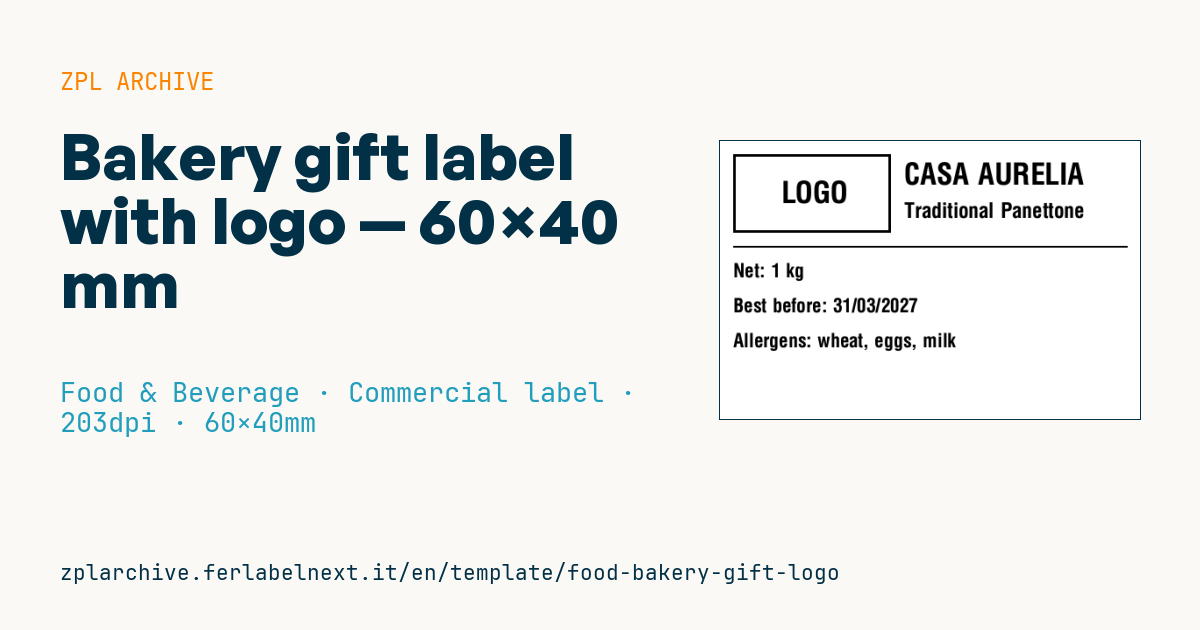
Bakery gift label with logo
60×40 mm @ 203 dpi (^PW480). Horizontal label for an artisan panettone or colomba gift cake. On the left the logo area: a placeholder frame with "LOGO" text, to be replaced with the real brand logo (^GF image).
Placeholders
brandproduct_name— product name (e.g.Traditional Panettone)net_weight— net weightbest_before— best-before dateallergens_short— main allergens (e.g.wheat, eggs, milk)
The "LOGO" frame is a placeholder: replace it with your logo as a graphic (
^GF).
When to use it
Pastry shops, artisan bakeries and confectionery workshops use it in the Christmas and Easter season, when panettone and colomba cakes are packed in polypropylene bags, gift boxes or paper wraps for the shop, online orders or corporate gifts. It has to survive weeks on the shelf and in transit.
For a premium look, use thermal transfer printing on gloss coated paper or a synthetic face stock with a resin or wax-resin ribbon: direct thermal paper tends to yellow under shop-window lighting and scratches easily. On plastic film, use an adhesive rated for PP.
Standards and requirements
For prepacked cakes, Regulation (EU) 1169/2011 requires, among other things, the name of the food, an ingredients list with allergens emphasised, net quantity, date of minimum durability, lot and the responsible food business operator. A short allergen field does not replace the ingredients list: if this is the only label on the pack, the mandatory particulars must appear elsewhere on the packaging. In Italy, the names panettone, pandoro and colomba are reserved by a ministerial decree that sets minimum recipe requirements. Goods wrapped on the premises for direct sale follow simplified national rules: check them.
For the real logo, convert the image to monochrome without fine dithering and store it with ~DG so you can recall it with ^XG instead of sending it with every print.
Common mistakes
- Using a logo with gradients or hairlines: at 203 dpi it turns into a blob or disappears.
- Listing allergens without emphasising them in the ingredients list on the pack.
- Printing on dark kraft stock: contrast drops and small text becomes unreadable.
- Labelling the date as "use by" instead of "best before".
FAQ
Can I use only this label on a packaged panettone?
Only if the other mandatory information is already on the pack or on a separate label. On its own it does not carry the full ingredients list or the operator details.
What resolution do I need for a clean logo?
At 203 dpi a simple flat-colour logo prints well; for brands with fine detail consider a 300 dpi printer.
ZPL code
^XA
^LL320
^CI28
^PW480
^FO15,15^GB180,90,3^FS
^CF0,34^FO60,46^FD LOGO ^FS
^CF0,34^FO210,25^FD{{brand}}^FS
^CF0,24^FO210,70^FD{{product_name}}^FS
^FO15,120^GB450,2,2^FS
^CF0,22^FO15,140^FDNet: {{net_weight}}^FS
^FO15,180^FDBest before: {{best_before}}^FS
^FO15,220^FDAllergens: {{allergens_short}}^FS
^XZ- Industry: Food & Beverage
- Category: Commercial label
- DPI: 203
- Size: 60×40 mm
- Tags: Christmas, Food, Gourmet, Logo
What this label contains
Barcodes
This label contains no barcodes: it is made of text and graphics.
Elements
- 6 text fields
- 5 variable fields to fill in
- boxes and separator lines
Variable fields
| Field | Description | Example |
|---|---|---|
brand | Brand | CASA AURELIA |
product_name | Product | Traditional Panettone |
net_weight | Net weight | 1 kg |
best_before | Best before | 31/03/2027 |
allergens_short | Allergens | wheat, eggs, milk |
Format and printing
60×40 mm (2.36×1.57″) at 203 dpi: 480×320 dots. Landscape.
Compatible Zebra printers
You need a printer with a 4″ printhead at 203 dpi, for example:
- Zebra ZD421 (desktop)
- Zebra ZD621 (desktop)
- Zebra GK420 (desktop)
- Zebra ZT231 (industrial)
- Zebra ZT411 (industrial)
- Zebra ZT610 (industrial)
- Zebra ZQ521 (mobile)
- Zebra ZQ630 (mobile)
Any Zebra printer with a wider printhead and the same resolution works too.
The code is written for 203 dpi: on a printer with a different resolution the label prints larger or smaller and needs rescaling.
How to use it
- Open “Customize placeholders” and enter your data in the variable fields listed above.
- Check the preview: it is rendered from the same ZPL code you will send to the printer.
- Download the .zpl file or copy the code and send it to the printer: with “Print” through Zebra Browser Print, or as a raw file to port 9100 if the printer is on the network.
- Load 60×40 mm labels and make sure the printer is set to 203 dpi. For a different size use “Duplicate & edit” and adapt the layout in the builder.
Edit it in the editor
To change the layout, use “Duplicate & edit”: the template opens in the online ZPL editor, where you modify it and save it to your account for free.
Related templates
- Wine gift label with logo — 50×90 mm 300 dpi · Food & Beverage · Commercial label
- Beverage bottle label — 40×80 mm 300 dpi · Food & Beverage · Commercial label
- Food label with allergens — 70×100 mm 300 dpi · Food & Beverage · Commercial label
- GS1 DataMatrix traceability — 30×30 mm 300 dpi · Food & Beverage · GS1 DataMatrix
- Cooking instructions label — 70×50 mm 203 dpi · Food & Beverage · Commercial label
- Price per kg label — 50×40 mm 203 dpi · Food & Beverage · Commercial label
- Artisan jam label with logo — 50×60 mm 203 dpi · Food & Beverage · Commercial label
- Food nutrition label — 70×100 mm 300 dpi · Food & Beverage · Nutritional label