Beverage bottle label — 40×80 mm
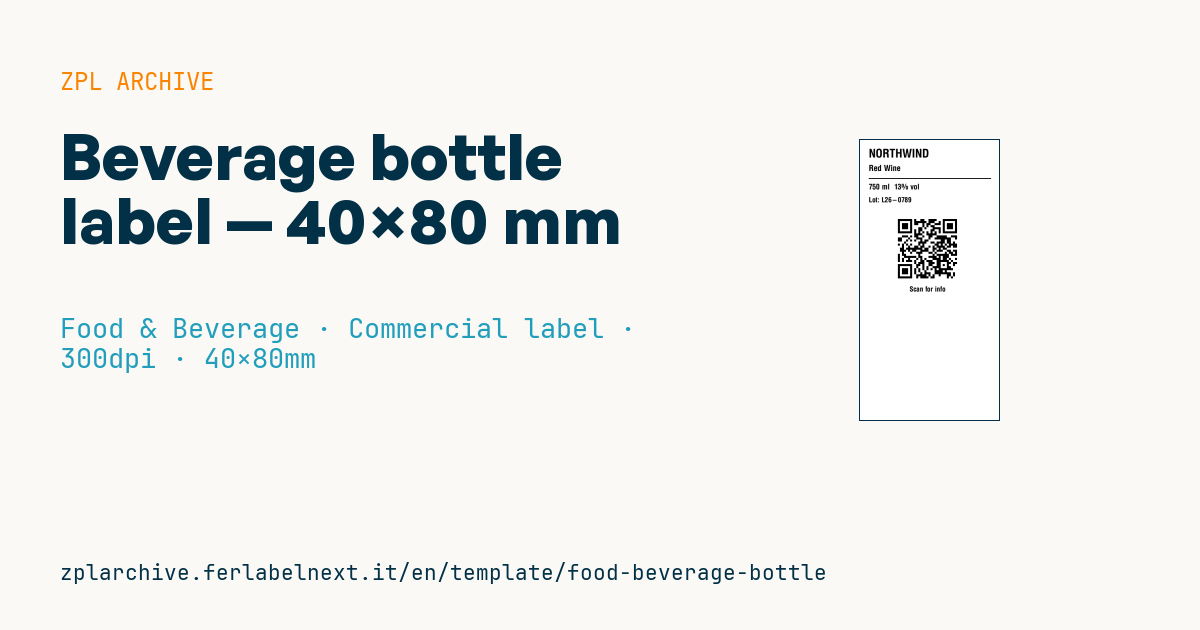
Vertical label for bottles: brand, product, volume, ABV, lot and a QR to the info/origin page. Tall narrow format, designed for the bottle neck.
Beverage bottle label
40×80 mm @ 300 dpi (vertical, tall and narrow). Brand, product, volume and ABV, lot, an info QR and a scan prompt.
Placeholders
brand— brandproduct_name— beverage namevolume— volume (e.g.750 ml)abv— ABV (e.g.13% vol)lot— lotinfo_url— info/origin URLscan_label— prompt (e.g.Scan for info)
When to use it
Craft breweries, small wineries, distilleries, olive oil mills and producers of juices and syrups use it as a neck label or secondary label for short runs, limited editions and trade-fair samples. The QR code leads to a page with origin, pairings, technical sheets or supply chain information.
Bottles move between the fridge, the ice bucket and the cellar, so you need a waterproof synthetic face stock (PP or PE), a resin or wax-resin ribbon and an adhesive rated for cold or wet glass. Direct thermal paper does not survive condensation and abrasion.
Standards and requirements
Regulation (EU) 1169/2011 requires the name of the food, the net quantity and, for beverages above 1.2% alcohol by volume, the actual alcoholic strength to appear in the same field of vision, with the strength given as % vol. Wine is also covered by the EU wine market rules: for wines produced from 8 December 2023, a nutrition declaration and ingredients list are required and may be provided through a QR code, as long as the energy value stays on the label and the linked page carries no marketing content; check the details with your trade body. Minimum figure heights for the nominal volume follow the prepackage rules.
At 300 dpi a QR code with a 4 or 5 dot module (^BQN,2,4 or ^BQN,2,5) scans reliably with a phone; leave a quiet zone of at least 4 modules.
Common mistakes
- Placing ABV and volume on the back while the product name is on the neck, outside the same field of vision.
- Encoding a long URL: the QR gets too dense for a 40 mm wide label.
- Using paper on bottles that go into the fridge or an ice bucket.
- Forgetting "contains sulphites" on wine and other drinks above the declaration threshold.
FAQ
Can a QR code replace the mandatory wine label?
Only for the ingredients and the full nutrition declaration; the energy value, allergens and the other mandatory particulars must stay printed on the bottle.
How do I write the alcoholic strength?
As the figure followed by % vol, for example 13% vol, optionally preceded by the word "alcohol".
ZPL code
^XA
^PW472
^LL945
^CI28
^CF0,40^FO30,30^FD{{brand}}^FS
^CF0,28^FO30,85^FD{{product_name}}^FS
^FO30,130^GB420,3,3^FS
^CF0,26^FO30,150^FD{{volume}}  {{abv}}^FS
^CF0,24^FO30,195^FDLot: {{lot}}^FS
^FO130,260^BQN,2,7^FDQA,{{info_url}}^FS
^CF0,24^FO170,500^FD{{scan_label}}^FS
^XZ- Industry: Food & Beverage
- Category: Commercial label
- DPI: 300
- Size: 40×80 mm
- Tags: Beverage, Food, Made in Italy, QR Code
What this label contains
Barcodes
- QR Code
- 2D code for links, text and structured data, readable by any smartphone.
Elements
- 5 text fields
- 7 variable fields to fill in
- boxes and separator lines
Variable fields
| Field | Description | Example |
|---|---|---|
brand | Brand | NORTHWIND |
product_name | Product | Red Wine |
volume | Volume | 750 ml |
abv | ABV | 13% vol |
lot | Lot | L26-0789 |
info_url | Info URL | https://wine.example/nw |
scan_label | Prompt | Scan for info |
Format and printing
40×80 mm (1.57×3.15″) at 300 dpi: 472×945 dots. Portrait.
Compatible Zebra printers
You need a printer with a 2″ printhead at 300 dpi, for example:
- Zebra ZD411 (desktop)
- Zebra ZD611 (desktop)
Any Zebra printer with a wider printhead and the same resolution works too.
The code is written for 300 dpi: on a printer with a different resolution the label prints larger or smaller and needs rescaling.
How to use it
- Open “Customize placeholders” and enter your data in the variable fields listed above.
- Check the preview: it is rendered from the same ZPL code you will send to the printer.
- Download the .zpl file or copy the code and send it to the printer: with “Print” through Zebra Browser Print, or as a raw file to port 9100 if the printer is on the network.
- Load 40×80 mm labels and make sure the printer is set to 300 dpi. For a different size use “Duplicate & edit” and adapt the layout in the builder.
Edit it in the editor
To change the layout, use “Duplicate & edit”: the template opens in the online ZPL editor, where you modify it and save it to your account for free.
Related templates
- Wine gift label with logo — 50×90 mm 300 dpi · Food & Beverage · Commercial label
- GS1 DataMatrix traceability — 30×30 mm 300 dpi · Food & Beverage · GS1 DataMatrix
- Cooking instructions label — 70×50 mm 203 dpi · Food & Beverage · Commercial label
- Price per kg label — 50×40 mm 203 dpi · Food & Beverage · Commercial label
- Food label with allergens — 70×100 mm 300 dpi · Food & Beverage · Commercial label
- Artisan jam label with logo — 50×60 mm 203 dpi · Food & Beverage · Commercial label
- Food nutrition label — 70×100 mm 300 dpi · Food & Beverage · Nutritional label
- Compact lot + expiry — 50×25 mm 300 dpi · Food & Beverage · Traceability