Price per kg label — 50×40 mm
Label for variable-weight products: name, weight, price per kg, total and an EAN13 barcode. For deli counter, fresh produce and butchery.
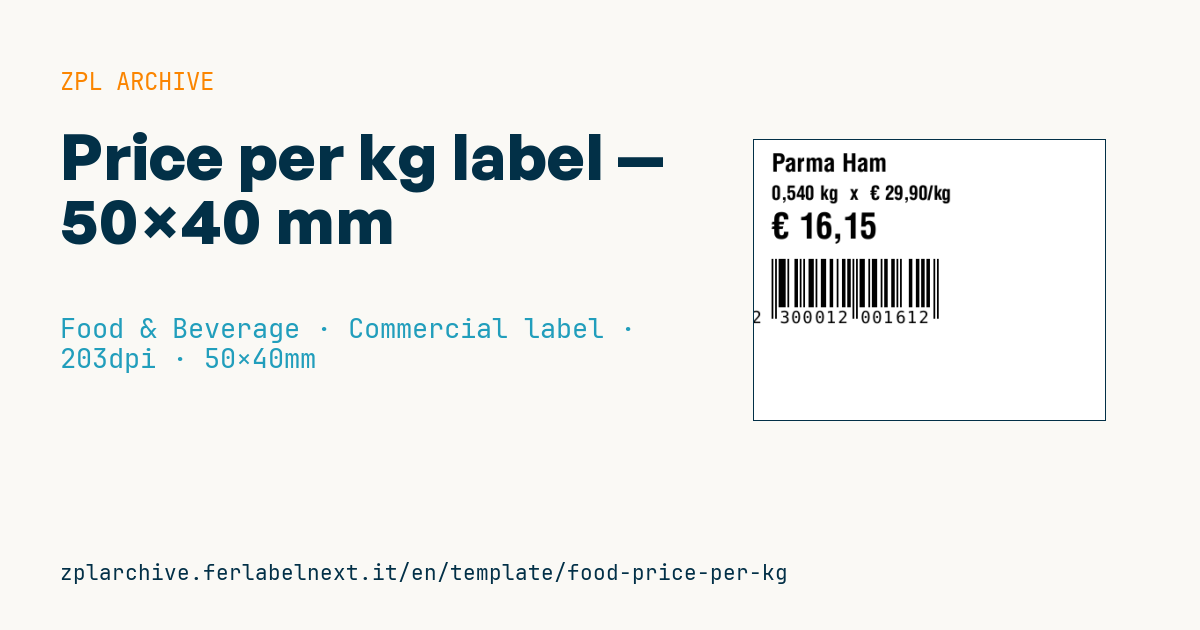
Price per kg label
50×40 mm @ 203 dpi. Name, weight × price/kg line, prominent total and an EAN13 barcode.
Placeholders
product_name— product nameweight— weight (e.g.0.540 kg)currency— currencyprice_per_kg— price per kgtotal_price— totalean13— EAN13 code
When to use it
This is the label of serviced counters and in-store preparation areas: deli, cold cuts, cheese, butchery, fish and produce packed in store. It is printed at the moment of weighing, usually by a label-printing scale or a printer linked to the scale, and applied to trays, paper or bags. The barcode is read at the checkout of the same store.
The product stays in the chiller for a few days, so direct thermal paper is the normal choice; use a top-coated grade that resists moisture and grease.
Standards and requirements
The unit price is required by Directive 98/6/EC, implemented in national consumer law. The weight must come from a legal-for-trade weighing instrument under Directive 2014/31/EU and must be net of the tray tare.
EAN-13 codes for variable-weight items use the restricted circulation prefixes 20 to 29: the structure (item code, weight or price, any internal check digit) is defined by your national GS1 organisation or by the POS system, so confirm it with your software supplier. In ZPL ^BE takes 12 digits and calculates the check digit. At 203 dpi ^BY2 gives a 0.25 mm module, below the GS1 minimum for point of sale: use ^BY3 and keep the side quiet zones clear.
Common mistakes
- Weighing with the wrong tare, so weight and total include the tray.
- Using an EAN structure different from the one set up in the POS: the price read does not match.
- Shortening the bars to make room for text: omnidirectional scanners struggle.
- Rounding the total differently from the way the till calculates it.
FAQ
Why do weighed product barcodes start with 2?
Prefixes 20 to 29 are reserved for restricted circulation: the code is only meaningful inside the company or under national rules and does not identify the product uniquely worldwide.
Can I use these codes on products sold to other stores?
No, variable-measure items traded between companies use assigned GTINs and symbols such as GS1-128 with the net weight AI.
ZPL code
^XA
^PW400
^LL320
^CI28
^CF0,28^FO20,15^FD{{product_name}}^FS
^CF0,22^FO20,52^FD{{weight}}  x  {{currency}} {{price_per_kg}}/kg^FS
^CF0,40^FO20,82^FD{{currency}} {{total_price}}^FS
^BY2,2,55
^FO20,135^BEN,55,Y,N^FD{{ean13}}^FS
^XZ- Industry: Food & Beverage
- Category: Commercial label
- DPI: 203
- Size: 50×40 mm
- Tags: EAN-13, Food, Price per kg, Weight
What this label contains
Barcodes
- EAN-13
- 13-digit product code (GTIN-13) scanned at retail checkouts.
Elements
- 3 text fields
- 6 variable fields to fill in
Variable fields
| Field | Description | Example |
|---|---|---|
product_name | Product | Parma Ham |
weight | Weight | 0,540 kg |
currency | Currency | € |
price_per_kg | Price/kg | 29,90 |
total_price | Total | 16,15 |
ean13 | EAN13 | 2300012001612 |
Format and printing
50×40 mm (1.97×1.57″) at 203 dpi: 400×320 dots. Landscape.
Compatible Zebra printers
You need a printer with a 2″ printhead at 203 dpi, for example:
- Zebra ZD411 (desktop)
- Zebra ZD611 (desktop)
- Zebra ZQ220 (mobile)
- Zebra ZQ310 (mobile)
Any Zebra printer with a wider printhead and the same resolution works too.
The code is written for 203 dpi: on a printer with a different resolution the label prints larger or smaller and needs rescaling.
How to use it
- Open “Customize placeholders” and enter your data in the variable fields listed above.
- Check the preview: it is rendered from the same ZPL code you will send to the printer.
- Download the .zpl file or copy the code and send it to the printer: with “Print” through Zebra Browser Print, or as a raw file to port 9100 if the printer is on the network.
- Load 50×40 mm labels and make sure the printer is set to 203 dpi. For a different size use “Duplicate & edit” and adapt the layout in the builder.
Edit it in the editor
To change the layout, use “Duplicate & edit”: the template opens in the online ZPL editor, where you modify it and save it to your account for free.
Related templates
- Wine gift label with logo — 50×90 mm 300 dpi · Food & Beverage · Commercial label
- Beverage bottle label — 40×80 mm 300 dpi · Food & Beverage · Commercial label
- Cooking instructions label — 70×50 mm 203 dpi · Food & Beverage · Commercial label
- Food label with allergens — 70×100 mm 300 dpi · Food & Beverage · Commercial label
- GS1 DataMatrix traceability — 30×30 mm 300 dpi · Food & Beverage · GS1 DataMatrix
- Food nutrition label — 70×100 mm 300 dpi · Food & Beverage · Nutritional label
- Compact lot + expiry — 50×25 mm 300 dpi · Food & Beverage · Traceability
- Best-before date label — 50×30 mm 203 dpi · Food & Beverage · Traceability