Best-before date label — 50×30 mm
Best-before label: product name, the date highlighted and the lot. For quick marking of packaged food products.
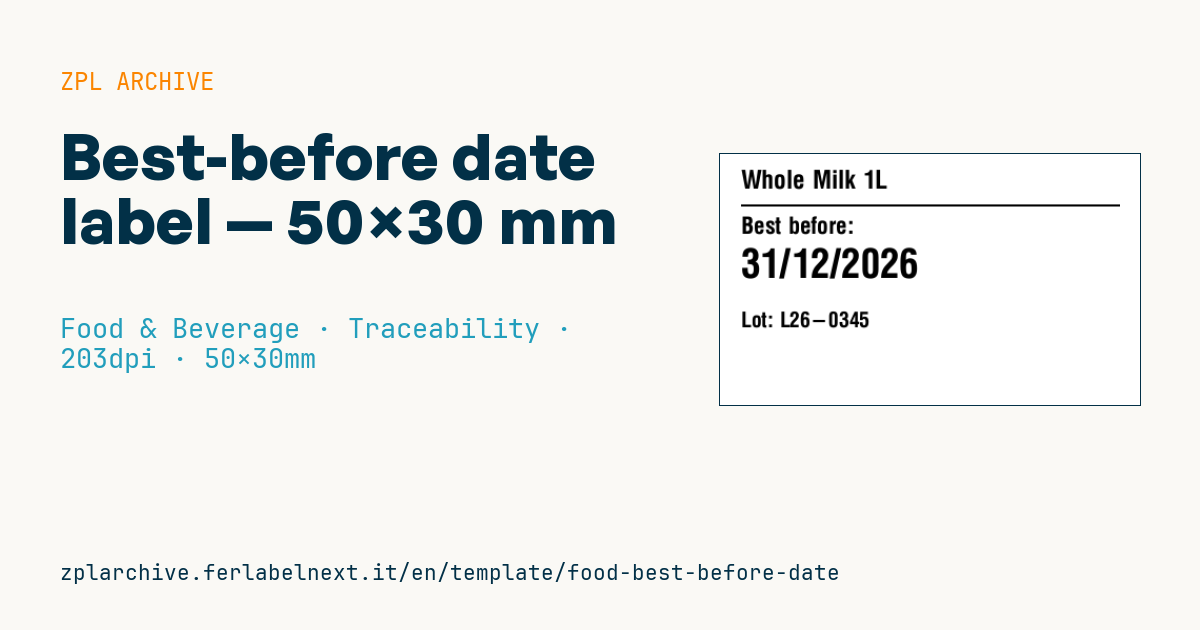
Best-before date label
50×30 mm @ 203 dpi. Name, separator, statement, the date in a large font and the lot.
Placeholders
product_name— product namebb_label— statement (e.g.Best before)bb_date— date (e.g.31/12/2026)lot— lot number
When to use it
It suits small producers, deli kitchens, coffee roasters and shops that pack their own biscuits, dry pasta, nuts or coffee and need to add the date and lot to pre-printed packaging, or to replace a poorly legible inkjet code. It is applied to bags, trays or boxes at the packing stage.
For products that keep a few weeks, top-coated direct thermal paper is fine; for shelf lives of several months or packs exposed to light, choose thermal transfer, because the date must stay readable until the very last day.
Standards and requirements
Regulation (EU) 1169/2011 uses two statements: "best before" (date of minimum durability, for stable products) and "use by" (for highly perishable foods from a microbiological point of view). For best before, "best before" is used when the date includes the day and "best before end" otherwise. Under Annex X, day and month are enough for products lasting under three months, month and year from three to eighteen months, and the year alone beyond eighteen months. The lot follows Directive 2011/91/EU and is preceded by the letter "L" where it cannot be told apart from other information.
If the statement is already printed on the pack with a reference such as "see label", this label may carry just the date. For accented characters in other languages use ^CI28 and send UTF-8 text.
Common mistakes
- Using "use by" on a stable dry product, or "best before" on a perishable fresh one.
- Writing the date in an ambiguous form (e.g.
03/04/26) on products exported to markets that read month first. - Covering an existing date when you are not the operator responsible for the product.
- Printing the date with low darkness to spare the printhead: raise it with
^MDor~SD.
FAQ
Can a product be sold after its best-before date?
EU law does not forbid it as long as the product is still safe and this is made clear; some countries add their own rules, so check the national ones. After a use-by date, by contrast, the food is deemed unsafe.
Can the date replace the lot number?
Yes: if the date shows at least the day and month and really identifies the production batch, the lot can be omitted.
ZPL code
^XA
^PW400
^LL240
^CI28
^CF0,24^FO20,15^FD{{product_name}}^FS
^FO20,48^GB360,2,2^FS
^CF0,22^FO20,60^FD{{bb_label}}:^FS
^CF0,38^FO20,90^FD{{bb_date}}^FS
^CF0,20^FO20,150^FDLot: {{lot}}^FS
^XZ- Industry: Food & Beverage
- Category: Traceability
- DPI: 203
- Size: 50×30 mm
- Tags: Best before, Expiry, Food, Lot
What this label contains
Barcodes
This label contains no barcodes: it is made of text and graphics.
Elements
- 4 text fields
- 4 variable fields to fill in
- boxes and separator lines
Variable fields
| Field | Description | Example |
|---|---|---|
product_name | Product | Whole Milk 1L |
bb_label | Label | Best before |
bb_date | Date | 31/12/2026 |
lot | Lot | L26-0345 |
Format and printing
50×30 mm (1.97×1.18″) at 203 dpi: 400×240 dots. Landscape.
Compatible Zebra printers
You need a printer with a 2″ printhead at 203 dpi, for example:
- Zebra ZD411 (desktop)
- Zebra ZD611 (desktop)
- Zebra ZQ220 (mobile)
- Zebra ZQ310 (mobile)
Any Zebra printer with a wider printhead and the same resolution works too.
The code is written for 203 dpi: on a printer with a different resolution the label prints larger or smaller and needs rescaling.
How to use it
- Open “Customize placeholders” and enter your data in the variable fields listed above.
- Check the preview: it is rendered from the same ZPL code you will send to the printer.
- Download the .zpl file or copy the code and send it to the printer: with “Print” through Zebra Browser Print, or as a raw file to port 9100 if the printer is on the network.
- Load 50×30 mm labels and make sure the printer is set to 203 dpi. For a different size use “Duplicate & edit” and adapt the layout in the builder.
Edit it in the editor
To change the layout, use “Duplicate & edit”: the template opens in the online ZPL editor, where you modify it and save it to your account for free.
Related templates
- Wine gift label with logo — 50×90 mm 300 dpi · Food & Beverage · Commercial label
- Beverage bottle label — 40×80 mm 300 dpi · Food & Beverage · Commercial label
- Food label with allergens — 70×100 mm 300 dpi · Food & Beverage · Commercial label
- Price per kg label — 50×40 mm 203 dpi · Food & Beverage · Commercial label
- GS1 DataMatrix traceability — 30×30 mm 300 dpi · Food & Beverage · GS1 DataMatrix
- Cooking instructions label — 70×50 mm 203 dpi · Food & Beverage · Commercial label
- Artisan jam label with logo — 50×60 mm 203 dpi · Food & Beverage · Commercial label
- Food nutrition label — 70×100 mm 300 dpi · Food & Beverage · Nutritional label