Wine gift label with logo — 50×90 mm
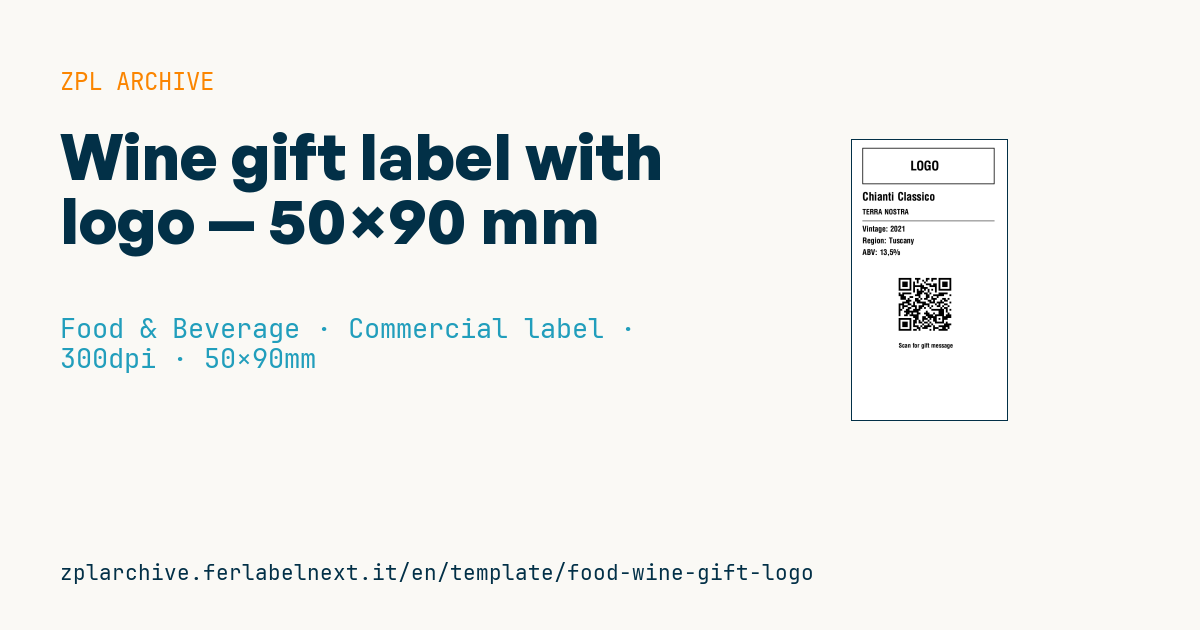
Wine gift bottle label with logo area, wine name, brand, vintage, region, ABV and gift-message QR.
Wine gift label with logo
50×90 mm @ 300 dpi (^PW600). Tall vertical label for a wine gift bottle. At the top the logo area: a placeholder frame with "LOGO" text, to be replaced with the real brand logo (^GF image). The QR links to the gift message.
Placeholders
wine_name— wine namebrand— winery/brandvintage— vintageregion— regionabv— alcohol by volume (e.g.13.5%)gift_url— URL in the QR (gift message)
The "LOGO" frame is a placeholder: replace it with your logo as a graphic (
^GF).
When to use it
Wineries, wine shops and companies use this tall label for personalised bottles: corporate gifts, weddings or Christmas boxes. It is usually applied as an extra or back label on a bottle that is already correctly labelled, or on the gift box; the QR leads to a greeting message or a video.
The bottle often ends up in a fridge or an ice bucket, so you need thermal transfer on water-resistant felt or coated wine paper, or on synthetic film, with a wax-resin ribbon. Direct thermal paper is not suitable here.
Standards and requirements
Mandatory wine particulars (designation, alcoholic strength, allergens, bottler and so on) are governed by Regulation (EU) 1308/2013 and Delegated Regulation (EU) 2019/33. Wines produced from 8 December 2023 must also provide a nutrition declaration and ingredient list, which may be given through an electronic label reached by QR. Alcoholic strength is expressed in "% vol", for example 13.5% vol.
If your label covers the original one, it must carry all the mandatory particulars, so check with the producer. For the QR use ^BQN,2,6 with error correction Q or H (^FDQA,) so it tolerates small scratches.
Common mistakes
- Covering the e-label QR or the mandatory particulars with the gift label.
- Printing the strength without "% vol" or with a value that differs from the back label.
- Using direct thermal paper, which peels and darkens in an ice bucket.
- Leaving the "LOGO" frame or a low-resolution logo: at 300 dpi the flaws are visible.
FAQ
Can the greeting QR replace the wine's electronic label?
No. The e-label QR must lead only to the mandatory information, with no marketing content; keep the two codes separate.
Which material survives an ice bucket?
Synthetic film (PP or PE) or moisture-resistant wine paper, printed by thermal transfer, with an adhesive rated for cold, wet surfaces.
Can I print the label at 203 dpi instead?
Yes, but you must recalculate ^PW and the coordinates, and fine text and the logo will look coarser on a premium bottle.
ZPL code
^XA
^LL1063
^CI28
^PW600
^FO40,30^GB510,140,3^FS
^CF0,50^FO210,80^FD LOGO ^FS
^CF0,44^FO40,200^FD{{wine_name}}^FS
^CF0,28^FO40,265^FD{{brand}}^FS
^FO40,310^GB510,2,2^FS
^CF0,30^FO40,330^FDVintage: {{vintage}}^FS
^FO40,375^FDRegion: {{region}}^FS
^FO40,420^FDABV: {{abv}}^FS
^FO180,520^BQN,2,7^FDLA,{{gift_url}}^FS
^CF0,24^FO180,780^FDScan for gift message^FS
^XZ- Industry: Food & Beverage
- Category: Commercial label
- DPI: 300
- Size: 50×90 mm
- Tags: Gift, Logo, QR Code, Wine gift
What this label contains
Barcodes
- QR Code
- 2D code for links, text and structured data, readable by any smartphone.
Elements
- 7 text fields
- 6 variable fields to fill in
- boxes and separator lines
Variable fields
| Field | Description | Example |
|---|---|---|
wine_name | Wine name | Chianti Classico |
brand | Brand | TERRA NOSTRA |
vintage | Vintage | 2021 |
region | Region | Tuscany |
abv | ABV | 13,5% |
gift_url | Gift URL | https://terranostra.example/gift/9F2C |
Format and printing
50×90 mm (1.97×3.54″) at 300 dpi: 591×1063 dots. Portrait.
Compatible Zebra printers
You need a printer with a 2″ printhead at 300 dpi, for example:
- Zebra ZD411 (desktop)
- Zebra ZD611 (desktop)
Any Zebra printer with a wider printhead and the same resolution works too.
The code is written for 300 dpi: on a printer with a different resolution the label prints larger or smaller and needs rescaling.
How to use it
- Open “Customize placeholders” and enter your data in the variable fields listed above.
- Check the preview: it is rendered from the same ZPL code you will send to the printer.
- Download the .zpl file or copy the code and send it to the printer: with “Print” through Zebra Browser Print, or as a raw file to port 9100 if the printer is on the network.
- Load 50×90 mm labels and make sure the printer is set to 300 dpi. For a different size use “Duplicate & edit” and adapt the layout in the builder.
Edit it in the editor
To change the layout, use “Duplicate & edit”: the template opens in the online ZPL editor, where you modify it and save it to your account for free.
Related templates
- Beverage bottle label — 40×80 mm 300 dpi · Food & Beverage · Commercial label
- Food label with allergens — 70×100 mm 300 dpi · Food & Beverage · Commercial label
- GS1 DataMatrix traceability — 30×30 mm 300 dpi · Food & Beverage · GS1 DataMatrix
- Cooking instructions label — 70×50 mm 203 dpi · Food & Beverage · Commercial label
- Price per kg label — 50×40 mm 203 dpi · Food & Beverage · Commercial label
- Artisan jam label with logo — 50×60 mm 203 dpi · Food & Beverage · Commercial label
- Food nutrition label — 70×100 mm 300 dpi · Food & Beverage · Nutritional label
- Compact lot + expiry — 50×25 mm 300 dpi · Food & Beverage · Traceability