Vegan label — 40×40 mm
Label for vegan products with a "V" in a circle drawn in ZPL, claim and certification note. Square and immediate.
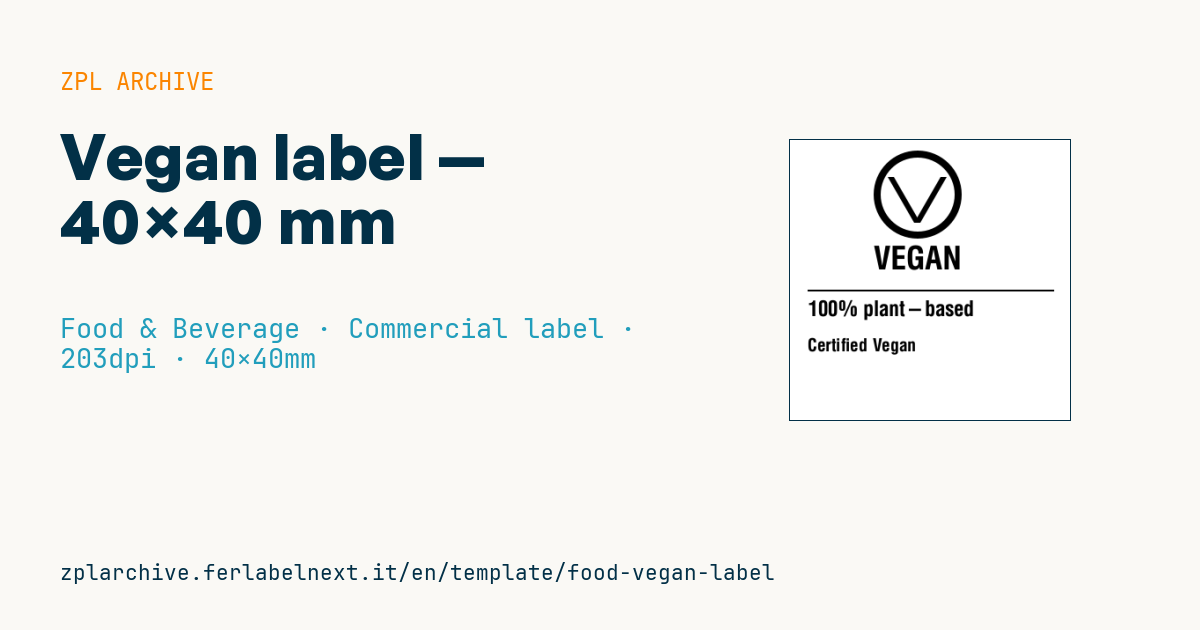
Vegan label
40×40 mm @ 203 dpi. Circle (^GC) with a "V" drawn from ZPL primitives, title, claim and certification note.
Placeholders
title_label— title (e.g.VEGAN)claim— claim (e.g.100% plant-based)cert_note— note (e.g.Certified Vegan)
When to use it
This square label is meant for artisan kitchens, delis, bakeries and small producers who want to flag a vegan or gluten-free product at a glance on tubs, bags, jars or shelf edges. It is normally applied as an extra sticker next to the main label carrying ingredients and allergens, never instead of it.
For chilled or frozen products, where condensation forms, use thermal transfer on coated paper or synthetic film with a low-temperature adhesive. For dry goods with fast turnover, direct thermal paper is enough.
Standards and requirements
In the EU, Regulation (EU) 1169/2011 prohibits food information that misleads the consumer, but there is still no harmonised legal definition of "vegan": the regulation provides for implementing acts on the subject, which have not been adopted. In practice the claim must be consistent with ingredients, processing aids and how you manage cross-contact. "Gluten-free" is precisely defined: Implementing Regulation (EU) 828/2014 allows it only when gluten does not exceed 20 mg/kg.
Certification marks (V-Label, The Vegan Society and similar) are private schemes, and their logos may only be used under licence. For accented text use ^CI28 and save the file as UTF-8; at 203 dpi the width is ^PW320.
Common mistakes
- Printing "Certified Vegan" without an active certification for that specific product.
- Reproducing a certifier's logo without a licence agreement.
- Claiming "gluten-free" on a product that has not been tested or is made alongside wheat flour.
- Using direct thermal on tubs stored in a humid fridge, where the print fades.
FAQ
Can I call a product vegan without certification?
Yes, as long as it contains no animal-derived ingredients and the claim is not misleading. Certification is voluntary, but "Certified" should only appear when it is real.
Does the vegan sticker replace the allergen list?
No. Ingredients and allergens remain mandatory on the main label; the sticker is additional voluntary information.
Can I replace the drawn "V" with the certifier's logo?
Yes, by converting the image to ^GF, but only if you hold a licence to use the mark.
ZPL code
^XA
^PW320
^LL320
^CI28
^FO95,12^GC100,8,B^FS
^FO141,42^GD30,52,7,B,R^FS
^FO111,42^GD30,52,7,B,L^FS
^CF0,36^FO95,120^FD{{title_label}}^FS
^FO20,170^GB280,2,2^FS
^CF0,24^FO20,182^FD{{claim}}^FS
^CF0,20^FO20,225^FD{{cert_note}}^FS
^XZ- Industry: Food & Beverage
- Category: Commercial label
- DPI: 203
- Size: 40×40 mm
- Tags: Food, Gluten-free, Vegan
What this label contains
Barcodes
This label contains no barcodes: it is made of text and graphics.
Elements
- 3 text fields
- 3 variable fields to fill in
- boxes and separator lines
Variable fields
| Field | Description | Example |
|---|---|---|
title_label | Title | VEGAN |
claim | Claim | 100% plant-based |
cert_note | Note | Certified Vegan |
Format and printing
40×40 mm (1.57×1.57″) at 203 dpi: 320×320 dots. Square.
Compatible Zebra printers
You need a printer with a 2″ printhead at 203 dpi, for example:
- Zebra ZD411 (desktop)
- Zebra ZD611 (desktop)
- Zebra ZQ220 (mobile)
- Zebra ZQ310 (mobile)
Any Zebra printer with a wider printhead and the same resolution works too.
The code is written for 203 dpi: on a printer with a different resolution the label prints larger or smaller and needs rescaling.
How to use it
- Open “Customize placeholders” and enter your data in the variable fields listed above.
- Check the preview: it is rendered from the same ZPL code you will send to the printer.
- Download the .zpl file or copy the code and send it to the printer: with “Print” through Zebra Browser Print, or as a raw file to port 9100 if the printer is on the network.
- Load 40×40 mm labels and make sure the printer is set to 203 dpi. For a different size use “Duplicate & edit” and adapt the layout in the builder.
Edit it in the editor
To change the layout, use “Duplicate & edit”: the template opens in the online ZPL editor, where you modify it and save it to your account for free.
Related templates
- Wine gift label with logo — 50×90 mm 300 dpi · Food & Beverage · Commercial label
- Beverage bottle label — 40×80 mm 300 dpi · Food & Beverage · Commercial label
- Food label with allergens — 70×100 mm 300 dpi · Food & Beverage · Commercial label
- Price per kg label — 50×40 mm 203 dpi · Food & Beverage · Commercial label
- GS1 DataMatrix traceability — 30×30 mm 300 dpi · Food & Beverage · GS1 DataMatrix
- Cooking instructions label — 70×50 mm 203 dpi · Food & Beverage · Commercial label
- Artisan jam label with logo — 50×60 mm 203 dpi · Food & Beverage · Commercial label
- Food nutrition label — 70×100 mm 300 dpi · Food & Beverage · Nutritional label