Dispatch note — 100×80 mm
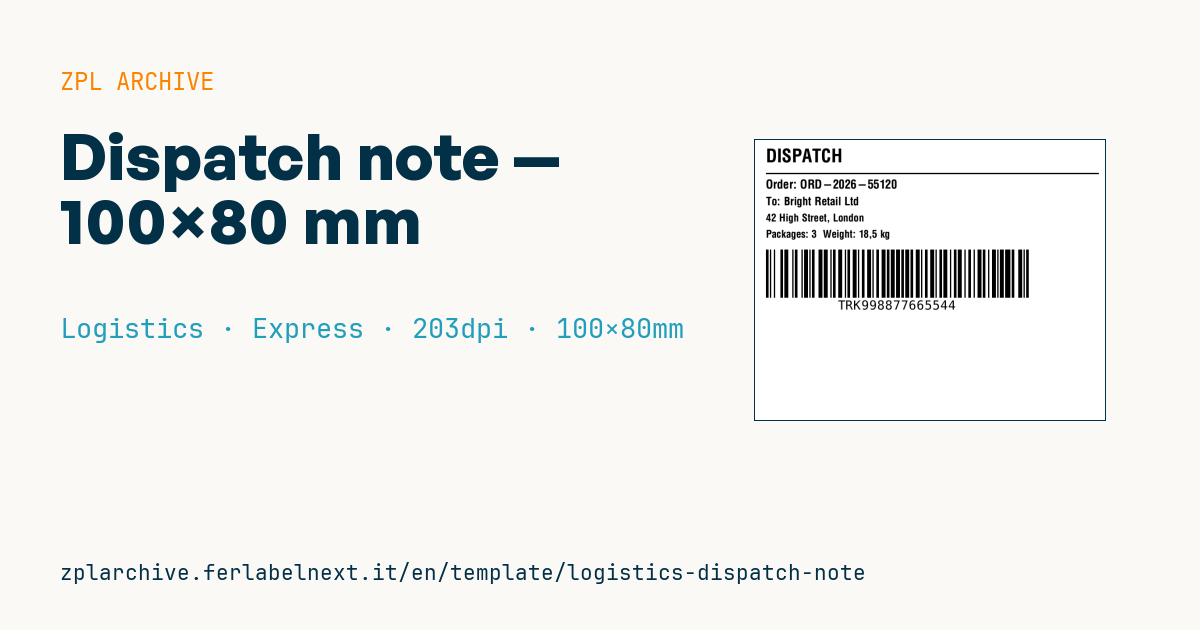
Dispatch/shipping document: order, customer, address, package count, weight and a Code 128 tracking barcode. For goods-out and handover to the courier.
Dispatch note
100×80 mm @ 203 dpi. Title, separator, order, customer, address, packages+weight and a Code 128 barcode with the tracking number.
Placeholders
title_label— title (e.g.DISPATCH)order_id— ordercustomer/address— customer and addresspackages/weight— packages and weighttracking— tracking code
When to use it
This dispatch note is printed at goods-out, at the packing station, and applied to the carton or a document pouch before handover to the courier or haulier. It serves both ends: the warehouse checks that order, package count and weight match the picking, and the consignee identifies the shipment without opening it. For shipments in transit for a few days, direct thermal paper is fine; for cartons stored for a long time or outdoors, choose thermal transfer.
Standards and requirements
This label is an operational summary, not a tax or customs document. Many countries require a separate transport document: in Italy, for example, goods travel with a DDT (documento di trasporto, introduced by DPR 472/1996), which has its own data and numbering, and this note does not replace it. The encoded tracking number must be the one assigned by the courier, in the courier's format. For a numeric Code 128, subset C halves the width: in ZPL start the field with >;. Addresses with accented letters need ^CI28 and UTF-8 text; for long addresses use ^FB with a maximum line count.
Common mistakes
- Typing the tracking number by hand instead of importing it from the courier system.
- Applying the label over an edge: a folded barcode will not scan.
- Using the same label on every carton without showing the package number out of the total.
- Letting a long address push the postcode or city off the label.
FAQ
Does this dispatch note replace a delivery note or transport document?
No. Where the law requires a transport document, it has its own rules; this label summarises data for the warehouse and the delivery.
Where should it go on the carton?
On a flat face, away from tape and edges, ideally on the same side as the courier label but without covering it.
ZPL code
^XA
^PW799
^LL639
^CI28
^CF0,42^FO25,20^FD{{title_label}}^FS
^FO25,75^GB760,3,3^FS
^CF0,28^FO25,90^FDOrder: {{order_id}}^FS
^CF0,26^FO25,130^FDTo: {{customer}}^FS
^CF0,24^FO25,168^FD{{address}}^FS
^CF0,24^FO25,205^FDPackages: {{packages}}  Weight: {{weight}}^FS
^BY3,2,110
^FO25,250^BCN,110,Y,N,N^FD{{tracking}}^FS
^XZ- Industry: Logistics
- Category: Express
- DPI: 203
- Size: 100×80 mm
- Tags: Code 128, Dispatch, Logistics, Tracking
What this label contains
Barcodes
- Code 128
- High-density linear barcode that encodes the full ASCII set: ideal for tracking numbers, internal codes and alphanumeric IDs.
Elements
- 5 text fields
- 7 variable fields to fill in
- boxes and separator lines
Variable fields
| Field | Description | Example |
|---|---|---|
title_label | Title | DISPATCH |
order_id | Order | ORD-2026-55120 |
customer | Customer | Bright Retail Ltd |
address | Address | 42 High Street, London |
packages | Packages | 3 |
weight | Weight | 18,5 kg |
tracking | Tracking | TRK998877665544 |
Format and printing
100×80 mm (3.94×3.15″) at 203 dpi: 799×639 dots. Landscape.
Compatible Zebra printers
You need a printer with a 4″ printhead at 203 dpi, for example:
- Zebra ZD421 (desktop)
- Zebra ZD621 (desktop)
- Zebra GK420 (desktop)
- Zebra ZT231 (industrial)
- Zebra ZT411 (industrial)
- Zebra ZT610 (industrial)
- Zebra ZQ521 (mobile)
- Zebra ZQ630 (mobile)
Any Zebra printer with a wider printhead and the same resolution works too.
The code is written for 203 dpi: on a printer with a different resolution the label prints larger or smaller and needs rescaling.
How to use it
- Open “Customize placeholders” and enter your data in the variable fields listed above.
- Check the preview: it is rendered from the same ZPL code you will send to the printer.
- Download the .zpl file or copy the code and send it to the printer: with “Print” through Zebra Browser Print, or as a raw file to port 9100 if the printer is on the network.
- Load 100×80 mm labels and make sure the printer is set to 203 dpi. For a different size use “Duplicate & edit” and adapt the layout in the builder.
Edit it in the editor
To change the layout, use “Duplicate & edit”: the template opens in the online ZPL editor, where you modify it and save it to your account for free.
Related templates
- IATA air baggage tag — 50×220 mm 203 dpi · Logistics · Luggage
- Fragile / Handle with care — 100×70 mm 203 dpi · Logistics · Express
- DHL Express Worldwide AWB — 100×150 mm 203 dpi · Logistics · Express
- Pallet Label GS1 SSCC — 148×210 mm (A5) 203 dpi · Logistics · Pallet
- Generic Return Label — 100×150 mm 203 dpi · Logistics · Return
- Cross-dock routing label (QR) — 100×50 mm 203 dpi · Logistics · Express
- Basic Sender/Recipient — 100×70 mm 203 dpi · Logistics · Express
- ISO 6346 sea container label — 100×70 mm 203 dpi · Logistics · Express