GS1 SSCC pallet — 100×150 mm
GS1 pallet label with SSCC, warehouse, product, lot, expiry, weight and counts.
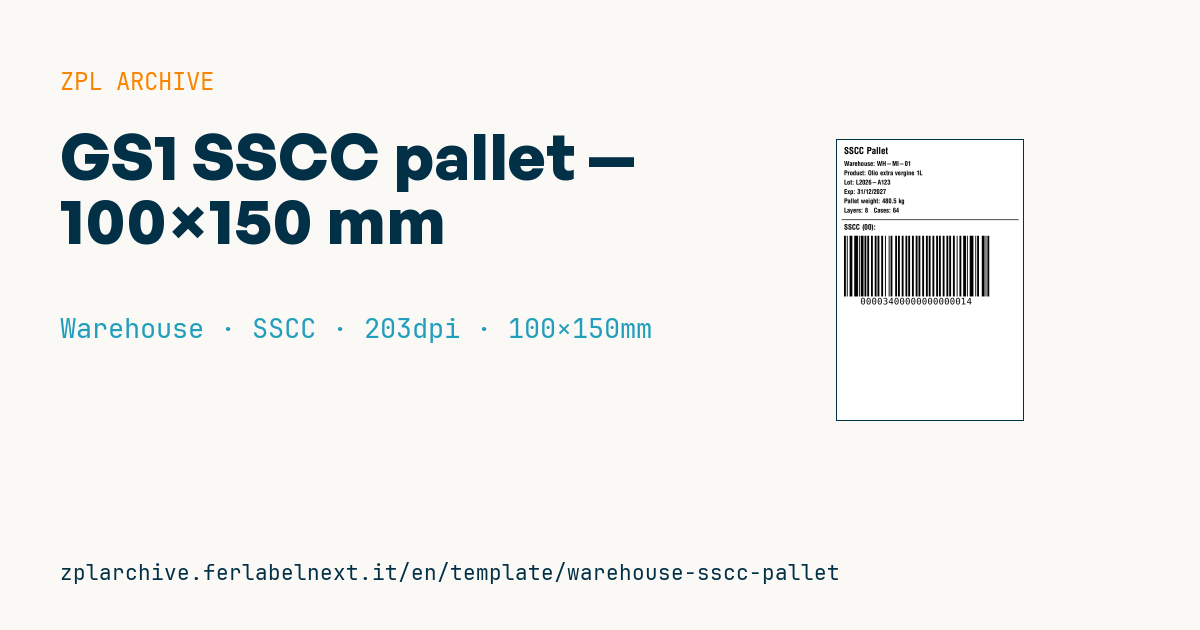
GS1 SSCC pallet (internal)
100×150 mm format. Internal version of the GS1 pallet label, for movements inside the logistics network (not for external shipments — use the 148×210 version for that).
Placeholders
warehouse_code— origin warehouseproduct_name— item descriptionlot_number— lotexpiry_date— expiry (dd/mm/yyyy)pallet_weight— gross pallet weightlayer_count,case_count— layers and total casessscc_18— 18-digit SSCC (see GS1-128 with AI 00)
When to use it
Use it when a pallet moves between warehouses, depots and hubs within the same logistics network: the SSCC is printed at dispatch, a single scan at receiving tells the WMS the content, lot and expiry without breaking down the load. It also supports FEFO rotation and lot recalls. For short indoor trips direct thermal paper can be enough; if the pallet sits in storage for a long time, goes into a cold room or stays outdoors, use thermal transfer on coated or synthetic stock.
Standards and requirements
The SSCC follows the GS1 General Specifications: 18 digits made of an extension digit, GS1 Company Prefix, serial reference and check digit (modulo 10), encoded in GS1-128 with AI (00). In ZPL start the Code 128 with >;>8 to insert the leading FNC1, then 00 and the 18 digits, without parentheses. To encode lot and expiry as well, use AI (10) and AI (17), which requires YYMMDD rather than dd/mm/yyyy; gross weight in kg uses AI (330n). The GS1 specifications for logistic labels set a minimum module of about 0.5 mm, which at 203 dpi means ^BY4.
Common mistakes
- Reusing an SSCC already assigned to another pallet: it must be unique.
- Using a GS1 company prefix that is not yours, or a made-up one: trading with third parties requires a GS1 licence.
- Calculating the check digit on 18 digits instead of the first 17.
FAQ
What is the first digit of the SSCC for?
It is the extension digit, 0 to 9, which the company assigns freely to increase numbering capacity. It has no fixed logistic meaning.
How is the check digit calculated?
Multiply the 17 digits by alternating weights of 3 and 1 starting from the right, add the results and take the number that brings the total up to the next multiple of 10.
Can I use this label to ship to a customer?
It is designed for internal moves: for external shipments use the larger version and check your customer's or carrier's specifications.
ZPL code
^XA
^PW799
^LL1199
^CI28
^CF0,40^FO30,30^FDSSCC Pallet^FS
^CF0,28
^FO30,90^FDWarehouse: {{warehouse_code}}^FS
^FO30,130^FDProduct: {{product_name}}^FS
^FO30,170^FDLot: {{lot_number}}^FS
^FO30,210^FDExp: {{expiry_date}}^FS
^FO30,250^FDPallet weight: {{pallet_weight}} kg^FS
^FO30,290^FDLayers: {{layer_count}}   Cases: {{case_count}}^FS
^FO20,340^GB760,3,3^FS
^CF0,32^FO30,360^FDSSCC (00):^FS
^BY4,2,260
^FO30,410^BCN,260,Y,N,N^FD>;>800{{sscc_18}}^FS
^XZWhat this label contains
Barcodes
- GS1-128
- Code 128 with FNC1 and GS1 Application Identifiers: the logistics barcode, used for SSCC, batch, expiry and weight on pallets and cartons.
Elements
- 8 text fields
- 8 variable fields to fill in
- boxes and separator lines
Variable fields
| Field | Description | Example |
|---|---|---|
warehouse_code | Warehouse | WH-MI-01 |
product_name | Product | Olio extra vergine 1L |
lot_number | Lot | L2026-A123 |
expiry_date | Expiry | 31/12/2027 |
pallet_weight | Weight (kg) | 480.5 |
layer_count | Layers | 8 |
case_count | Cases | 64 |
sscc_18 | SSCC | 003400000000000014 |
Format and printing
100×150 mm (3.94×5.91″) at 203 dpi: 799×1199 dots. Portrait.
Compatible Zebra printers
You need a printer with a 4″ printhead at 203 dpi, for example:
- Zebra ZD421 (desktop)
- Zebra ZD621 (desktop)
- Zebra GK420 (desktop)
- Zebra ZT231 (industrial)
- Zebra ZT411 (industrial)
- Zebra ZT610 (industrial)
- Zebra ZQ521 (mobile)
- Zebra ZQ630 (mobile)
Any Zebra printer with a wider printhead and the same resolution works too.
The code is written for 203 dpi: on a printer with a different resolution the label prints larger or smaller and needs rescaling.
How to use it
- Open “Customize placeholders” and enter your data in the variable fields listed above.
- Check the preview: it is rendered from the same ZPL code you will send to the printer.
- Download the .zpl file or copy the code and send it to the printer: with “Print” through Zebra Browser Print, or as a raw file to port 9100 if the printer is on the network.
- Load 100×150 mm labels and make sure the printer is set to 203 dpi. For a different size use “Duplicate & edit” and adapt the layout in the builder.
Edit it in the editor
To change the layout, use “Duplicate & edit”: the template opens in the online ZPL editor, where you modify it and save it to your account for free.
Related templates
- Multi-level bay location — 100×50 mm 203 dpi · Warehouse · Location
- Single rack location — 50×30 mm 203 dpi · Warehouse · Location
- Shelf-edge / bin label — 40×20 mm 300 dpi · Warehouse · Location
- Cross-dock receiving — 100×70 mm 203 dpi · Warehouse · Cross-docking
- Pick face label with QR — 60×40 mm 203 dpi · Warehouse · Picking
- Zone / aisle sign — 100×50 mm 203 dpi · Warehouse · Location
- Quality hold label — 70×50 mm 203 dpi · Warehouse · Inventory
- Putaway / location label — 60×40 mm 203 dpi · Warehouse · Location