Quality hold label — 70×50 mm
Quality hold/quarantine label: high-contrast status band, item, lot, quantity, reason and operator. For non-conforming goods awaiting a decision.
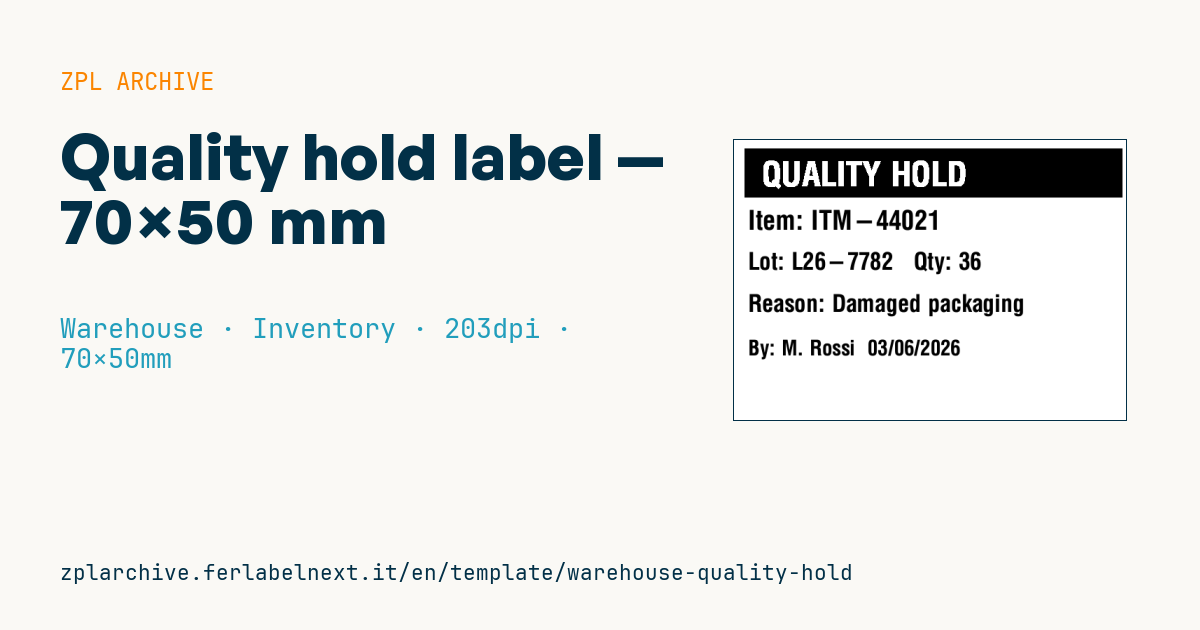
Quality hold label
70×50 mm @ 203 dpi. Reverse-contrast status band (^FR), item, lot+quantity, reason and operator+date.
Placeholders
status_label— status (e.g.QUALITY HOLD)item_code— itemlot/quantity— lot and quantityreason— hold reasonoperator/date— operator and date
When to use it
The quality hold label is applied when a batch is non-conforming or suspect: damage at receiving, out-of-spec lab result, customer complaint, supplier recall. It goes on every carton or pallet involved and stays until quality decides whether to release, rework, return or scrap the goods. Quality departments in manufacturing, food, pharma and component warehouses use it.
The reverse-contrast band is visible from a distance even on a monochrome printer; many warehouses print it on pre-printed red or orange labels to make it stand out further. Use a permanent adhesive: the label must not come off during handling.
Standards and requirements
ISO 9001:2015, clause 8.7, requires nonconforming outputs to be identified and controlled to prevent their unintended use or delivery; in regulated sectors such as pharmaceutical GMP or food, quarantine status must be just as clear and documented. The label alone is not enough: the same lot must also be blocked in the WMS or ERP. In ZPL the band is a filled ^GB with the text on top in ^FR; if the black is patchy, adjust darkness with ~SD.
Common mistakes
- Labelling the goods without blocking the lot in the system, so the WMS keeps allocating it to orders.
- Leaving out the lot or quantity, making it impossible to establish how many units are affected.
- Releasing goods by peeling off the label without recording the decision and who made it.
- Writing a vague reason such as "quality issue" instead of the observed defect.
FAQ
Who can remove a quality hold label?
Only the function your procedure authorises, usually quality, after recording the decision. A release label is often applied in its place.
Does a quality hold label need a barcode?
It is not mandatory: the hold status should be managed in the system by scanning the lot code already on the cartons. The label is mainly there to stop people.
ZPL code
^XA
^PW559
^LL400
^CI28
^FO15,12^GB540,70,70^FS
^FR^CF0,48^FO40,30^FD{{status_label}}^FS
^CF0,38^FO20,100^FDItem: {{item_code}}^FS
^CF0,34^FO20,160^FDLot: {{lot}}   Qty: {{quantity}}^FS
^CF0,34^FO20,220^FDReason: {{reason}}^FS
^CF0,30^FO20,285^FDBy: {{operator}}  {{date}}^FS
^XZ- Industry: Warehouse
- Category: Inventory
- DPI: 203
- Size: 70×50 mm
- Tags: Compliance 2024, Inventory, Quality control, Warehouse
What this label contains
Barcodes
This label contains no barcodes: it is made of text and graphics.
Elements
- 5 text fields
- 7 variable fields to fill in
- boxes and separator lines
Variable fields
| Field | Description | Example |
|---|---|---|
status_label | Status | QUALITY HOLD |
item_code | Item | ITM-44021 |
lot | Lot | L26-7782 |
quantity | Quantity | 36 |
reason | Reason | Damaged packaging |
operator | Operator | M. Rossi |
date | Date | 03/06/2026 |
Format and printing
70×50 mm (2.76×1.97″) at 203 dpi: 559×400 dots. Landscape.
Compatible Zebra printers
You need a printer with a 4″ printhead at 203 dpi, for example:
- Zebra ZD421 (desktop)
- Zebra ZD621 (desktop)
- Zebra GK420 (desktop)
- Zebra ZT231 (industrial)
- Zebra ZT411 (industrial)
- Zebra ZT610 (industrial)
- Zebra ZQ521 (mobile)
- Zebra ZQ630 (mobile)
Any Zebra printer with a wider printhead and the same resolution works too.
The code is written for 203 dpi: on a printer with a different resolution the label prints larger or smaller and needs rescaling.
How to use it
- Open “Customize placeholders” and enter your data in the variable fields listed above.
- Check the preview: it is rendered from the same ZPL code you will send to the printer.
- Download the .zpl file or copy the code and send it to the printer: with “Print” through Zebra Browser Print, or as a raw file to port 9100 if the printer is on the network.
- Load 70×50 mm labels and make sure the printer is set to 203 dpi. For a different size use “Duplicate & edit” and adapt the layout in the builder.
Edit it in the editor
To change the layout, use “Duplicate & edit”: the template opens in the online ZPL editor, where you modify it and save it to your account for free.
Related templates
- Multi-level bay location — 100×50 mm 203 dpi · Warehouse · Location
- Single rack location — 50×30 mm 203 dpi · Warehouse · Location
- Shelf-edge / bin label — 40×20 mm 300 dpi · Warehouse · Location
- Cross-dock receiving — 100×70 mm 203 dpi · Warehouse · Cross-docking
- Pick face label with QR — 60×40 mm 203 dpi · Warehouse · Picking
- GS1 SSCC pallet — 100×150 mm 203 dpi · Warehouse · SSCC
- WMS tote label — 70×50 mm 203 dpi · Warehouse · Picking
- Zone / aisle sign — 100×50 mm 203 dpi · Warehouse · Location