Zone / aisle sign — 100×50 mm
Warehouse zone sign with a contrast band, aisle range and a directional arrow (drawn from geometric shapes). Readable from a distance for wayfinding.
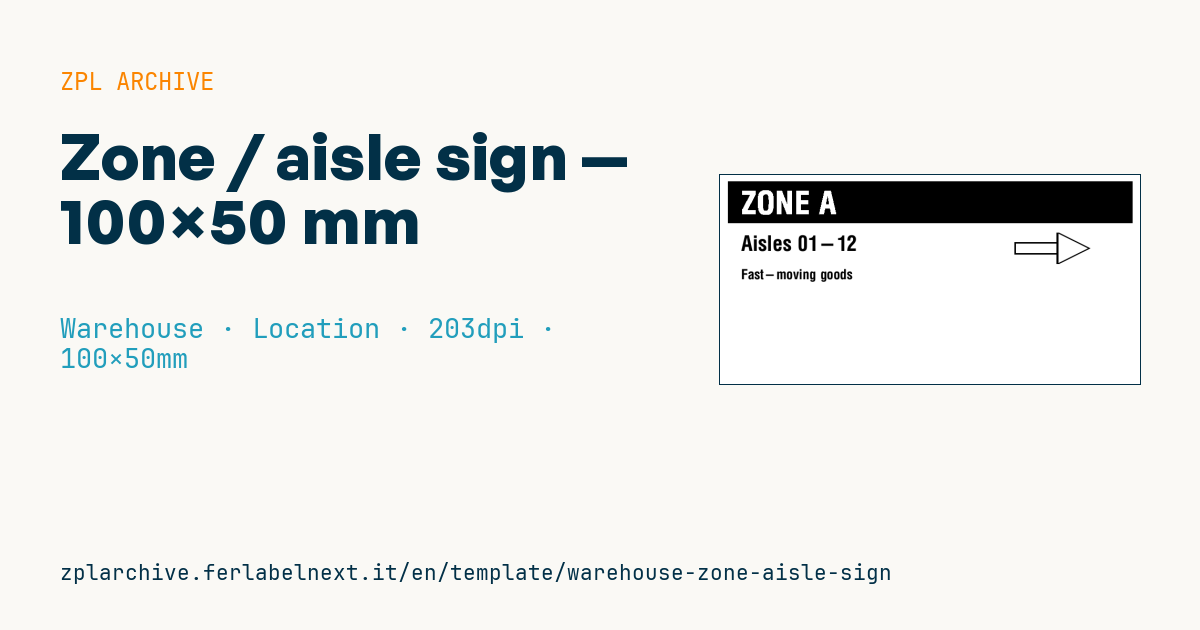
Zone / aisle sign
100×50 mm @ 203 dpi. Reverse-contrast zone band (^FR), aisle range and a directional arrow (^GB shaft + ^GD head, pure geometry). For long-distance wayfinding.
Placeholders
zone_label— zone (e.g.ZONE A)aisle_range— aisles (e.g.Aisles 01-12)note— directional note
When to use it
It helps forklift drivers, pickers and new staff find their way: it goes at aisle ends, on columns or walls, and must be readable from a few metres away while people are moving. It is also handy during a re-layout or a site opening, when permanent signage is not in place yet and you want to print in-house signs that match the zones in your WMS. It carries no barcode: it is purely visual information.
For lasting use print by thermal transfer on polypropylene or polyester; direct thermal paper, with that large black band, turns grey and fades quickly when exposed to light or heat.
Standards and requirements
This sign is not safety signage: escape, prohibition and warning signs follow ISO 7010 and national workplace safety rules, and must not be replaced with signs printed here. The requirements are practical: large, high-contrast characters, zone names identical to those in the WMS, and a reading distance tested on site. In ZPL a solid band is a ^GB whose thickness equals its height; text over it with ^FR is reversed. A scalable font such as ^A0 allows large character heights.
Common mistakes
- Mounting the sign on the opposite side of the aisle without flipping the arrow, so it points the wrong way.
- Printing large black areas at maximum darkness: the ribbon can wrinkle and the printhead wears faster.
- Using zone names that differ from the system, so the handheld says "Zone B2" and the sign says "B-02".
FAQ
Can I use it to mark emergency exits or fire extinguishers?
No. That signage requires signs compliant with ISO 7010 and national regulations, with prescribed colours and pictograms.
How do I get a bigger sign on a 4-inch printer?
Width is limited by the printhead, about 104 mm, but you can increase length with ^LL and rotate the layout to get larger text.
ZPL code
^XA
^PW799
^LL400
^CI28
^FO15,12^GB770,80,80^FS
^FR^CF0,60^FO40,30^FD{{zone_label}}^FS
^CF0,40^FO40,115^FD{{aisle_range}}^FS
^FO560,128^GB84,24,3^FS
^FO640,110^GD60,30,5,B,L^FS
^FO640,140^GD60,30,5,B,R^FS
^FO640,110^GB4,60,4^FS
^CF0,26^FO40,180^FD{{note}}^FS
^XZWhat this label contains
Barcodes
This label contains no barcodes: it is made of text and graphics.
Elements
- 3 text fields
- 3 variable fields to fill in
- boxes and separator lines
Variable fields
| Field | Description | Example |
|---|---|---|
zone_label | Zone | ZONE A |
aisle_range | Aisles | Aisles 01-12 |
note | Note | Fast-moving goods |
Format and printing
100×50 mm (3.94×1.97″) at 203 dpi: 799×400 dots. Landscape.
Compatible Zebra printers
You need a printer with a 4″ printhead at 203 dpi, for example:
- Zebra ZD421 (desktop)
- Zebra ZD621 (desktop)
- Zebra GK420 (desktop)
- Zebra ZT231 (industrial)
- Zebra ZT411 (industrial)
- Zebra ZT610 (industrial)
- Zebra ZQ521 (mobile)
- Zebra ZQ630 (mobile)
Any Zebra printer with a wider printhead and the same resolution works too.
The code is written for 203 dpi: on a printer with a different resolution the label prints larger or smaller and needs rescaling.
How to use it
- Open “Customize placeholders” and enter your data in the variable fields listed above.
- Check the preview: it is rendered from the same ZPL code you will send to the printer.
- Download the .zpl file or copy the code and send it to the printer: with “Print” through Zebra Browser Print, or as a raw file to port 9100 if the printer is on the network.
- Load 100×50 mm labels and make sure the printer is set to 203 dpi. For a different size use “Duplicate & edit” and adapt the layout in the builder.
Edit it in the editor
To change the layout, use “Duplicate & edit”: the template opens in the online ZPL editor, where you modify it and save it to your account for free.
Related templates
- Multi-level bay location — 100×50 mm 203 dpi · Warehouse · Location
- Single rack location — 50×30 mm 203 dpi · Warehouse · Location
- Shelf-edge / bin label — 40×20 mm 300 dpi · Warehouse · Location
- Pick face label with QR — 60×40 mm 203 dpi · Warehouse · Picking
- GS1 SSCC pallet — 100×150 mm 203 dpi · Warehouse · SSCC
- Cross-dock receiving — 100×70 mm 203 dpi · Warehouse · Cross-docking
- Annual inventory serial — 60×40 mm 203 dpi · Warehouse · Inventory
- Putaway / location label — 60×40 mm 203 dpi · Warehouse · Location