Cloakroom tag — 50×80 mm
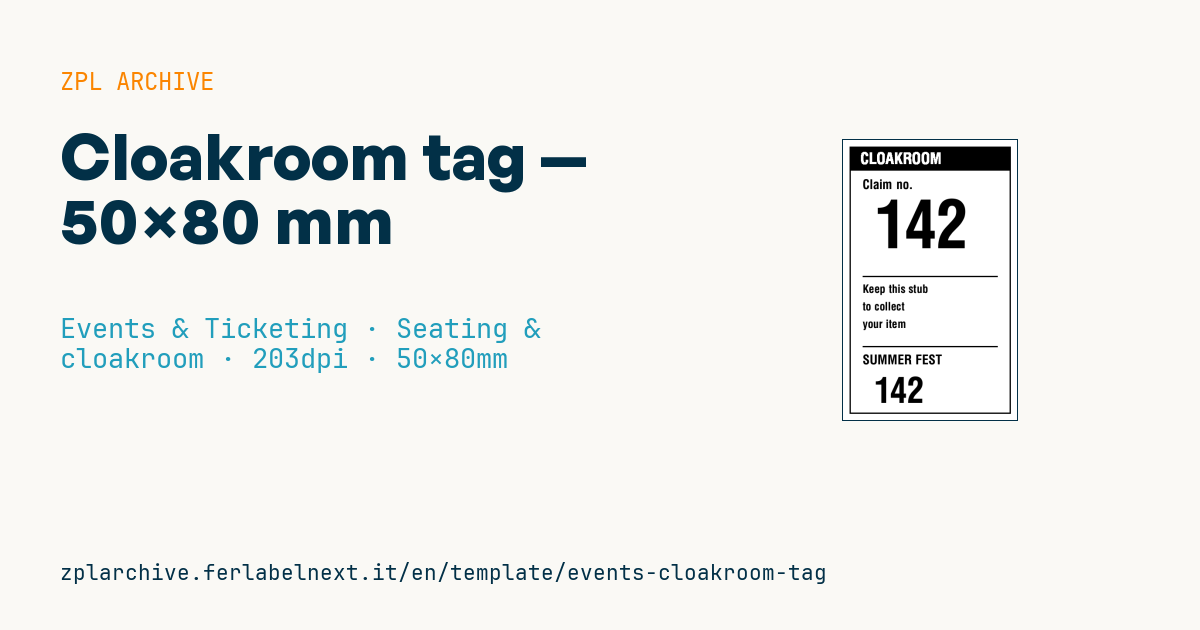
Two-part cloakroom stub with the claim number in very large type: one half stays on the item, the other goes to the guest.
Cloakroom tag
Vertical 50×80 mm two-part format: the claim number is repeated large at top and bottom so the strip tears in half — one part on the item, the other to the guest. No barcode: visual read at the counter.
Placeholders
claim_no— claim number (repeated on both halves)event_name— event/venue name
When to use it
Cloakrooms at theatres, nightclubs, conference venues, weddings and trade fairs use it. On arrival the attendant tears the tag in half: one part is hung on the coat or slipped into the bag, the other goes to the guest. At collection the two numbers are matched by eye, even with a queue and low light, with no scanner or network.
The vertical 50×80 mm format needs stock with a central perforation or pre-cut, or a clean fold to tear by hand. The half on the item must cope with wet coats and hours on a hanger: sturdy card or a synthetic material works better than thin paper.
Standards and requirements
There is no specific standard for cloakroom tags, so the requirements are practical. The number must be unique for the night, identical on both halves and readable from about a metre away, with large, well-spaced digits. If the stock has a hanger hole, keep the layout clear of it.
In ZPL you can generate numbering in the printer with ^SN (start value, increment, leading zeros) and print a batch with ^PQ. Give the two ^SN fields on the two halves the same start value and increment so the numbers stay in step.
Common mistakes
- Restarting at 1 after a printer reboot and creating duplicates on the same night.
- Using digits like 6 and 9 without a distinguishing mark: upside down they look the same.
- Printing off-register with the perforation, splitting a number in half.
- Using thin paper on the coat: in rain the tag tears or falls off.
FAQ
How should cloakroom tickets be numbered?
With a sequential series per event, generated by your software or in the printer with ^SN. What matters is never having two tags with the same number on the same night.
Does a cloakroom tag need a barcode?
For most cloakrooms, no: reading by eye is faster. A barcode makes sense only if you track items in a system, for example at large fairs with luggage storage.
ZPL code
^XA
^LL639
^CI28
^PW400
^FO15,15^GB370,610,3^FS
^FO15,15^GB370,55,55^FS
^CF0,36^FO40,28^FR^FDCLOAKROOM^FS
^CF0,30^FO45,90^FDClaim no.^FS
^CF0,150^FO70,135^FD{{claim_no}}^FS
^FO45,310^GB310,3,3^FS
^CF0,26^FO45,330^FDKeep this stub^FS
^FO45,370^FDto collect^FS
^FO45,410^FDyour item^FS
^FO45,470^GB310,3,3^FS
^CF0,30^FO45,490^FD{{event_name}}^FS
^CF0,80^FO70,540^FD{{claim_no}}^FS
^XZ- Industry: Events & Ticketing
- Category: Seating & cloakroom
- DPI: 203
- Size: 50×80 mm
- Tags: Event, Seating, Ticketing
What this label contains
Barcodes
This label contains no barcodes: it is made of text and graphics.
Elements
- 8 text fields
- 2 variable fields to fill in
- boxes and separator lines
Variable fields
| Field | Description | Example |
|---|---|---|
claim_no | Claim no | 142 |
event_name | Event | SUMMER FEST |
Format and printing
50×80 mm (1.97×3.15″) at 203 dpi: 400×639 dots. Portrait.
Compatible Zebra printers
You need a printer with a 2″ printhead at 203 dpi, for example:
- Zebra ZD411 (desktop)
- Zebra ZD611 (desktop)
- Zebra ZQ220 (mobile)
- Zebra ZQ310 (mobile)
Any Zebra printer with a wider printhead and the same resolution works too.
The code is written for 203 dpi: on a printer with a different resolution the label prints larger or smaller and needs rescaling.
How to use it
- Open “Customize placeholders” and enter your data in the variable fields listed above.
- Check the preview: it is rendered from the same ZPL code you will send to the printer.
- Download the .zpl file or copy the code and send it to the printer: with “Print” through Zebra Browser Print, or as a raw file to port 9100 if the printer is on the network.
- Load 50×80 mm labels and make sure the printer is set to 203 dpi. For a different size use “Duplicate & edit” and adapt the layout in the builder.
Edit it in the editor
To change the layout, use “Duplicate & edit”: the template opens in the online ZPL editor, where you modify it and save it to your account for free.
Related templates
- Press pass — 100×70 mm 203 dpi · Events & Ticketing · Accreditation & access
- Event admission ticket — 100×50 mm 203 dpi · Events & Ticketing · Tickets
- Boarding pass (PDF417) — 100×60 mm 203 dpi · Events & Ticketing · Tickets
- Concert seated ticket — 100×60 mm 203 dpi · Events & Ticketing · Seating & cloakroom
- Gift voucher — 85×54 mm CR80 300 dpi · Events & Ticketing · Vouchers & tokens
- Retail gift card with logo — 65×40 mm 300 dpi · Events & Ticketing · Vouchers & tokens
- Cashless festival wristband — 250×25 mm 203 dpi · Events & Ticketing · Accreditation & access
- Drink token — 40×40 mm 203 dpi · Events & Ticketing · Vouchers & tokens