Kitchen prep label (HoReCa) — 50×50 mm
Prep label for professional kitchens: product, prep date, use-by, operator, storage and an allergen note. For HACCP.
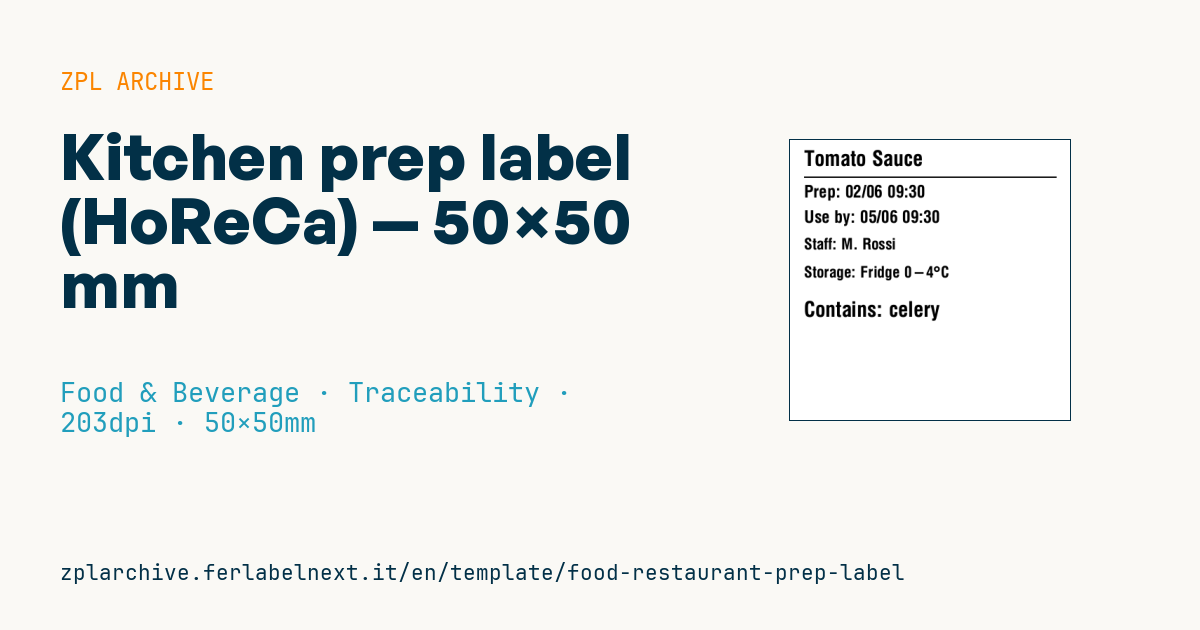
Kitchen prep label (HoReCa)
50×50 mm @ 203 dpi. Product, separator, prep date, use-by, operator, storage and an allergen note. Designed for HACCP.
Placeholders
product_name— preparation nameprep_date— prep date/timeuse_by— use-byoperator— operatorstorage— storage (e.g.Fridge 0-4°C)allergen_note— allergen note
When to use it
Restaurant, hotel, canteen and catering kitchens use it to identify preparations stored in the fridge or blast chiller: stocks, sauces, cut vegetables, doughs, vacuum-packed portions. It is printed when the item is made and applied to gastronorm containers, tubs or bags, so whoever opens the fridge knows what is inside, who made it and until when it can be used.
Containers are washed and reused, so choose labels with a removable or dissolvable adhesive that comes off in the dishwasher without residue. Given the short life, direct thermal paper is suitable.
Standards and requirements
Regulation (EC) 852/2004 requires procedures based on HACCP principles but prescribes no label format: storage times and temperatures are set by your food safety plan, based on tests and published data. Internal traceability supports Regulation (EC) 178/2002. For non-prepacked food served to customers, Regulation (EU) 1169/2011 still requires allergen information, with arrangements set by national law: the allergen note on the label helps staff answer correctly.
Printers with a real-time clock can insert the current date with ^FC, but the use-by of the preparation is better calculated in software according to the HACCP plan. For accented characters use ^CI28.
Common mistakes
- Printing the prep date but not the date by which it must be used.
- Using a permanent adhesive on reusable containers.
- Copying shelf lives from the internet instead of the ones validated in your plan.
- Reusing one item's labels for another without updating the allergen note.
FAQ
Is a prep label a legal requirement?
There is no mandatory template, but during inspections you must be able to show that preparations are identified and managed according to your HACCP plan; a label is the most practical way.
How many days can a preparation stay in the fridge?
It depends on the product, the process and the temperature: the limit is set by your HACCP plan, not by a general rule.
ZPL code
^XA
^PW400
^LL400
^CI28
^CF0,30^FO20,15^FD{{product_name}}^FS
^FO20,52^GB360,2,2^FS
^CF0,24^FO20,64^FDPrep: {{prep_date}}^FS
^CF0,24^FO20,100^FDUse by: {{use_by}}^FS
^CF0,22^FO20,140^FDStaff: {{operator}}^FS
^CF0,22^FO20,180^FDStorage: {{storage}}^FS
^CF0,30^FO20,230^FD{{allergen_note}}^FS
^XZ- Industry: Food & Beverage
- Category: Traceability
- DPI: 203
- Size: 50×50 mm
- Tags: Food, HoReCa, Lot, Use by
What this label contains
Barcodes
This label contains no barcodes: it is made of text and graphics.
Elements
- 6 text fields
- 6 variable fields to fill in
- boxes and separator lines
Variable fields
| Field | Description | Example |
|---|---|---|
product_name | Product | Tomato Sauce |
prep_date | Prepared | 02/06 09:30 |
use_by | Use by | 05/06 09:30 |
operator | Operator | M. Rossi |
storage | Storage | Fridge 0-4°C |
allergen_note | Allergen note | Contains: celery |
Format and printing
50×50 mm (1.97×1.97″) at 203 dpi: 400×400 dots. Square.
Compatible Zebra printers
You need a printer with a 2″ printhead at 203 dpi, for example:
- Zebra ZD411 (desktop)
- Zebra ZD611 (desktop)
- Zebra ZQ220 (mobile)
- Zebra ZQ310 (mobile)
Any Zebra printer with a wider printhead and the same resolution works too.
The code is written for 203 dpi: on a printer with a different resolution the label prints larger or smaller and needs rescaling.
How to use it
- Open “Customize placeholders” and enter your data in the variable fields listed above.
- Check the preview: it is rendered from the same ZPL code you will send to the printer.
- Download the .zpl file or copy the code and send it to the printer: with “Print” through Zebra Browser Print, or as a raw file to port 9100 if the printer is on the network.
- Load 50×50 mm labels and make sure the printer is set to 203 dpi. For a different size use “Duplicate & edit” and adapt the layout in the builder.
Edit it in the editor
To change the layout, use “Duplicate & edit”: the template opens in the online ZPL editor, where you modify it and save it to your account for free.
Related templates
- Wine gift label with logo — 50×90 mm 300 dpi · Food & Beverage · Commercial label
- Beverage bottle label — 40×80 mm 300 dpi · Food & Beverage · Commercial label
- Food label with allergens — 70×100 mm 300 dpi · Food & Beverage · Commercial label
- GS1 DataMatrix traceability — 30×30 mm 300 dpi · Food & Beverage · GS1 DataMatrix
- Cooking instructions label — 70×50 mm 203 dpi · Food & Beverage · Commercial label
- Price per kg label — 50×40 mm 203 dpi · Food & Beverage · Commercial label
- Artisan jam label with logo — 50×60 mm 203 dpi · Food & Beverage · Commercial label
- Food nutrition label — 70×100 mm 300 dpi · Food & Beverage · Nutritional label