GS1 serialization DataMatrix — 40×25 mm
Pharma serialization label (FMD/EU 2016/161) with a GS1 DataMatrix: GTIN, lot, expiry and serial number. For the medicine carton.
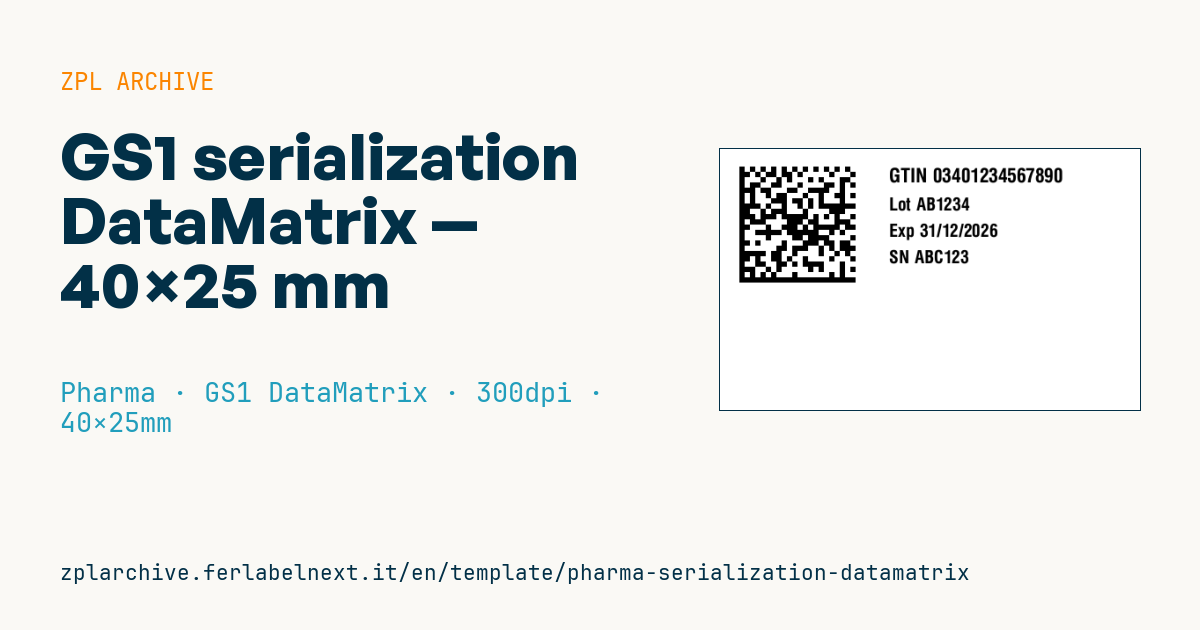
GS1 serialization DataMatrix
40×25 mm @ 300 dpi. GS1 DataMatrix (^BXN) carrying the GS1 string (AI 01 GTIN, 17 expiry, 10 lot, 21 serial) with readable data on the right. Compliant with the FMD scheme.
Placeholders
gs1_data— full GS1 string (with FNC1)gtin— readable GTINlot/expiry/serial— readable lot, expiry, serial
Replace
gs1_datawith your real GS1 string and verify FNC1 encoding on your system.
When to use it
This label is used on packaging lines and in repackaging units when the unique identifier is not printed directly on the carton but on a label applied in line. Every serial printed is uploaded by the marketing authorisation holder to the European Medicines Verification System (EMVS) and later decommissioned by the pharmacy at dispensing, so the label must match the uploaded data exactly.
The label goes on board cartons and must not be removable and reapplicable without damage: tamper-evident or destructible stocks with security cuts are common, printed thermal transfer.
Standards and requirements
Delegated Regulation (EU) 2016/161 defines the unique identifier (product code, serial, batch, expiry, national number where required) and requires a non-predictable, randomised serial number. An anti-tampering device is required alongside it; ISO 21976 describes tamper verification features for cartons. In Italy the transition from the "bollino" to the FMD system follows its own timetable, so check the current status.
In the GS1 string, put fixed-length AIs (01) and (17) first, then (10) and (21): this way only one FNC1 separator is needed. At 300 dpi ^BXN,4,200 gives modules of about 0.34 mm.
Common mistakes
- Reusing serials from earlier batches or generating them in a predictable sequence.
- Mismatching printed data and data uploaded to the EMVS, which triggers alerts in pharmacies.
- Applying the label over the tamper-evident closure or over mandatory carton text.
- Using a GTIN-13 without the leading zero in AI (01), which requires 14 digits.
FAQ
What do PC, SN, Lot and EXP next to the code mean?
They are the usual abbreviations for product code, serial number, batch and expiry printed in clear next to the DataMatrix.
Is aggregation mandatory?
The EU regulation does not require aggregation of cartons into cases; customers or other markets may ask for it.
ZPL code
^XA
^PW472
^LL295
^CI28
^FO20,20^BXN,6,200,,,,_^FD_1{{gs1_data}}^FS
^CF0,22^FO190,22^FDGTIN {{gtin}}^FS
^CF0,20^FO190,55^FDLot {{lot}}^FS
^CF0,20^FO190,85^FDExp {{expiry}}^FS
^CF0,20^FO190,115^FDSN {{serial}}^FS
^XZ- Industry: Pharma
- Category: GS1 DataMatrix
- DPI: 300
- Size: 40×25 mm
- Tags: DataMatrix, Expiry date, GTIN, Pharma, Serialization
What this label contains
Barcodes
- GS1 DataMatrix
- 2D code with GS1 Application Identifiers: used for pharmaceutical serialisation (GTIN, batch, expiry, serial number) and for medical device UDI.
Elements
- 4 text fields
- 5 variable fields to fill in
Variable fields
| Field | Description | Example |
|---|---|---|
gs1_data | GS1 data | 01034012345678901726123110AB1234_121ABC123 |
gtin | GTIN | 03401234567890 |
lot | Lot | AB1234 |
expiry | Expiry | 31/12/2026 |
serial | Serial | ABC123 |
Format and printing
40×25 mm (1.57×0.98″) at 300 dpi: 472×295 dots. Landscape.
Compatible Zebra printers
You need a printer with a 2″ printhead at 300 dpi, for example:
- Zebra ZD411 (desktop)
- Zebra ZD611 (desktop)
Any Zebra printer with a wider printhead and the same resolution works too.
The code is written for 300 dpi: on a printer with a different resolution the label prints larger or smaller and needs rescaling.
How to use it
- Open “Customize placeholders” and enter your data in the variable fields listed above.
- Check the preview: it is rendered from the same ZPL code you will send to the printer.
- Download the .zpl file or copy the code and send it to the printer: with “Print” through Zebra Browser Print, or as a raw file to port 9100 if the printer is on the network.
- Load 40×25 mm labels and make sure the printer is set to 300 dpi. For a different size use “Duplicate & edit” and adapt the layout in the builder.
Edit it in the editor
To change the layout, use “Duplicate & edit”: the template opens in the online ZPL editor, where you modify it and save it to your account for free.
Related templates
- GS1 DataMatrix pharma — 25×10 mm (600 dpi) 600 dpi · Pharma · GS1 DataMatrix
- Patient check-in & appointment ticket — 80×150 mm 203 dpi · Pharma · Patient check-in & flow
- Sample tube Aztec — 25×25 mm 300 dpi · Pharma · Lab samples
- UDI medical device — 50×30 mm 300 dpi · Pharma · Drug packaging
- Lab sample — 70×40 mm 300 dpi · Pharma · Lab samples
- Patient wristband — 200×25 mm 300 dpi · Pharma · Patient wristband
- Sterile medical lot — 60×40 mm 300 dpi · Pharma · Drug packaging
- Prescription label — 70×40 mm 203 dpi · Pharma · Drug packaging