Clearance window poster — 70×50 mm
Large window-format label with a bold claim on top, a divider line and a dominant centre price. Designed to attract attention from outside the store.
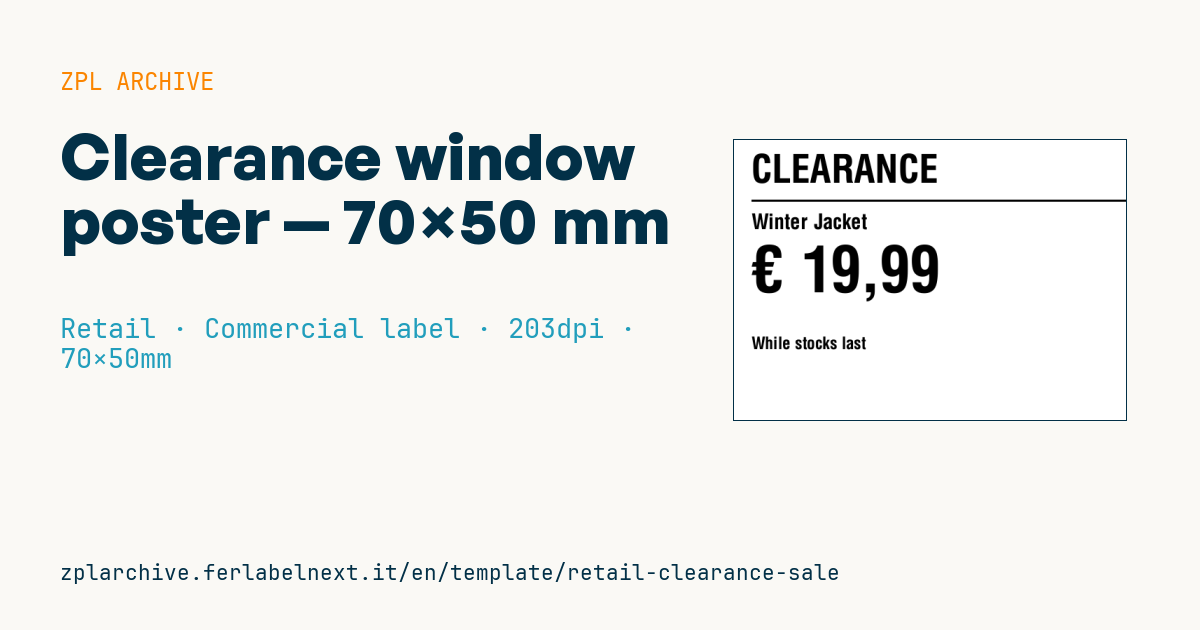
Clearance window poster
70×50 mm @ 203 dpi. Window layout: very large claim on top, divider line (^GB), product name, a dominant centre price and a closing note.
Placeholders
promo_label— bold claim (e.g.CLEARANCE)product_namecurrency— currency symbolprice— price (EU format)note— footer note (e.g.While stocks last)
When to use it
This is the larger-format sign stuck inside the shop window or on end-of-aisle displays during a clearance, a discontinued line or a stock clear-out. It must be readable from the street, a couple of metres away, through glass. Shop windows get hours of direct sun: direct thermal paper yellows and fades within days, so use thermal transfer on paper or polypropylene, with a glass-friendly adhesive if you apply it from inside.
Standards and requirements
The displayed price must comply with Directive 98/6/EC: clear, legible, final and, for products sold by weight or volume, accompanied by the unit price. If the sign announces a reduction, Directive (EU) 2019/2161 requires the lowest price of the previous 30 days to be shown. In several countries, Italy and France among them, the word clearance or liquidation is reserved for regulated sales that often require prior notice to the local authority: check local rules before using it.
For a very large claim, use the scalable font ^A0 with height in dots; with ^FB and centre alignment the product name wraps without running off the edge.
Common mistakes
- Printing a sign that will stay in the window for weeks on direct thermal stock.
- Calling an ordinary promotion a clearance or liquidation where local law reserves the term for specific cases.
- Letting a long product name distort the layout: cap the
^FBlines and test worst-case names. - Leaving the note field empty when the offer applies only while stocks last or only in that store.
FAQ
Do I need permission to advertise a clearance sale?
It depends on the country. In some markets, such as Italy and France, liquidation sales are regulated and require notifying the local authority; elsewhere ordinary advertising rules apply. Check with your local trade office.
How do I make the price readable from outside?
Make the digits at least half the height of the sign, keep contrast high and avoid grey dithered backgrounds, which blur through glass.
ZPL code
^XA
^PW559
^LL400
^CI28
^CF0,55^FO25,20^FD{{promo_label}}^FS
^FO25,85^GB540,3,3^FS
^CF0,30^FO25,105^FD{{product_name}}^FS
^CF0,90^FO25,150^FD{{currency}} {{price}}^FS
^CF0,24^FO25,280^FD{{note}}^FS
^XZ- Industry: Retail
- Category: Commercial label
- DPI: 203
- Size: 70×50 mm
- Tags: Clearance, Promotion, Sale
What this label contains
Barcodes
This label contains no barcodes: it is made of text and graphics.
Elements
- 4 text fields
- 5 variable fields to fill in
- boxes and separator lines
Variable fields
| Field | Description | Example |
|---|---|---|
promo_label | Promo text | CLEARANCE |
product_name | Product | Winter Jacket |
currency | Currency | € |
price | Price | 19,99 |
note | Note | While stocks last |
Format and printing
70×50 mm (2.76×1.97″) at 203 dpi: 559×400 dots. Landscape.
Compatible Zebra printers
You need a printer with a 4″ printhead at 203 dpi, for example:
- Zebra ZD421 (desktop)
- Zebra ZD621 (desktop)
- Zebra GK420 (desktop)
- Zebra ZT231 (industrial)
- Zebra ZT411 (industrial)
- Zebra ZT610 (industrial)
- Zebra ZQ521 (mobile)
- Zebra ZQ630 (mobile)
Any Zebra printer with a wider printhead and the same resolution works too.
The code is written for 203 dpi: on a printer with a different resolution the label prints larger or smaller and needs rescaling.
How to use it
- Open “Customize placeholders” and enter your data in the variable fields listed above.
- Check the preview: it is rendered from the same ZPL code you will send to the printer.
- Download the .zpl file or copy the code and send it to the printer: with “Print” through Zebra Browser Print, or as a raw file to port 9100 if the printer is on the network.
- Load 70×50 mm labels and make sure the printer is set to 203 dpi. For a different size use “Duplicate & edit” and adapt the layout in the builder.
Edit it in the editor
To change the layout, use “Duplicate & edit”: the template opens in the online ZPL editor, where you modify it and save it to your account for free.
Related templates
- Black Friday with offer QR — 50×40 mm 300 dpi · Retail · Commercial label
- EAN13 + bilingual IT/EN description — 60×40 mm 203 dpi · Retail · Commercial label
- Handmade soap label with logo — 50×40 mm 203 dpi · Retail · Commercial label
- -50% off sticker — 40×40 mm 203 dpi · Retail · Commercial label
- Candle label with logo — 60×40 mm 203 dpi · Retail · Commercial label
- Basic EAN13 product — 50×30 mm 203 dpi · Retail · Commercial label
- Summer sale with EAN-13 — 60×40 mm 203 dpi · Retail · Commercial label
- Price + product name — 70×40 mm 203 dpi · Retail · Commercial label