Summer sale with EAN-13 — 60×40 mm
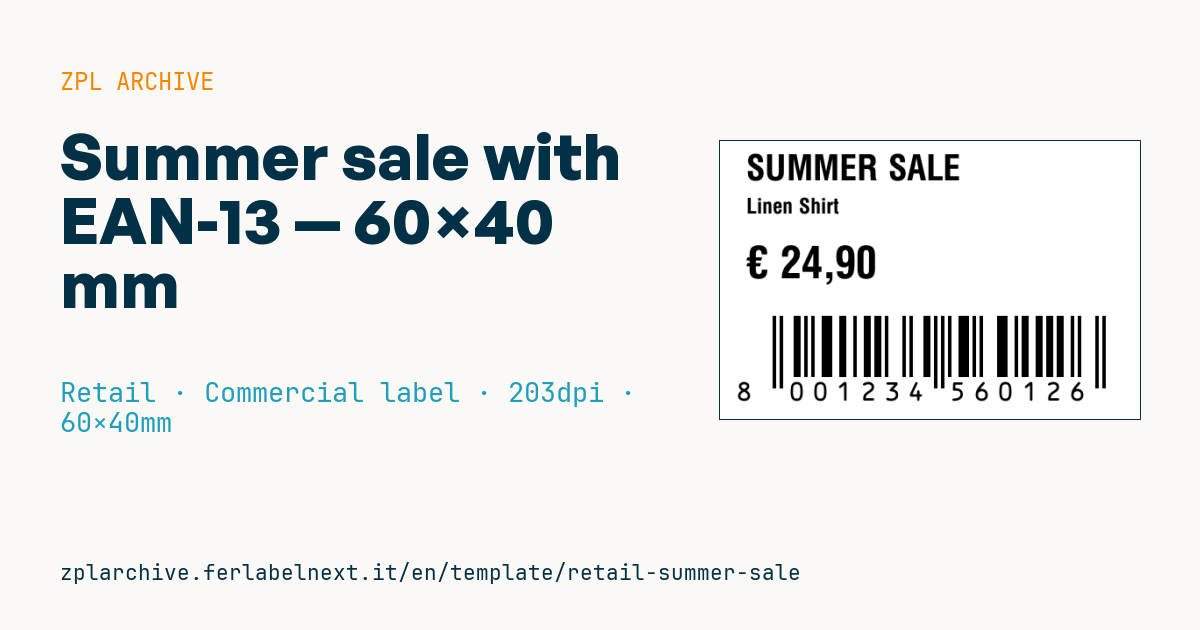
Horizontal summer-sale promo label: banner on top, name and price on the left, scannable EAN-13 barcode on the right for the till.
Summer sale
60×40 mm @ 203 dpi. Horizontal layout: promo banner on top, product name and price stacked on the left, EAN-13 barcode (^BE) on the right for checkout scanning.
Placeholders
-
promo_label— promo banner (e.g.SUMMER SALE) -
product_name -
currency— currency symbol -
price— price (EU format) -
ean13— EAN-13 code (12 digits + check)
When to use it
Fashion, sports, home and electronics stores use it during the summer sales: the label goes on the product or over the original tag and combines the promotional message with the EAN-13 read at the till. It is printed in large quantities when the sale starts and again at every further markdown, often in direct thermal because it only needs to last a few weeks. Keep it out of sunny shop windows, though: heat darkens thermal paper and makes the barcode unreadable.
Standards and requirements
The EAN-13 must carry the product's GTIN-13, according to the GS1 General Specifications: a price change does not require a new GTIN. For in-store-only codes GS1 reserves the restricted circulation prefixes 02 and 20-29. In ZPL ^BE calculates the check digit itself: send it the first 12 digits.
For point-of-sale scanning GS1 specifies a magnification between 80% and 200% of nominal (0.33 mm module). At 203 dpi ^BY2 gives 0.25 mm, about 75%, below the minimum; ^BY3 gives 0.375 mm, about 114%. Do not truncate bar height and keep the quiet zones on both sides.
When announcing the discount, Directive 98/6/EC as amended by Directive (EU) 2019/2161 applies: the previous price is the lowest of the prior 30 days. Sale dates and duration are set by national or regional rules.
Common mistakes
- Creating a new EAN for the sale price instead of updating the price in the POS.
- Printing with
^BY2to make the code fit: the module is below the GS1 minimum. - Covering the original barcode with the promo label without repeating the same GTIN.
- Announcing a discount against a price not applied in the previous 30 days.
FAQ
Do I need a new EAN code when the product goes on sale?
No. The GTIN identifies the product, not the price: update the price in your POS system.
What do I put in the EAN-13 field with ^BE?
The first 12 digits of the GTIN: the printer calculates and prints the check digit.
ZPL code
^XA
^PW480
^LL320
^CI28
^CF0,40^FO30,15^FD{{promo_label}}^FS
^CF0,24^FO30,65^FD{{product_name}}^FS
^CF0,50^FO30,120^FD{{currency}} {{price}}^FS
^BY4,2,70
^FO60,200^BEN,70,Y,N^FD{{ean13}}^FS
^XZ- Industry: Retail
- Category: Commercial label
- DPI: 203
- Size: 60×40 mm
- Tags: EAN-13, Price tag, Promotion, Sale
What this label contains
Barcodes
- EAN-13
- 13-digit product code (GTIN-13) scanned at retail checkouts.
Elements
- 3 text fields
- 5 variable fields to fill in
Variable fields
| Field | Description | Example |
|---|---|---|
promo_label | Promo text | SUMMER SALE |
product_name | Product | Linen Shirt |
currency | Currency | € |
price | Price | 24,90 |
ean13 | EAN-13 code | 8001234560126 |
Format and printing
60×40 mm (2.36×1.57″) at 203 dpi: 480×320 dots. Landscape.
Compatible Zebra printers
You need a printer with a 4″ printhead at 203 dpi, for example:
- Zebra ZD421 (desktop)
- Zebra ZD621 (desktop)
- Zebra GK420 (desktop)
- Zebra ZT231 (industrial)
- Zebra ZT411 (industrial)
- Zebra ZT610 (industrial)
- Zebra ZQ521 (mobile)
- Zebra ZQ630 (mobile)
Any Zebra printer with a wider printhead and the same resolution works too.
The code is written for 203 dpi: on a printer with a different resolution the label prints larger or smaller and needs rescaling.
How to use it
- Open “Customize placeholders” and enter your data in the variable fields listed above.
- Check the preview: it is rendered from the same ZPL code you will send to the printer.
- Download the .zpl file or copy the code and send it to the printer: with “Print” through Zebra Browser Print, or as a raw file to port 9100 if the printer is on the network.
- Load 60×40 mm labels and make sure the printer is set to 203 dpi. For a different size use “Duplicate & edit” and adapt the layout in the builder.
Edit it in the editor
To change the layout, use “Duplicate & edit”: the template opens in the online ZPL editor, where you modify it and save it to your account for free.
Related templates
- Black Friday with offer QR — 50×40 mm 300 dpi · Retail · Commercial label
- EAN13 + bilingual IT/EN description — 60×40 mm 203 dpi · Retail · Commercial label
- Handmade soap label with logo — 50×40 mm 203 dpi · Retail · Commercial label
- -50% off sticker — 40×40 mm 203 dpi · Retail · Commercial label
- Clearance window poster — 70×50 mm 203 dpi · Retail · Commercial label
- Candle label with logo — 60×40 mm 203 dpi · Retail · Commercial label
- Basic EAN13 product — 50×30 mm 203 dpi · Retail · Commercial label
- Price + product name — 70×40 mm 203 dpi · Retail · Commercial label