Outlet dual-price tag — 45×35 mm
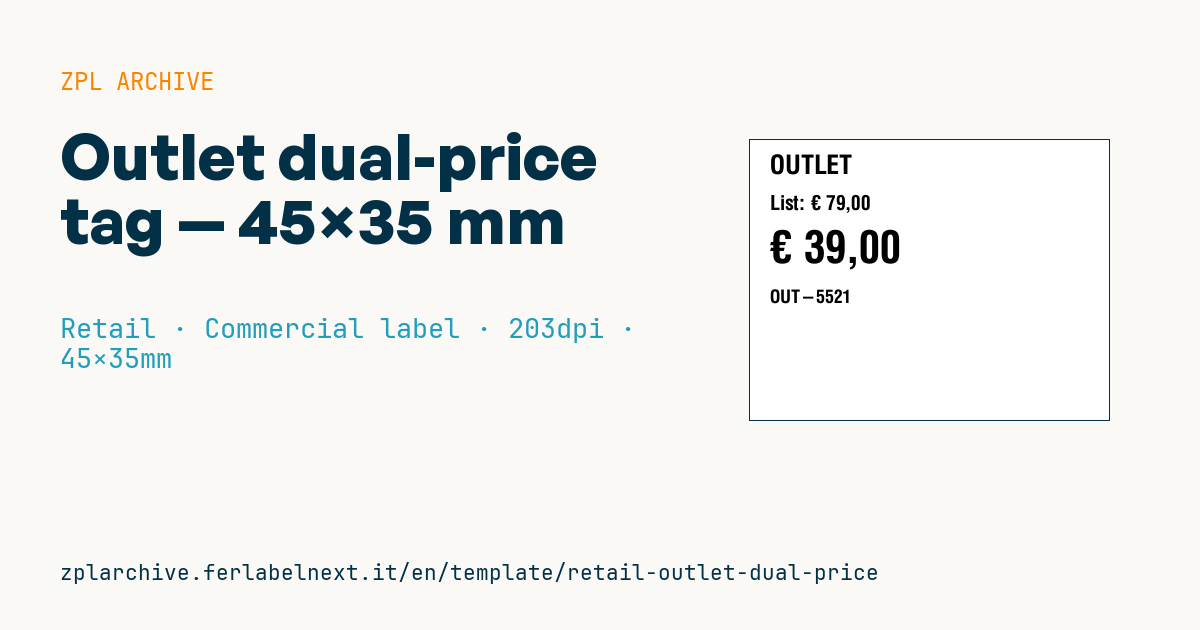
Outlet tag that places list price and outlet price side by side, with store claim and item code. Shows the saving transparently.
Outlet dual-price tag
45×35 mm @ 203 dpi. Shows the list price with the static field label List: and, below it, the outlet price in a large font. The item code sits at the bottom.
Placeholders
store_label— store name/claim (e.g.OUTLET)currency— currency symbollist_price— list priceoutlet_price— outlet priceproduct_code— code/SKU
When to use it
Clothing, footwear and homeware outlets, factory shops and end-of-line corners use this tag to show the customer how much they save: the reference price above, the large outlet price below. It is applied as a sticker over the original tag or directly on the product, and is reprinted often, at every markdown.
For tags that stay in store a few weeks direct thermal paper is fine; if the label covers another one or must be removed without residue, choose a removable adhesive.
Standards and requirements
In the EU, if you present the list price as a previous price that has been reduced, Directive 98/6/EC as amended by Directive (EU) 2019/2161 (Omnibus) requires the previous price to be the lowest price applied in the 30 days before the reduction; each member state has transposed it into national law. If the reference is the manufacturer's recommended price, label it as such so as not to mislead customers: exceptions and details vary by country.
To strike through the list price in ZPL draw a line with ^GB (for example as wide as the text and 2-3 dots high). The € sign requires ^CI28 and a font that contains it, such as ^A0; still with ^CI28 active, you can also write it in UTF-8 hex with ^FH as _E2_82_AC.
Common mistakes
- Using a struck-through price that was never charged or is higher than the 30-day lowest price.
- Working out the discount percentage by hand and rounding it wrongly.
- Covering the original tag with the wrong item code, causing mismatches at the till.
- Left-aligning prices: with 2- and 3-digit amounts the decimals do not line up.
FAQ
Which price should I show as the previous price in an outlet?
If you announce a reduction, in the EU it is the lowest price applied in the previous 30 days. For recommended prices the general ban on misleading practices applies.
How do I strike through a price in ZPL?
Overlay a thin horizontal ^GB on the text, with its width based on the length of the amount.
ZPL code
^XA
^PW360
^LL280
^CI28
^CF0,26^FO20,15^FD{{store_label}}^FS
^CF0,20^FO20,55^FDList: {{currency}} {{list_price}}^FS
^CF0,44^FO20,90^FD{{currency}} {{outlet_price}}^FS
^CF0,18^FO20,150^FD{{product_code}}^FS
^XZ- Industry: Retail
- Category: Commercial label
- DPI: 203
- Size: 45×35 mm
- Tags: Discount, Outlet, Price tag
What this label contains
Barcodes
This label contains no barcodes: it is made of text and graphics.
Elements
- 4 text fields
- 5 variable fields to fill in
Variable fields
| Field | Description | Example |
|---|---|---|
store_label | Store label | OUTLET |
currency | Currency | € |
list_price | List price | 79,00 |
outlet_price | Outlet price | 39,00 |
product_code | Code | OUT-5521 |
Format and printing
45×35 mm (1.77×1.38″) at 203 dpi: 360×280 dots. Landscape.
Compatible Zebra printers
You need a printer with a 2″ printhead at 203 dpi, for example:
- Zebra ZD411 (desktop)
- Zebra ZD611 (desktop)
- Zebra ZQ220 (mobile)
- Zebra ZQ310 (mobile)
Any Zebra printer with a wider printhead and the same resolution works too.
The code is written for 203 dpi: on a printer with a different resolution the label prints larger or smaller and needs rescaling.
How to use it
- Open “Customize placeholders” and enter your data in the variable fields listed above.
- Check the preview: it is rendered from the same ZPL code you will send to the printer.
- Download the .zpl file or copy the code and send it to the printer: with “Print” through Zebra Browser Print, or as a raw file to port 9100 if the printer is on the network.
- Load 45×35 mm labels and make sure the printer is set to 203 dpi. For a different size use “Duplicate & edit” and adapt the layout in the builder.
Edit it in the editor
To change the layout, use “Duplicate & edit”: the template opens in the online ZPL editor, where you modify it and save it to your account for free.
Related templates
- Black Friday with offer QR — 50×40 mm 300 dpi · Retail · Commercial label
- EAN13 + bilingual IT/EN description — 60×40 mm 203 dpi · Retail · Commercial label
- Handmade soap label with logo — 50×40 mm 203 dpi · Retail · Commercial label
- Basic EAN13 product — 50×30 mm 203 dpi · Retail · Commercial label
- Summer sale with EAN-13 — 60×40 mm 203 dpi · Retail · Commercial label
- Price + product name — 70×40 mm 203 dpi · Retail · Commercial label
- -50% off sticker — 40×40 mm 203 dpi · Retail · Commercial label
- Clearance window poster — 70×50 mm 203 dpi · Retail · Commercial label