Subscription box label with logo — 100×60 mm
Subscription box label with logo area, brand, box name, edition, member number and unboxing QR.
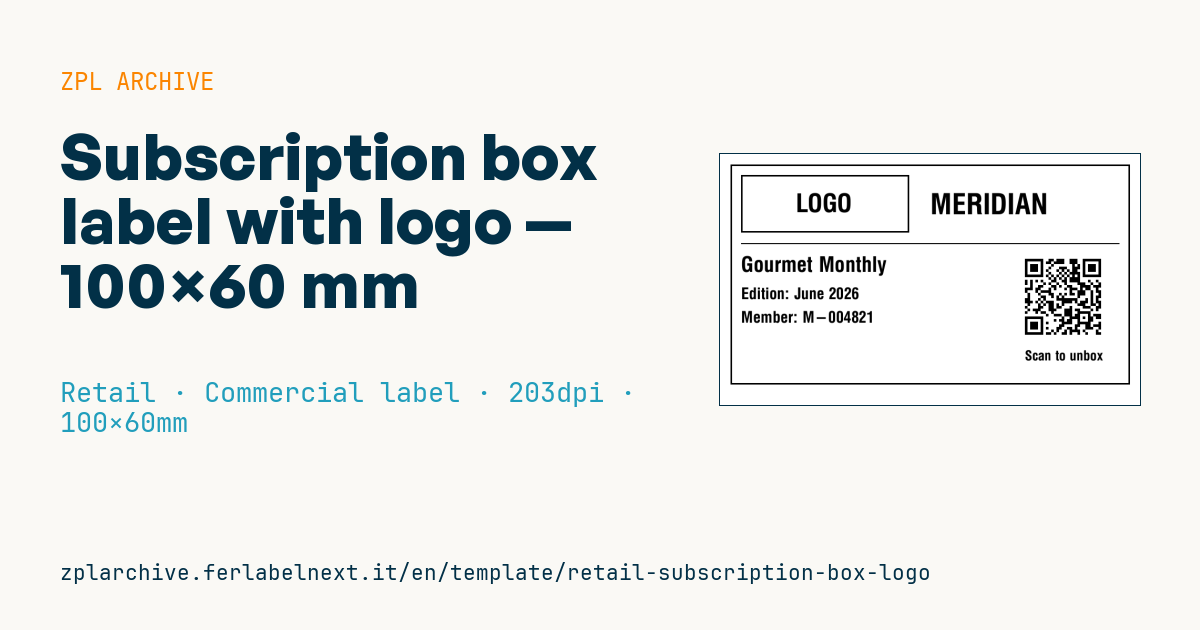
Subscription box label with logo
100×60 mm @ 203 dpi (^PW800). Label applied to the subscription box lid. At the top left the logo area: a placeholder frame with "LOGO" text, to be replaced with the real brand logo (^GF image). The QR links to the unboxing video/page.
Placeholders
brandbox_nameedition— edition (e.g.June 2026)member_no— member numberunbox_url— URL in the QR (unboxing)
The "LOGO" frame is a placeholder: replace it with your logo as a graphic (
^GF).
When to use it
Subscription box brands (cosmetics, coffee, snacks, books, pet products) and the fulfilment warehouses that pack them use this label: it goes on the box lid, under the shipping carton or directly on the box, and identifies edition and member. It is printed in large monthly batches, in the same sequence as the pick lists, and the QR leads to the unboxing video or page for that edition.
On recycled kraft board you need a strong permanent adhesive; print by thermal transfer if the box is kept or collected, by direct thermal if only delivery matters.
Standards and requirements
The label has no specific standard and does not replace the carrier label: that one stays separate and follows your carrier's specifications. The member number is indirect personal data: under the GDPR data minimisation principle (Regulation (EU) 2016/679) do not add name and address unless needed, and do not put member data in clear in the QR URL.
The QR follows ISO/IEC 18004; at 203 dpi ^BQN,2,5 gives modules of about 0.6 mm, easy to read even in poor light. If you print the same logo on thousands of labels, store it once in printer memory with ~DG and recall it with ^XG instead of sending the ^GF with every label.
Common mistakes
- Placing the QR on the lid fold, where it warps and fails to scan.
- Sending the
^GFlogo with every label, slowing down the monthly batches. - Encoding a link containing the member's name or email in the QR.
- Applying the wrong label because the print order does not follow the pick list.
FAQ
Can this label also be used for shipping?
No, it is a product label. For shipping use the carrier label according to its specifications.
How do I change the QR link for each edition?
Use your own redirect URL and update its destination, or generate the QR with an edition parameter.
ZPL code
^XA
^LL480
^CI28
^PW800
^FO20,20^GB760,420,3^FS
^FO40,40^GB320,110,3^FS
^CF0,48^FO130,75^FD LOGO ^FS
^CF0,54^FO400,75^FD{{brand}}^FS
^FO40,170^GB720,2,2^FS
^CF0,40^FO40,195^FD{{box_name}}^FS
^CF0,30^FO40,255^FDEdition: {{edition}}^FS
^FO40,300^FDMember: {{member_no}}^FS
^FO580,190^BQN,2,5^FDLA,{{unbox_url}}^FS
^CF0,26^FO580,375^FDScan to unbox^FS
^XZ- Industry: Retail
- Category: Commercial label
- DPI: 203
- Size: 100×60 mm
- Tags: Logo, Packaging, QR Code, Subscription box
What this label contains
Barcodes
- QR Code
- 2D code for links, text and structured data, readable by any smartphone.
Elements
- 6 text fields
- 5 variable fields to fill in
- boxes and separator lines
Variable fields
| Field | Description | Example |
|---|---|---|
brand | Brand | MERIDIAN |
box_name | Box name | Gourmet Monthly |
edition | Edition | June 2026 |
member_no | Member no. | M-004821 |
unbox_url | Unbox URL | https://meridian.example/unbox/M-004821 |
Format and printing
100×60 mm (3.94×2.36″) at 203 dpi: 799×480 dots. Landscape.
Compatible Zebra printers
You need a printer with a 4″ printhead at 203 dpi, for example:
- Zebra ZD421 (desktop)
- Zebra ZD621 (desktop)
- Zebra GK420 (desktop)
- Zebra ZT231 (industrial)
- Zebra ZT411 (industrial)
- Zebra ZT610 (industrial)
- Zebra ZQ521 (mobile)
- Zebra ZQ630 (mobile)
Any Zebra printer with a wider printhead and the same resolution works too.
The code is written for 203 dpi: on a printer with a different resolution the label prints larger or smaller and needs rescaling.
How to use it
- Open “Customize placeholders” and enter your data in the variable fields listed above.
- Check the preview: it is rendered from the same ZPL code you will send to the printer.
- Download the .zpl file or copy the code and send it to the printer: with “Print” through Zebra Browser Print, or as a raw file to port 9100 if the printer is on the network.
- Load 100×60 mm labels and make sure the printer is set to 203 dpi. For a different size use “Duplicate & edit” and adapt the layout in the builder.
Edit it in the editor
To change the layout, use “Duplicate & edit”: the template opens in the online ZPL editor, where you modify it and save it to your account for free.
Related templates
- Black Friday with offer QR — 50×40 mm 300 dpi · Retail · Commercial label
- Handmade soap label with logo — 50×40 mm 203 dpi · Retail · Commercial label
- EAN13 + bilingual IT/EN description — 60×40 mm 203 dpi · Retail · Commercial label
- Candle label with logo — 60×40 mm 203 dpi · Retail · Commercial label
- Price + product name — 70×40 mm 203 dpi · Retail · Commercial label
- -50% off sticker — 40×40 mm 203 dpi · Retail · Commercial label
- Basic EAN13 product — 50×30 mm 203 dpi · Retail · Commercial label
- Summer sale with EAN-13 — 60×40 mm 203 dpi · Retail · Commercial label