VIP / backstage pass (QR) — 100×70 mm
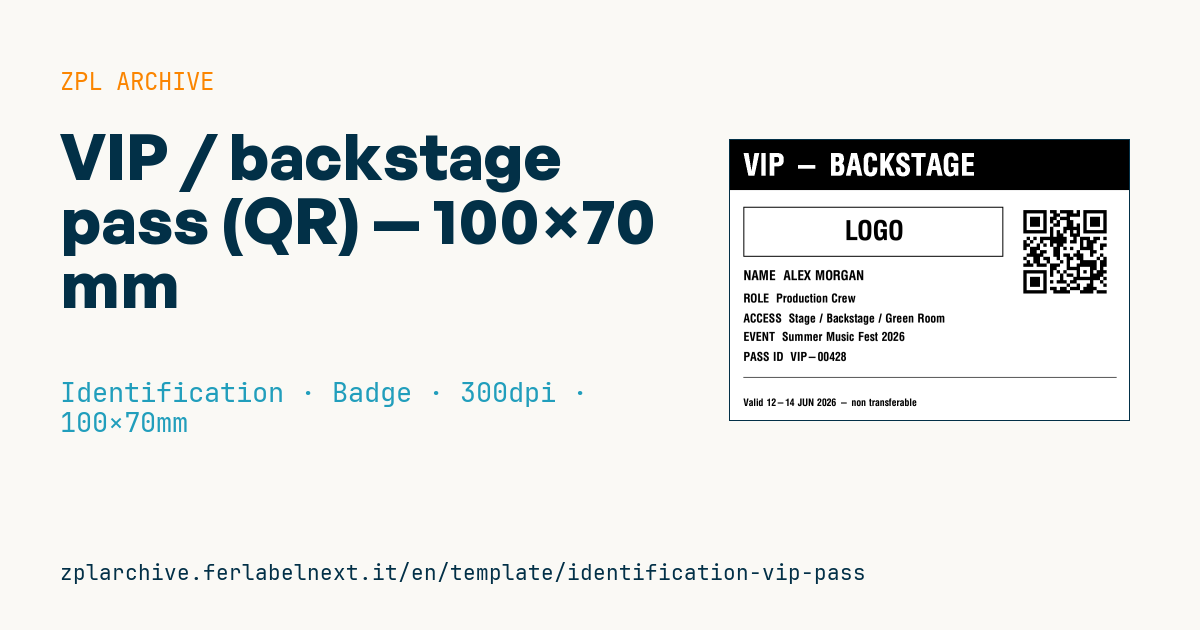
VIP/backstage pass with logo area, name, role, access areas, event, pass ID, validity and access-control QR code.
VIP / backstage pass
100×70 mm @ 300 dpi. For VIP/backstage accreditation at events. Reverse header band + logo area (placeholder frame with "LOGO", to be replaced with the real logo via ^GF) + data and access-control QR for the gates.
Placeholders
name— holder namerole— role/functionaccess— allowed areasevent— eventpass_id— pass IDvalidity— validityqr_payload— data in the access-control QR
The "LOGO" frame is a placeholder: replace it with the event logo as a graphic (
^GF).
When to use it
A VIP pass is used by organisers of concerts, trade fairs, sports events and conferences to accredit guests, artists, press and technical crew. It is printed at the accreditation desk and worn on a lanyard or clip for the whole event. At the gates, stewards scan the QR with a phone or handheld and the system checks in real time whether that person may enter that area, while the access zones printed in clear text allow a visual check even without a network.
For a pass that must survive several days, rain and sweat, choose a synthetic stock (polypropylene or PET) printed by thermal transfer, with the lanyard hole outside the print area.
Standards and requirements
There is no specific standard for event passes. The QR code follows ISO/IEC 18004; the 100×70 mm format is not an ISO/IEC 7810 ID-1 card, so it will not fit CR80 badge holders. Practical requirements: a QR that reads in poor light, content that cannot be guessed, access zones readable from a distance. In ZPL, the first two characters of the ^BQ field data set the error correction level and input mode (for example QA, for level Q and automatic input); choose a magnification that keeps each module well above 0.5 mm. If the QR holds personal data, apply GDPR data minimisation: an identifier that points to your database is safer.
Common mistakes
- Encoding the name or a sequential ID in the QR: it can be forged by copying or incrementing the number.
- Shrinking the QR too much: phone cameras struggle with small modules under stage lighting.
- Not revoking lost passes in the system, so a printed QR stays valid.
FAQ
Does the QR need to work offline?
That depends on the scanning app. If gates may lose connectivity, use a system that downloads the list of valid passes in advance.
Can I add a photo of the holder?
Yes, as a ^GF graphic generated by your software, but it slows printing and the image must be handled as personal data.
ZPL code
^XA
^LL827
^CI28
^PW1200
^FO0,0^GB1200,150,150^FS
^FR^CF0,90^FO40,40^FDVIP - BACKSTAGE^FS
^FO40,200^GB780,150,3^FS
^CF0,80^FO320,240^FD LOGO ^FS
^CF0,40^FO40,390^FDNAME  {{name}}^FS
^CF0,36^FO40,460^FDROLE  {{role}}^FS
^FO40,520^FDACCESS  {{access}}^FS
^FO40,575^FDEVENT  {{event}}^FS
^FO40,635^FDPASS ID  {{pass_id}}^FS
^FO40,710^GB1120,2,2^FS
^CF0,30^FO40,775^FDValid {{validity}} - non transferable^FS
^FO880,200^BQN,2,10^FDQA,{{qr_payload}}^FS
^XZ- Industry: Identification
- Category: Badge
- DPI: 300
- Size: 100×70 mm
- Tags: Access control, Badge, Event, QR Code
What this label contains
Barcodes
- QR Code
- 2D code for links, text and structured data, readable by any smartphone.
Elements
- 8 text fields
- 7 variable fields to fill in
- boxes and separator lines
Variable fields
| Field | Description | Example |
|---|---|---|
name | Name | ALEX MORGAN |
role | Role | Production Crew |
access | Access | Stage / Backstage / Green Room |
event | Event | Summer Music Fest 2026 |
pass_id | Pass ID | VIP-00428 |
validity | Validity | 12-14 JUN 2026 |
qr_payload | QR payload | VIP|00428|SMF2026 |
Format and printing
100×70 mm (3.94×2.76″) at 300 dpi: 1181×827 dots. Landscape.
Compatible Zebra printers
You need a printer with a 4″ printhead at 300 dpi, for example:
- Zebra ZD421 (desktop)
- Zebra ZD621 (desktop)
- Zebra ZT231 (industrial)
- Zebra ZT411 (industrial)
- Zebra ZT610 (industrial)
Any Zebra printer with a wider printhead and the same resolution works too.
The code is written for 300 dpi: on a printer with a different resolution the label prints larger or smaller and needs rescaling.
How to use it
- Open “Customize placeholders” and enter your data in the variable fields listed above.
- Check the preview: it is rendered from the same ZPL code you will send to the printer.
- Download the .zpl file or copy the code and send it to the printer: with “Print” through Zebra Browser Print, or as a raw file to port 9100 if the printer is on the network.
- Load 100×70 mm labels and make sure the printer is set to 300 dpi. For a different size use “Duplicate & edit” and adapt the layout in the builder.
Edit it in the editor
To change the layout, use “Duplicate & edit”: the template opens in the online ZPL editor, where you modify it and save it to your account for free.
Related templates
- Lockout/Tagout tag — 70×100 mm 203 dpi · Identification · Safety
- Parking permit — 100×60 mm 203 dpi · Identification · Badge
- Tamper-evident security seal — 80×20 mm 203 dpi · Identification · Safety
- Contractor badge — 54×86 mm CR80 300 dpi · Identification · Badge
- Document confidentiality label — 70×40 mm 203 dpi · Identification · Documents
- Membership card — 86×54 mm CR80 300 dpi · Identification · Badge
- File folder spine label — 90×30 mm 203 dpi · Identification · Documents
- Evidence chain of custody — 100×50 mm 203 dpi · Identification · Documents