Document confidentiality label — 70×40 mm
Classification label for confidential documents: CONFIDENTIAL banner, classification level, owner and document ID.
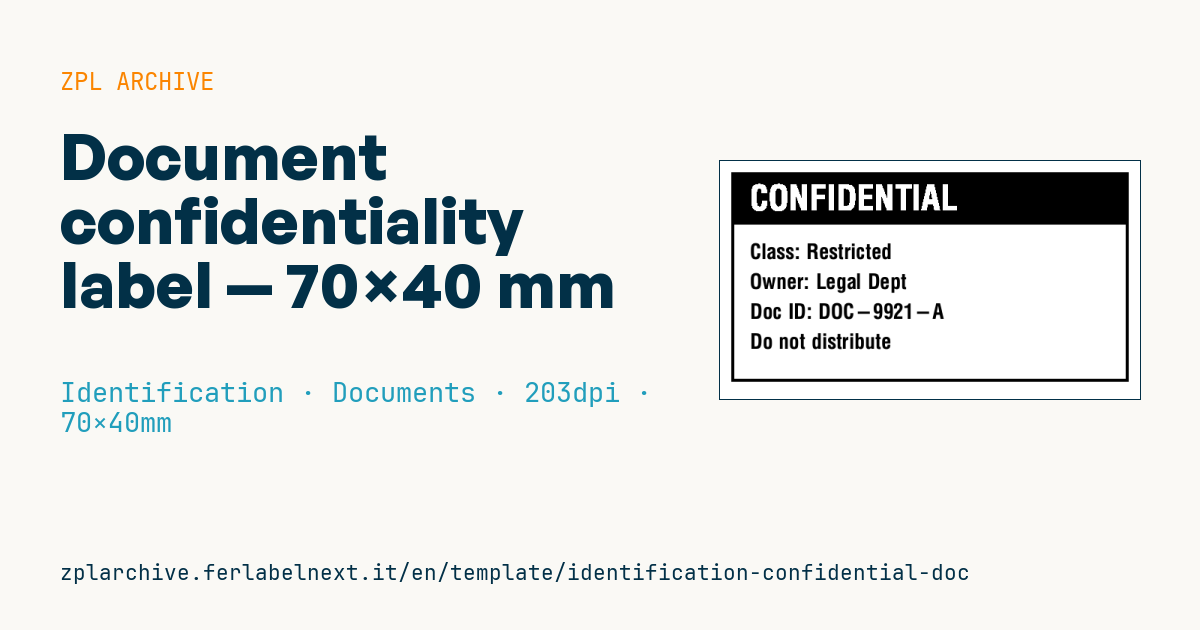
Confidentiality label
70×40 mm format to apply on binders, folders or covers of sensitive documents. Reversed CONFIDENTIAL banner for immediate impact.
Placeholders
classification— level (e.g.Restricted,Secret)owner— owner/responsible departmentdoc_id— document identifier
When to use it
Legal, HR, finance, professional firms and R&D departments use this label to mark binders, folders and envelopes holding sensitive documents, so anyone handling them knows at once how to treat them. It goes on paper and board and often stays in the archive for years: use thermal transfer on coated paper, with a permanent adhesive if the label must not come off without leaving a trace.
Standards and requirements
No standard mandates a label format. ISO/IEC 27001:2022, however, requires information to be classified and labelled according to a defined procedure (Annex A controls A.5.12 and A.5.13): the printed levels must match your policy, using the same names. The GDPR does not prescribe labels, but marking helps you demonstrate appropriate organisational measures.
State classified information follows its own national rules, and this label is not suitable for that use. In ZPL the reversed banner is a filled ^GB with ^FR on the text; for accented characters in department names use ^CI28.
Common mistakes
- Inventing levels ("Top Secret", "Strictly") that your company policy does not define.
- Putting information in the owner or ID fields that reveals what the document contains.
- Using direct thermal on archive binders: after a few years the text disappears.
- Labelling only the outer envelope and not the document or binder inside.
FAQ
Does a "Confidential" label have legal force?
Not on its own; it is an organisational tool. It carries weight when it refers to a policy or a non-disclosure agreement that defines the obligations.
Which classification levels should I use?
Many companies use three or four levels, for example Public, Internal, Confidential, Restricted. What matters is that they are defined in the policy and applied consistently.
Should the label be tamper-evident?
For high-risk documents, yes: destructible or void-pattern labels show if someone has opened or removed them. For routine folders a permanent adhesive is enough.
ZPL code
^XA
^LL320
^CI28
^PW560
^FO15,15^GB530,280,4^FS
^FO15,15^GB530,70,70^FS
^CF0,46^FO40,32^FR^FDCONFIDENTIAL^FS
^CF0,28^FO40,110^FDClass: {{classification}}^FS
^FO40,150^FDOwner: {{owner}}^FS
^FO40,190^FDDoc ID: {{doc_id}}^FS
^FO40,230^FDDo not distribute^FS
^XZ- Industry: Identification
- Category: Documents
- DPI: 203
- Size: 70×40 mm
- Tags: Confidential, Document, Identification
What this label contains
Barcodes
This label contains no barcodes: it is made of text and graphics.
Elements
- 5 text fields
- 3 variable fields to fill in
- boxes and separator lines
Variable fields
| Field | Description | Example |
|---|---|---|
classification | Classification | Restricted |
owner | Owner | Legal Dept |
doc_id | Doc ID | DOC-9921-A |
Format and printing
70×40 mm (2.76×1.57″) at 203 dpi: 559×320 dots. Landscape.
Compatible Zebra printers
You need a printer with a 4″ printhead at 203 dpi, for example:
- Zebra ZD421 (desktop)
- Zebra ZD621 (desktop)
- Zebra GK420 (desktop)
- Zebra ZT231 (industrial)
- Zebra ZT411 (industrial)
- Zebra ZT610 (industrial)
- Zebra ZQ521 (mobile)
- Zebra ZQ630 (mobile)
Any Zebra printer with a wider printhead and the same resolution works too.
The code is written for 203 dpi: on a printer with a different resolution the label prints larger or smaller and needs rescaling.
How to use it
- Open “Customize placeholders” and enter your data in the variable fields listed above.
- Check the preview: it is rendered from the same ZPL code you will send to the printer.
- Download the .zpl file or copy the code and send it to the printer: with “Print” through Zebra Browser Print, or as a raw file to port 9100 if the printer is on the network.
- Load 70×40 mm labels and make sure the printer is set to 203 dpi. For a different size use “Duplicate & edit” and adapt the layout in the builder.
Edit it in the editor
To change the layout, use “Duplicate & edit”: the template opens in the online ZPL editor, where you modify it and save it to your account for free.
Related templates
- Lockout/Tagout tag — 70×100 mm 203 dpi · Identification · Safety
- VIP / backstage pass (QR) — 100×70 mm 300 dpi · Identification · Badge
- Parking permit — 100×60 mm 203 dpi · Identification · Badge
- Tamper-evident security seal — 80×20 mm 203 dpi · Identification · Safety
- Contractor badge — 54×86 mm CR80 300 dpi · Identification · Badge
- Membership card — 86×54 mm CR80 300 dpi · Identification · Badge
- File folder spine label — 90×30 mm 203 dpi · Identification · Documents
- Emergency assembly point — 100×100 mm 203 dpi · Identification · Safety