Document control label — 60×40 mm
Document control label for quality/ISO: document ID, revision, status, effective date and a "controlled copy" note. For document management.
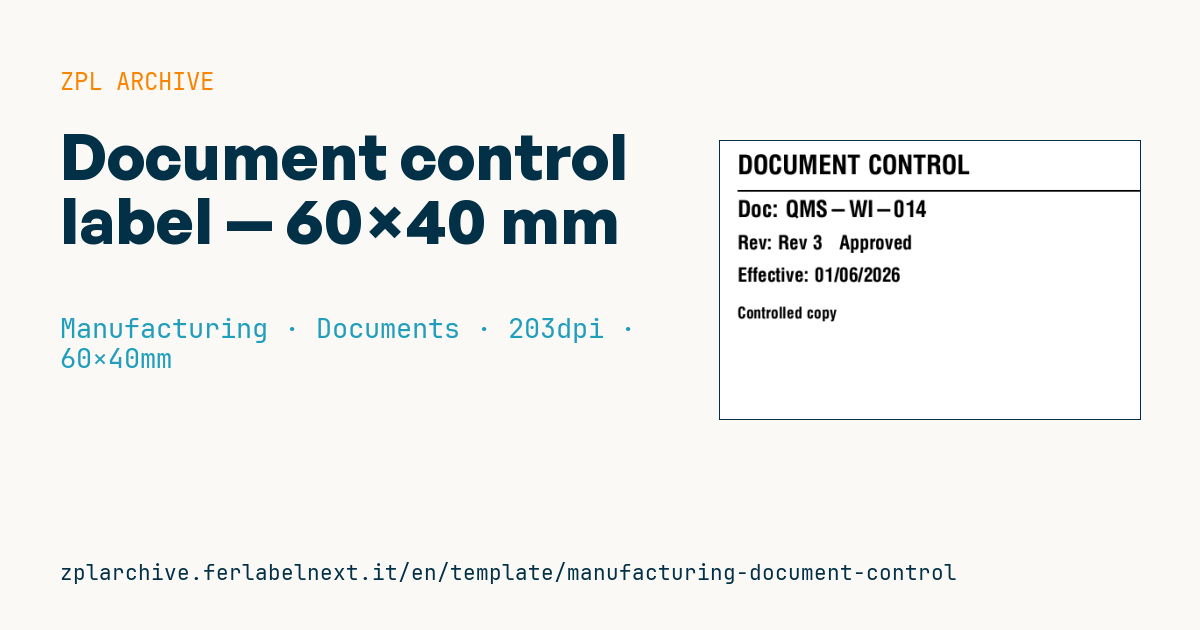
Document control label
60×40 mm @ 203 dpi. Title, separator, document ID, revision+status, effective date and a "controlled copy" note.
Placeholders
title_label— title (e.g.DOCUMENT CONTROL)doc_id— document IDrevision/status— revision and statuseff_date— effective datecontrolled_note— note (e.g.Controlled copy)
When to use it
The quality department uses it to mark paper copies of procedures, work instructions, drawings and forms handed out on the shop floor, at machines or in line binders. Anyone reading it must see at once whether they are holding the current revision and whether it is a controlled copy, meaning it is registered and withdrawn when a new revision is issued. It goes on sheets, clear sleeves or folders: plain matt paper is fine in the office, while in areas with oil or humidity a synthetic label with thermal transfer is safer.
Standards and requirements
ISO 9001:2015 clause 7.5.3 requires control of documented information: the right version available where needed, change control and prevention of unintended use of obsolete documents. Similar requirements exist in ISO 13485 for medical devices and in sector standards such as IATF 16949. None of them requires a label: it is a practical way to make the status visible. Define in your procedure the allowed status values (e.g. draft, approved, obsolete). If texts contain accented characters, set ^CI28 and send the data as UTF-8.
Common mistakes
- Leaving copies of the previous revision on the floor without marking them obsolete or withdrawing them.
- Using the same "controlled copy" label for ad hoc printouts, which should be marked as uncontrolled.
- Showing the revision in a different format from the document system (e.g.
Bon the label,02in the software). - Printing the issue date instead of the effective date.
FAQ
What is the difference between a controlled and an uncontrolled copy?
A controlled copy is registered and replaced at every revision; an uncontrolled copy is for information only and nobody guarantees it is up to date.
Does ISO 9001 require a label on documents?
No. It requires documents and their revision status to be controlled; a label is a tool, not an obligation.
Should I add a QR to the digital version?
Yes, if it points to the document's page in the system rather than a specific file, so it always shows the current revision.
ZPL code
^XA
^PW480
^LL320
^CI28
^CF0,30^FO20,16^FD{{title_label}}^FS
^FO20,56^GB460,2,2^FS
^CF0,26^FO20,68^FDDoc: {{doc_id}}^FS
^CF0,22^FO20,108^FDRev: {{revision}}   {{status}}^FS
^CF0,22^FO20,145^FDEffective: {{eff_date}}^FS
^CF0,18^FO20,190^FD{{controlled_note}}^FS
^XZ- Industry: Manufacturing
- Category: Documents
- DPI: 203
- Size: 60×40 mm
- Tags: Compliance 2024, Document, Manufacturing, Quality control
What this label contains
Barcodes
This label contains no barcodes: it is made of text and graphics.
Elements
- 5 text fields
- 6 variable fields to fill in
- boxes and separator lines
Variable fields
| Field | Description | Example |
|---|---|---|
title_label | Title | DOCUMENT CONTROL |
doc_id | Doc ID | QMS-WI-014 |
revision | Revision | Rev 3 |
status | Status | Approved |
eff_date | Effective date | 01/06/2026 |
controlled_note | Note | Controlled copy |
Format and printing
60×40 mm (2.36×1.57″) at 203 dpi: 480×320 dots. Landscape.
Compatible Zebra printers
You need a printer with a 4″ printhead at 203 dpi, for example:
- Zebra ZD421 (desktop)
- Zebra ZD621 (desktop)
- Zebra GK420 (desktop)
- Zebra ZT231 (industrial)
- Zebra ZT411 (industrial)
- Zebra ZT610 (industrial)
- Zebra ZQ521 (mobile)
- Zebra ZQ630 (mobile)
Any Zebra printer with a wider printhead and the same resolution works too.
The code is written for 203 dpi: on a printer with a different resolution the label prints larger or smaller and needs rescaling.
How to use it
- Open “Customize placeholders” and enter your data in the variable fields listed above.
- Check the preview: it is rendered from the same ZPL code you will send to the printer.
- Download the .zpl file or copy the code and send it to the printer: with “Print” through Zebra Browser Print, or as a raw file to port 9100 if the printer is on the network.
- Load 60×40 mm labels and make sure the printer is set to 203 dpi. For a different size use “Duplicate & edit” and adapt the layout in the builder.
Edit it in the editor
To change the layout, use “Duplicate & edit”: the template opens in the online ZPL editor, where you modify it and save it to your account for free.
Related templates
- Company asset tag with QR — 50×50 mm 203 dpi · Manufacturing · Asset
- Generic GS1-128 — 100×50 mm 203 dpi · Manufacturing · GS1-128
- Kanban card — 100×70 mm 203 dpi · Manufacturing · Commercial label
- Fixed asset with QR — 50×30 mm 203 dpi · Manufacturing · Asset
- Preventive maintenance — 60×40 mm 203 dpi · Manufacturing · Asset
- Machine asset DataMatrix — 40×25 mm 300 dpi · Manufacturing · Asset
- Daily visitor pass — 100×70 mm 203 dpi · Manufacturing · Badge
- Calibration due label — 50×30 mm 203 dpi · Manufacturing · Asset