Preventive maintenance — 60×40 mm
Preventive maintenance tracking label: equipment, last service, next due, QR to maintenance log.
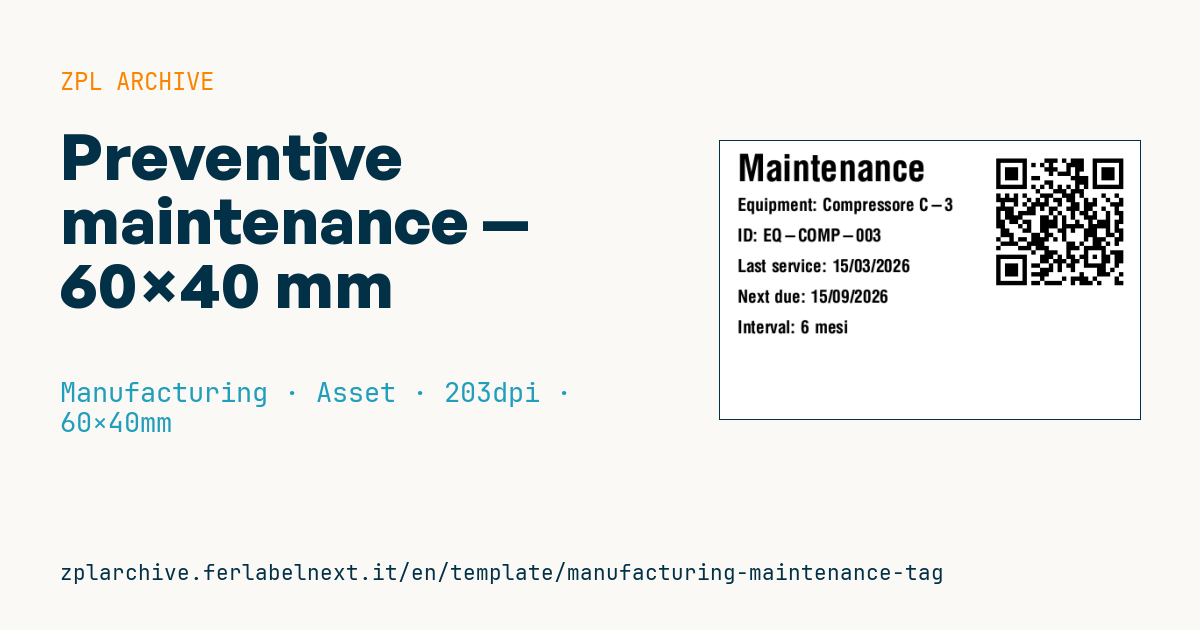
Preventive maintenance
60×40 mm @ 203 dpi. Applied on equipment or plant subject to periodic maintenance. QR leads to the full intervention log.
Placeholders
-
equipment_name -
equipment_id -
last_service—dd/mm/yyyy -
next_due—dd/mm/yyyy -
interval— e.g.6 months,2000 hours -
log_url— maintenance log URL
When to use it
The technician applies it at the end of a service on compressors, forklifts, presses, extraction systems or any equipment maintained by calendar or running hours. Anyone walking past sees at once whether the next service is overdue; scanning the QR opens the full history without searching the CMMS. It is reprinted at each service and placed over the previous one.
Near motors, ovens or hot surfaces direct thermal paper turns black: use thermal transfer polyester. Outdoors or in washdown areas you also need a suitable permanent adhesive.
Standards and requirements
No standard defines the format of this label. Workplace safety rules require work equipment to be kept in safe condition and, for some categories (lifting equipment, pressure vessels and the like), prescribe periodic inspections with their own records: the tag is a visual reminder and does not replace logs and inspection reports. Requirements vary by country, so check the ones that apply to you.
The QR code (ISO/IEC 18004) is produced with ^BQN,2, plus the magnification; the field data starts with error correction level and input mode, for example ^FDQA, before the URL. A short URL gives a smaller symbol that scans more easily.
Common mistakes
- Pointing the QR to an intranet page that shop-floor phones cannot reach.
- Using a generic link instead of the one for that specific machine.
- Writing ambiguous dates in multinational teams: the
YYYY-MM-DDformat avoids confusion. - Stating an interval in hours on a machine without an hour meter.
FAQ
Does a maintenance tag replace the maintenance log?
No. The log, on paper or digital, remains the reference document during an inspection; the tag makes the due date visible and links to the history.
How large should the QR code be?
At 300 dpi a magnification of 4 or 5 gives modules of about 0.34-0.42 mm, which phones read from around 20 cm. If the URL is long, use a short link.
ZPL code
^XA
^PW480
^LL320
^CI28
^CF0,42^FO20,15^FDMaintenance^FS
^CF0,20
^FO20,65^FDEquipment: {{equipment_name}}^FS
^FO20,100^FDID: {{equipment_id}}^FS
^FO20,135^FDLast service: {{last_service}}^FS
^FO20,170^FDNext due: {{next_due}}^FS
^FO20,205^FDInterval: {{interval}}^FS
^FO315,10^BQN,2,5
^FDLA,{{log_url}}^FS
^XZ- Industry: Manufacturing
- Category: Asset
- DPI: 203
- Size: 60×40 mm
- Tags: Lot, QR Code
What this label contains
Barcodes
- QR Code
- 2D code for links, text and structured data, readable by any smartphone.
Elements
- 6 text fields
- 6 variable fields to fill in
Variable fields
| Field | Description | Example |
|---|---|---|
equipment_name | Equipment | Compressore C-3 |
equipment_id | ID | EQ-COMP-003 |
last_service | Last service | 15/03/2026 |
next_due | Next due | 15/09/2026 |
interval | Interval | 6 mesi |
log_url | Log URL | https://maint.company.local/eq/EQ-COMP-003 |
Format and printing
60×40 mm (2.36×1.57″) at 203 dpi: 480×320 dots. Landscape.
Compatible Zebra printers
You need a printer with a 4″ printhead at 203 dpi, for example:
- Zebra ZD421 (desktop)
- Zebra ZD621 (desktop)
- Zebra GK420 (desktop)
- Zebra ZT231 (industrial)
- Zebra ZT411 (industrial)
- Zebra ZT610 (industrial)
- Zebra ZQ521 (mobile)
- Zebra ZQ630 (mobile)
Any Zebra printer with a wider printhead and the same resolution works too.
The code is written for 203 dpi: on a printer with a different resolution the label prints larger or smaller and needs rescaling.
How to use it
- Open “Customize placeholders” and enter your data in the variable fields listed above.
- Check the preview: it is rendered from the same ZPL code you will send to the printer.
- Download the .zpl file or copy the code and send it to the printer: with “Print” through Zebra Browser Print, or as a raw file to port 9100 if the printer is on the network.
- Load 60×40 mm labels and make sure the printer is set to 203 dpi. For a different size use “Duplicate & edit” and adapt the layout in the builder.
Edit it in the editor
To change the layout, use “Duplicate & edit”: the template opens in the online ZPL editor, where you modify it and save it to your account for free.
Related templates
- Company asset tag with QR — 50×50 mm 203 dpi · Manufacturing · Asset
- Generic GS1-128 — 100×50 mm 203 dpi · Manufacturing · GS1-128
- Kanban card — 100×70 mm 203 dpi · Manufacturing · Commercial label
- Document control label — 60×40 mm 203 dpi · Manufacturing · Documents
- Fixed asset with QR — 50×30 mm 203 dpi · Manufacturing · Asset
- Machine asset DataMatrix — 40×25 mm 300 dpi · Manufacturing · Asset
- Daily visitor pass — 100×70 mm 203 dpi · Manufacturing · Badge
- Calibration due label — 50×30 mm 203 dpi · Manufacturing · Asset