Company asset tag with QR — 50×50 mm
Square label for company asset inventory: company name, asset ID and QR that opens the online record.
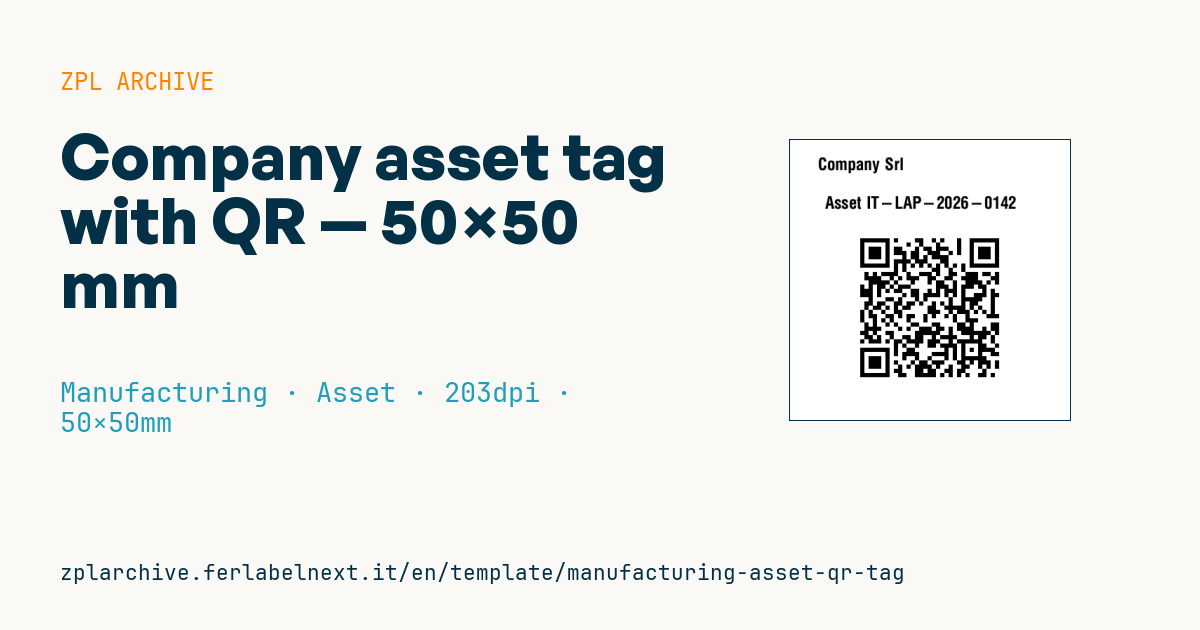
Company asset tag (QR)
50×50 mm format. The QR contains the full asset record URL — phone scan opens the record directly in the system.
Placeholders
company_short— short company nameasset_id— asset code (unique)asset_url— full URL (https://...)
When to use it
IT, facilities and maintenance teams use it to register computers, monitors, tools, portable instruments and office equipment. Whoever does the inventory or a service call scans the QR with a phone and opens the item record: assignee, history, open tickets. The square format suits small or curved surfaces, such as the back of a monitor or a tool handle. The label has to last for years and survive alcohol wipes and constant handling: polyester or polypropylene with thermal transfer and a resin or wax-resin ribbon.
Standards and requirements
There is no mandatory standard for internal asset tags; the QR must comply with ISO/IEC 18004, and the practical requirements are durability, legibility and a unique ID. If you want to discourage theft and swapping, use tamper-evident stock (destructible vinyl or VOID). In ZPL, ^BQN,2,5 at 203 dpi gives a module of about 0.6 mm, fine for phone scanning; leave 4 clear modules around the symbol. A short URL whose path contains only the asset ID keeps the module count low.
Common mistakes
- Encoding a URL tied to a server or domain you might change: every label becomes useless.
- Putting sensitive data or credentials in the QR instead of just the identifier.
- Applying the tag to removable parts (lids, covers, batteries).
- Reassigning a retired item's ID to a new one, mixing up the histories.
FAQ
QR or Code 128 for assets?
A QR scans with any phone and opens the record directly; Code 128 is still useful if you run linear laser scanners.
Does the QR need the full URL?
It is the most practical option for phones. If you use a dedicated app, the ID alone is enough and the app builds the link.
Which material for a tool crib?
Polyester with a resin ribbon: it handles oils, mild solvents and abrasion better than paper.
ZPL code
^XA
^PW400
^LL400
^CI28
^CF0,24^FO40,25^FD{{company_short}}^FS
^FO50,80^FDAsset {{asset_id}}^FS
^FO100,130^BQN,2,6
^FDQA,{{asset_url}}^FS
^XZ- Industry: Manufacturing
- Category: Asset
- DPI: 203
- Size: 50×50 mm
- Tags: QR Code
What this label contains
Barcodes
- QR Code
- 2D code for links, text and structured data, readable by any smartphone.
Elements
- 2 text fields
- 3 variable fields to fill in
Variable fields
| Field | Description | Example |
|---|---|---|
company_short | Company | Company Srl |
asset_id | Asset id | IT-LAP-2026-0142 |
asset_url | Asset URL | https://assets.company.local/a/IT-LAP-2026-0142 |
Format and printing
50×50 mm (1.97×1.97″) at 203 dpi: 400×400 dots. Square.
Compatible Zebra printers
You need a printer with a 2″ printhead at 203 dpi, for example:
- Zebra ZD411 (desktop)
- Zebra ZD611 (desktop)
- Zebra ZQ220 (mobile)
- Zebra ZQ310 (mobile)
Any Zebra printer with a wider printhead and the same resolution works too.
The code is written for 203 dpi: on a printer with a different resolution the label prints larger or smaller and needs rescaling.
How to use it
- Open “Customize placeholders” and enter your data in the variable fields listed above.
- Check the preview: it is rendered from the same ZPL code you will send to the printer.
- Download the .zpl file or copy the code and send it to the printer: with “Print” through Zebra Browser Print, or as a raw file to port 9100 if the printer is on the network.
- Load 50×50 mm labels and make sure the printer is set to 203 dpi. For a different size use “Duplicate & edit” and adapt the layout in the builder.
Edit it in the editor
To change the layout, use “Duplicate & edit”: the template opens in the online ZPL editor, where you modify it and save it to your account for free.
Related templates
- Generic GS1-128 — 100×50 mm 203 dpi · Manufacturing · GS1-128
- Kanban card — 100×70 mm 203 dpi · Manufacturing · Commercial label
- Document control label — 60×40 mm 203 dpi · Manufacturing · Documents
- Preventive maintenance — 60×40 mm 203 dpi · Manufacturing · Asset
- Fixed asset with QR — 50×30 mm 203 dpi · Manufacturing · Asset
- Machine asset DataMatrix — 40×25 mm 300 dpi · Manufacturing · Asset
- Daily visitor pass — 100×70 mm 203 dpi · Manufacturing · Badge
- Mandatory PPE area — 100×150 mm 203 dpi · Manufacturing · Safety