Raw material label — 60×40 mm
Label for raw materials entering production: name, material code, lot, quantity and a Code 128 barcode. For upstream BOM traceability.
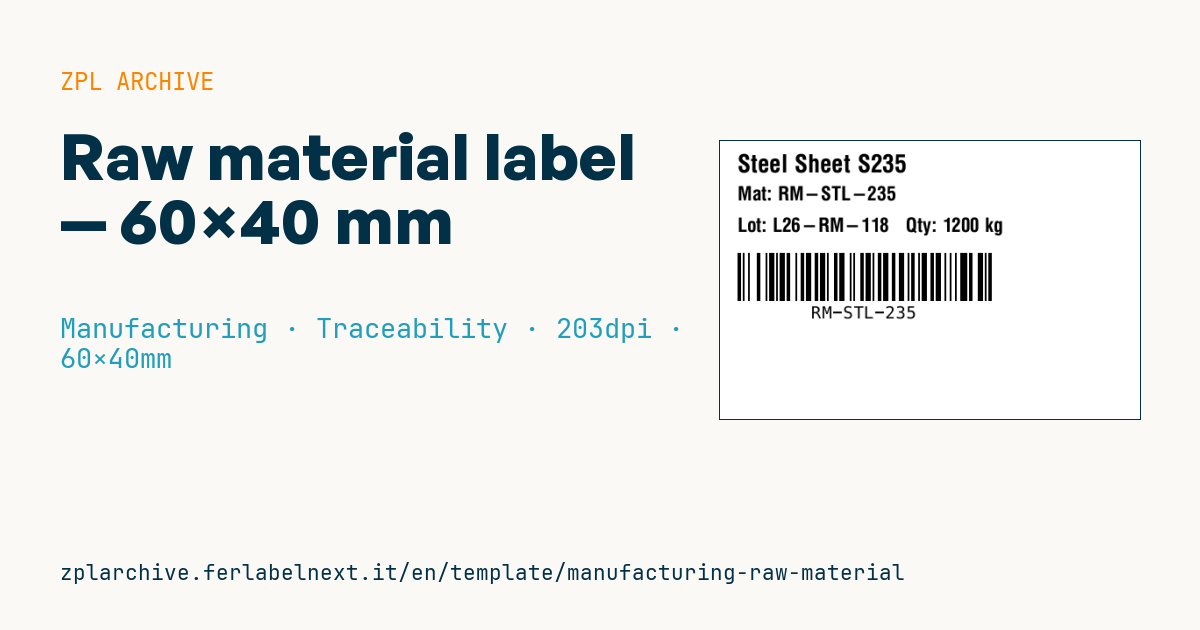
Raw material label
60×40 mm @ 203 dpi. Material name, code, lot+quantity and a Code 128 barcode with the material code.
Placeholders
material_name— material namematerial_code— material codelot/quantity— lot and quantity
When to use it
It is printed at goods receipt, when bags, drums, coils, bars or pallets of raw material are booked into stock, and stays with the material until it is issued to production. Scanning the Code 128 when material is issued to the line records what was consumed; combined with the lot, it tells you which production orders used a given supplier lot.
Drums and bags often sit outdoors, under damp canopies or in unheated stores: use thermal transfer synthetic stock and an adhesive for rough or slightly dusty surfaces.
Standards and requirements
No standard mandates the format of an internal raw material label. If your supplier already ships GS1-128 labels, you can scan them directly: the most common AIs are (01) GTIN, (10) batch/lot and (310n) net weight in kg. For hazardous substances and mixtures, the supplier's CLP label under Regulation (EC) No 1272/2008 must remain visible and legible.
For purely numeric material codes with an even number of digits, Code 128 subset C halves the symbol width: in ZPL use >; at the start of the data or the automatic mode of ^BC.
Common mistakes
- Covering the supplier's label, especially hazard pictograms.
- Encoding only the material code: without the lot in the barcode or in a second code, traceability at issue depends on manual typing.
- Assigning an internal lot without recording the supplier's original lot.
- Leaving out the unit of measure for the quantity (kg, m, pieces).
FAQ
Do I need to relabel raw materials if the supplier already uses GS1-128?
Not necessarily: if your ERP maps the supplier's GTIN to your internal code, scanning their label is enough. Relabel when suppliers use different formats or do not encode the lot.
Where should the label go on a drum?
On the side wall, not on the lid, which gets removed and swapped. Avoid the area where operators grip the drum or where product drips.
ZPL code
^XA
^PW480
^LL320
^CI28
^CF0,28^FO20,15^FD{{material_name}}^FS
^CF0,22^FO20,52^FDMat: {{material_code}}^FS
^CF0,22^FO20,88^FDLot: {{lot}}   Qty: {{quantity}}^FS
^BY2,2,55
^FO20,128^BCN,55,Y,N,N^FD{{material_code}}^FS
^XZ- Industry: Manufacturing
- Category: Traceability
- DPI: 203
- Size: 60×40 mm
- Tags: Code 128, Manufacturing, Raw material, Traceability
What this label contains
Barcodes
- Code 128
- High-density linear barcode that encodes the full ASCII set: ideal for tracking numbers, internal codes and alphanumeric IDs.
Elements
- 3 text fields
- 4 variable fields to fill in
Variable fields
| Field | Description | Example |
|---|---|---|
material_name | Material | Steel Sheet S235 |
material_code | Code | RM-STL-235 |
lot | Lot | L26-RM-118 |
quantity | Quantity | 1200 kg |
Format and printing
60×40 mm (2.36×1.57″) at 203 dpi: 480×320 dots. Landscape.
Compatible Zebra printers
You need a printer with a 4″ printhead at 203 dpi, for example:
- Zebra ZD421 (desktop)
- Zebra ZD621 (desktop)
- Zebra GK420 (desktop)
- Zebra ZT231 (industrial)
- Zebra ZT411 (industrial)
- Zebra ZT610 (industrial)
- Zebra ZQ521 (mobile)
- Zebra ZQ630 (mobile)
Any Zebra printer with a wider printhead and the same resolution works too.
The code is written for 203 dpi: on a printer with a different resolution the label prints larger or smaller and needs rescaling.
How to use it
- Open “Customize placeholders” and enter your data in the variable fields listed above.
- Check the preview: it is rendered from the same ZPL code you will send to the printer.
- Download the .zpl file or copy the code and send it to the printer: with “Print” through Zebra Browser Print, or as a raw file to port 9100 if the printer is on the network.
- Load 60×40 mm labels and make sure the printer is set to 203 dpi. For a different size use “Duplicate & edit” and adapt the layout in the builder.
Edit it in the editor
To change the layout, use “Duplicate & edit”: the template opens in the online ZPL editor, where you modify it and save it to your account for free.
Related templates
- Company asset tag with QR — 50×50 mm 203 dpi · Manufacturing · Asset
- Generic GS1-128 — 100×50 mm 203 dpi · Manufacturing · GS1-128
- Kanban card — 100×70 mm 203 dpi · Manufacturing · Commercial label
- Document control label — 60×40 mm 203 dpi · Manufacturing · Documents
- Fixed asset with QR — 50×30 mm 203 dpi · Manufacturing · Asset
- Preventive maintenance — 60×40 mm 203 dpi · Manufacturing · Asset
- Machine asset DataMatrix — 40×25 mm 300 dpi · Manufacturing · Asset
- Daily visitor pass — 100×70 mm 203 dpi · Manufacturing · Badge