Gourmet hamper tag with logo — 70×50 mm
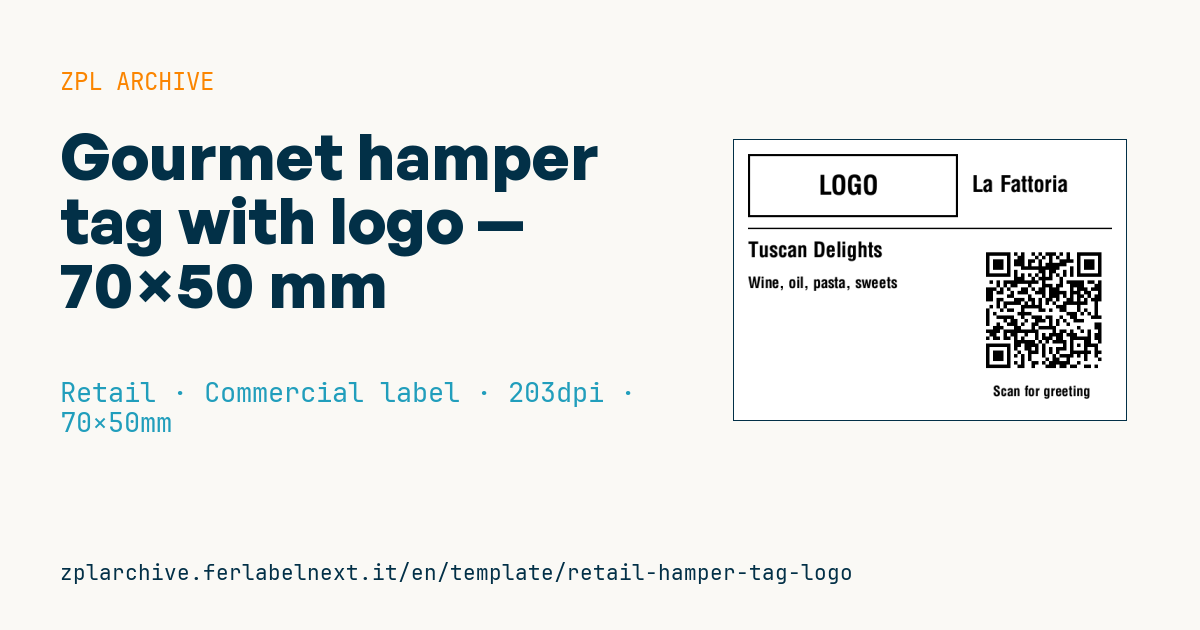
Gourmet hamper tag with logo area, brand, hamper name, contents and greeting-message QR.
Gourmet hamper tag with logo
70×50 mm @ 203 dpi. Tag to tie onto the gourmet gift hamper. At the top the logo area: a placeholder frame with "LOGO" text, to be replaced with the real brand logo (^GF image). The QR links to the greeting message.
Placeholders
-
brand -
hamper_name -
contents_short— short contents summary -
greeting_url— URL in the QR (greeting message)
The "LOGO" frame is a placeholder: replace it with your logo as a graphic (
^GF).
When to use it
Delis, wine shops, farms and corporate gift suppliers use this tag when they assemble Christmas or corporate hampers: it is tied to the handle or the cellophane and presents the hamper with its name and a short contents summary, while the QR leads to a greeting video or page. In corporate campaigns the same hamper is printed in hundreds of copies, changing only the message behind the QR.
The best media is tag stock or a synthetic label printed by thermal transfer: hampers sit for a long time in warehouses and offices, often near heaters, where direct thermal paper yellows.
Standards and requirements
The tag is decorative and does not replace the mandatory information of Regulation (EU) 1169/2011, which must stay on each food pack (name, ingredients, allergens, best-before or use-by date, lot). If you build the hamper with loose or repacked products, check your labelling duties with a consultant.
The QR follows ISO/IEC 18004. In ZPL you generate it with ^BQN,2,4 and data such as ^FDQA, followed by the URL; at 203 dpi magnification 4 gives modules of about 0.5 mm, readable by any smartphone. Leave at least 4 modules of white margin around the symbol.
Common mistakes
- Listing products in the contents field that are not actually in the hamper.
- Using a very long URL: the QR becomes dense and phones struggle to read it.
- Letting the greeting page expire before the hamper is opened, possibly weeks later.
- Tying the tag so the QR is folded or hidden by the bow.
FAQ
Does the hamper tag have to list allergens?
No, as long as every product inside is already correctly labelled. Allergens remain mandatory on each individual food pack.
How big should the QR be for phones to read it?
On a 70×50 mm tag a side of 15-20 mm is enough for a short URL. Shorten the address with your own redirect.
ZPL code
^XA
^LL400
^CI28
^PW560
^FO20,20^GB300,90,3^FS
^CF0,38^FO110,50^FD LOGO ^FS
^CF0,32^FO340,50^FD{{brand}}^FS
^FO20,125^GB520,2,2^FS
^CF0,30^FO20,145^FD{{hamper_name}}^FS
^CF0,22^FO20,195^FD{{contents_short}}^FS
^FO360,150^BQN,2,5^FDQA,{{greeting_url}}^FS
^CF0,20^FO370,350^FDScan for greeting^FS
^XZ- Industry: Retail
- Category: Commercial label
- DPI: 203
- Size: 70×50 mm
- Tags: Gift, Gourmet, Logo, QR Code
What this label contains
Barcodes
- QR Code
- 2D code for links, text and structured data, readable by any smartphone.
Elements
- 5 text fields
- 4 variable fields to fill in
- boxes and separator lines
Variable fields
| Field | Description | Example |
|---|---|---|
brand | Brand | La Fattoria |
hamper_name | Hamper name | Tuscan Delights |
contents_short | Contents | Wine, oil, pasta, sweets |
greeting_url | Greeting URL | https://northwind.example/greet/9F2C |
Format and printing
70×50 mm (2.76×1.97″) at 203 dpi: 559×400 dots. Landscape.
Compatible Zebra printers
You need a printer with a 4″ printhead at 203 dpi, for example:
- Zebra ZD421 (desktop)
- Zebra ZD621 (desktop)
- Zebra GK420 (desktop)
- Zebra ZT231 (industrial)
- Zebra ZT411 (industrial)
- Zebra ZT610 (industrial)
- Zebra ZQ521 (mobile)
- Zebra ZQ630 (mobile)
Any Zebra printer with a wider printhead and the same resolution works too.
The code is written for 203 dpi: on a printer with a different resolution the label prints larger or smaller and needs rescaling.
How to use it
- Open “Customize placeholders” and enter your data in the variable fields listed above.
- Check the preview: it is rendered from the same ZPL code you will send to the printer.
- Download the .zpl file or copy the code and send it to the printer: with “Print” through Zebra Browser Print, or as a raw file to port 9100 if the printer is on the network.
- Load 70×50 mm labels and make sure the printer is set to 203 dpi. For a different size use “Duplicate & edit” and adapt the layout in the builder.
Edit it in the editor
To change the layout, use “Duplicate & edit”: the template opens in the online ZPL editor, where you modify it and save it to your account for free.
Related templates
- Black Friday with offer QR — 50×40 mm 300 dpi · Retail · Commercial label
- EAN13 + bilingual IT/EN description — 60×40 mm 203 dpi · Retail · Commercial label
- Handmade soap label with logo — 50×40 mm 203 dpi · Retail · Commercial label
- -50% off sticker — 40×40 mm 203 dpi · Retail · Commercial label
- Basic EAN13 product — 50×30 mm 203 dpi · Retail · Commercial label
- Summer sale with EAN-13 — 60×40 mm 203 dpi · Retail · Commercial label
- Clearance window poster — 70×50 mm 203 dpi · Retail · Commercial label
- Candle label with logo — 60×40 mm 203 dpi · Retail · Commercial label