Package seal with logo — 80×25 mm
Package seal strip with logo area, brand, sealing operator and date.
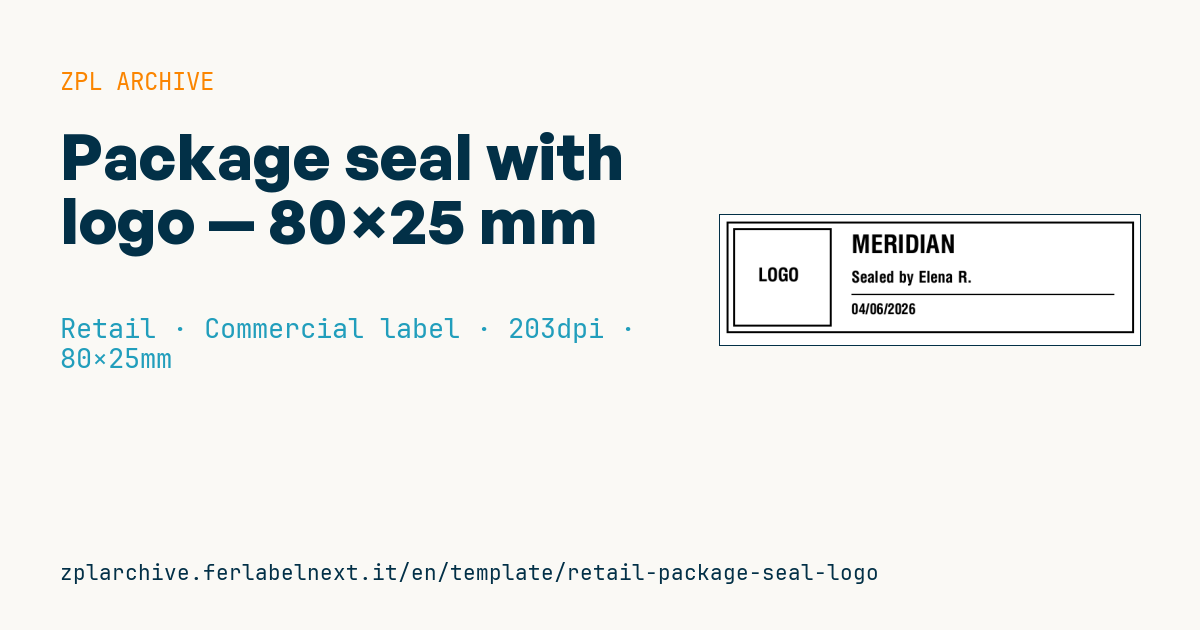
Package seal with logo
80×25 mm @ 203 dpi. Narrow strip applied across the package closure (^PW640). On the left the logo area: a placeholder frame with "LOGO" text, to be replaced with the real brand logo (^GF image).
Placeholders
brandsealed_by— sealing operatordate— sealing date
The "LOGO" frame is a placeholder: replace it with your logo as a graphic (
^GF).
When to use it
The strip is applied across the opening of boxes, bags or cartons to show that the package has not been opened after checking: premium e-commerce shops, patisseries and delis doing takeaway, and labs shipping samples use it. Operator name and date let you trace who closed the parcel if there is a complaint.
For real tamper evidence use security media: destructible vinyl that breaks into fragments when peeled, or "VOID" labels that leave a message on the surface. They are printed by thermal transfer with a resin ribbon.
Standards and requirements
There is no general standard for retail seals: the requirements are practical. The seal must cover both flaps, must not be removable and reapplicable without marks, and must stay readable until delivery. For medicines there is a dedicated standard for tamper verification features, ISO 21976, but it does not apply to gift packaging.
In ZPL you can print the date from the printer's real-time clock with ^FC (e.g. ^FC% and then %d/%m/%Y in the field) and number each seal with ^SN, so every strip is unique and traceable. If packages go abroad, write the date unambiguously, for example 2026-10-18 (ISO 8601).
Common mistakes
- Using plain paper: it peels off and sticks back without a trace.
- Applying the strip on cold, dusty or stretch-film surfaces where the adhesive does not grip.
- Leaving the printer clock unset, so every seal carries a wrong date.
- Filling the logo area of an 80×25 mm strip with an overly detailed
^GFthat turns into a blot at 203 dpi.
FAQ
What material should I use for a tamper-evident seal?
Destructible vinyl or VOID material, printed by thermal transfer with a compatible resin ribbon.
Can I print the date automatically?
Yes, if the printer has a clock: with ^FC and the codes %d, %m, %Y the date is filled in at print time.
ZPL code
^XA
^LL200
^CI28
^PW640
^FO10,10^GB620,170,3^FS
^FO20,20^GB150,150,3^FS
^CF0,28^FO50,80^FD LOGO ^FS
^CF0,38^FO200,30^FD{{brand}}^FS
^CF0,24^FO200,85^FDSealed by {{sealed_by}}^FS
^FO200,120^GB400,2,2^FS
^CF0,22^FO200,135^FD{{date}}^FS
^XZ- Industry: Retail
- Category: Commercial label
- DPI: 203
- Size: 80×25 mm
- Tags: Logo, Packaging, Premium, Seal
What this label contains
Barcodes
This label contains no barcodes: it is made of text and graphics.
Elements
- 4 text fields
- 3 variable fields to fill in
- boxes and separator lines
Variable fields
| Field | Description | Example |
|---|---|---|
brand | Brand | MERIDIAN |
sealed_by | Sealed by | Elena R. |
date | Date | 04/06/2026 |
Format and printing
80×25 mm (3.15×0.98″) at 203 dpi: 639×200 dots. Landscape.
Compatible Zebra printers
You need a printer with a 4″ printhead at 203 dpi, for example:
- Zebra ZD421 (desktop)
- Zebra ZD621 (desktop)
- Zebra GK420 (desktop)
- Zebra ZT231 (industrial)
- Zebra ZT411 (industrial)
- Zebra ZT610 (industrial)
- Zebra ZQ521 (mobile)
- Zebra ZQ630 (mobile)
Any Zebra printer with a wider printhead and the same resolution works too.
The code is written for 203 dpi: on a printer with a different resolution the label prints larger or smaller and needs rescaling.
How to use it
- Open “Customize placeholders” and enter your data in the variable fields listed above.
- Check the preview: it is rendered from the same ZPL code you will send to the printer.
- Download the .zpl file or copy the code and send it to the printer: with “Print” through Zebra Browser Print, or as a raw file to port 9100 if the printer is on the network.
- Load 80×25 mm labels and make sure the printer is set to 203 dpi. For a different size use “Duplicate & edit” and adapt the layout in the builder.
Edit it in the editor
To change the layout, use “Duplicate & edit”: the template opens in the online ZPL editor, where you modify it and save it to your account for free.
Related templates
- Black Friday with offer QR — 50×40 mm 300 dpi · Retail · Commercial label
- EAN13 + bilingual IT/EN description — 60×40 mm 203 dpi · Retail · Commercial label
- Handmade soap label with logo — 50×40 mm 203 dpi · Retail · Commercial label
- Basic EAN13 product — 50×30 mm 203 dpi · Retail · Commercial label
- Summer sale with EAN-13 — 60×40 mm 203 dpi · Retail · Commercial label
- Clearance window poster — 70×50 mm 203 dpi · Retail · Commercial label
- Candle label with logo — 60×40 mm 203 dpi · Retail · Commercial label
- Price + product name — 70×40 mm 203 dpi · Retail · Commercial label