Finished goods QR label — 50×40 mm
Finished goods label with a QR to the product page/digital passport, name, serial number, model and production date. For end-of-line.
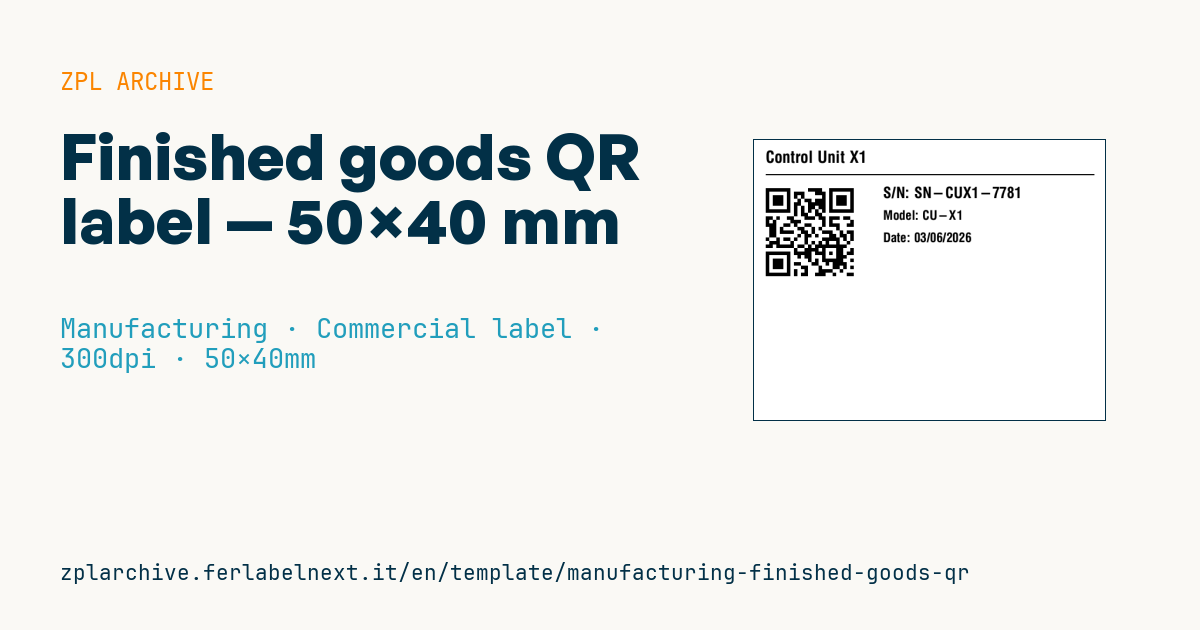
Finished goods QR label
50×40 mm @ 300 dpi. Name, separator, QR to the product page, serial, model and production date.
Placeholders
product_name— product nameproduct_url— page/digital passport URLserial— serial numbermodel/prod_date— model and date
When to use it
It is applied at end of line to machines, appliances, components and durable goods leaving production with a serial number. The QR leads to the page for that specific unit: manuals, declaration of conformity, spare parts, warranty registration, service. The label has to survive transport, installation and years of use, often in hot or oily environments: polyester or polypropylene in thermal transfer with a resin ribbon; on rough or powder-coated surfaces choose a high-tack adhesive.
Standards and requirements
The QR must comply with ISO/IEC 18004. For linking to the web, the reference standard is GS1 Digital Link, which structures the URL with GS1 identifiers, for example a path like /01/09506000134352/21/A1234. In the EU, Regulation (EU) 2024/1781 (ESPR) introduces the Digital Product Passport, but concrete requirements come through delegated acts for individual product groups: check whether yours is already covered. Batteries have their own passport under Regulation (EU) 2023/1542. Mandatory markings (e.g. CE and manufacturer details) depend on the applicable directive and are not replaced by the QR. At 300 dpi, ^BQN,2,4 gives modules of about 0.34 mm: increase the magnification if the product is scanned from a distance.
Common mistakes
- Encoding a URL that points straight to a file or a page that will move: use a domain and resolver you control long term.
- Generating serial numbers that are not unique across lines or plants.
- Placing the QR on a surface that gets covered during installation.
- Printing the production date in a format the service team cannot interpret.
FAQ
Is the Digital Product Passport already mandatory?
It depends on the product group: ESPR sets the framework, but obligations only apply once the specific delegated acts and their dates are in place.
What is the difference between a plain QR and GS1 Digital Link?
Both are QR codes; with GS1 Digital Link the URL carries GTIN and serial in a standard form that both phones and GS1 systems can read.
Do I also need a GTIN?
If the product goes through retail distribution, yes; for machinery sold directly, model plus serial may be enough.
ZPL code
^XA
^PW591
^LL472
^CI28
^CF0,28^FO20,18^FD{{product_name}}^FS
^FO20,58^GB560,2,2^FS
^FO20,72^BQN,2,6^FDLA,{{product_url}}^FS
^CF0,26^FO220,80^FDS/N: {{serial}}^FS
^CF0,22^FO220,120^FDModel: {{model}}^FS
^CF0,22^FO220,158^FDDate: {{prod_date}}^FS
^XZ- Industry: Manufacturing
- Category: Commercial label
- DPI: 300
- Size: 50×40 mm
- Tags: Finished goods, Manufacturing, QR Code, Traceability
What this label contains
Barcodes
- QR Code
- 2D code for links, text and structured data, readable by any smartphone.
Elements
- 4 text fields
- 5 variable fields to fill in
- boxes and separator lines
Variable fields
| Field | Description | Example |
|---|---|---|
product_name | Product | Control Unit X1 |
product_url | Product URL | https://dpp.example/p/CUX1-7781 |
serial | Serial | SN-CUX1-7781 |
model | Model | CU-X1 |
prod_date | Date | 03/06/2026 |
Format and printing
50×40 mm (1.97×1.57″) at 300 dpi: 591×472 dots. Landscape.
Compatible Zebra printers
You need a printer with a 2″ printhead at 300 dpi, for example:
- Zebra ZD411 (desktop)
- Zebra ZD611 (desktop)
Any Zebra printer with a wider printhead and the same resolution works too.
The code is written for 300 dpi: on a printer with a different resolution the label prints larger or smaller and needs rescaling.
How to use it
- Open “Customize placeholders” and enter your data in the variable fields listed above.
- Check the preview: it is rendered from the same ZPL code you will send to the printer.
- Download the .zpl file or copy the code and send it to the printer: with “Print” through Zebra Browser Print, or as a raw file to port 9100 if the printer is on the network.
- Load 50×40 mm labels and make sure the printer is set to 300 dpi. For a different size use “Duplicate & edit” and adapt the layout in the builder.
Edit it in the editor
To change the layout, use “Duplicate & edit”: the template opens in the online ZPL editor, where you modify it and save it to your account for free.
Related templates
- Company asset tag with QR — 50×50 mm 203 dpi · Manufacturing · Asset
- Generic GS1-128 — 100×50 mm 203 dpi · Manufacturing · GS1-128
- Kanban card — 100×70 mm 203 dpi · Manufacturing · Commercial label
- Document control label — 60×40 mm 203 dpi · Manufacturing · Documents
- Preventive maintenance — 60×40 mm 203 dpi · Manufacturing · Asset
- Fixed asset with QR — 50×30 mm 203 dpi · Manufacturing · Asset
- Machine asset DataMatrix — 40×25 mm 300 dpi · Manufacturing · Asset
- Daily visitor pass — 100×70 mm 203 dpi · Manufacturing · Badge