Experience voucher with logo — 100×50 mm
Experience gift voucher with logo area, brand, experience name, value, code and redemption QR.
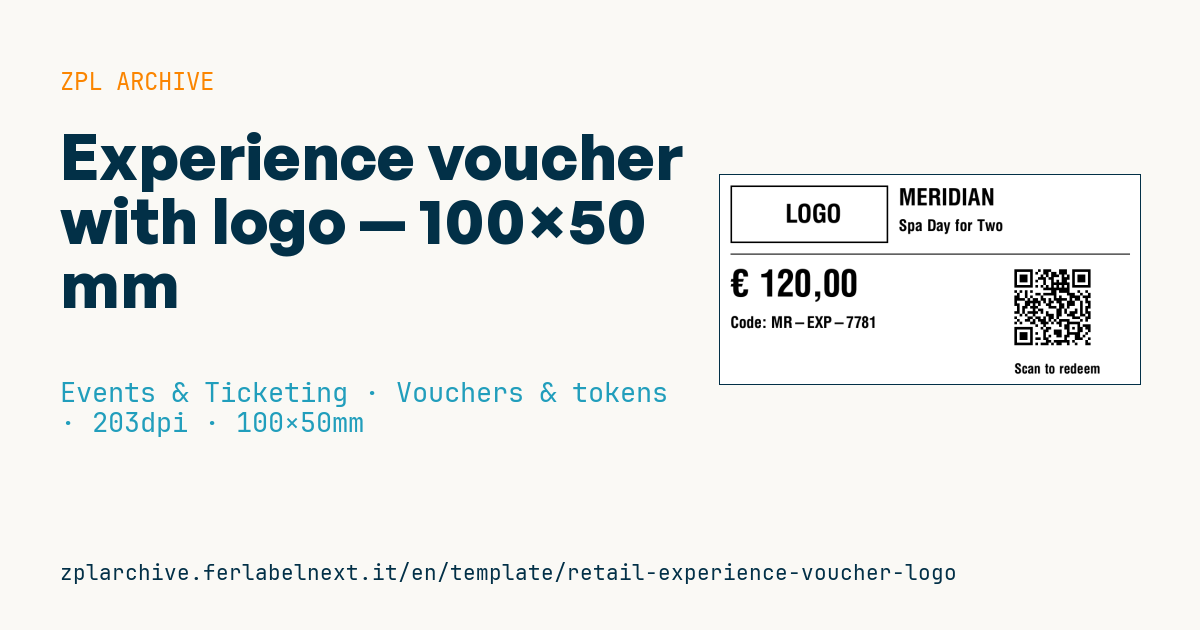
Experience voucher with logo
100×50 mm @ 203 dpi (^PW800). Gift voucher for an experience (e.g. spa, dinner, activity). At the top left the logo area: a placeholder frame with "LOGO" text, to be replaced with the real brand logo (^GF image). The QR links to the online redemption page.
Placeholders
brandexperience_name— experience name (e.g.Spa Day for Two)currency,value— voucher currency and valuevoucher_code— voucher coderedeem_url— URL in the QR (redemption)
The "LOGO" frame is a placeholder: replace it with your logo as a graphic (
^GF).
When to use it
Spas, restaurants, cooking schools, experience providers and shops use it to sell gift vouchers handed over in person, often in an envelope or gift box. The voucher is printed at the point of sale, with a unique code already activated in the booking system. It often sits in a drawer for months before being used: direct thermal paper fades with time and heat, so prefer card stock or a thermal transfer label.
Standards and requirements
There is no specific standard for a voucher label: the requirements are practical and tax-related. The QR follows ISO/IEC 18004 and needs a 4-module quiet zone; in ^BQ the URL goes after the error correction prefix, for example ^FDMA,. For tax purposes, Directive (EU) 2016/1065 distinguishes single-purpose vouchers, with VAT due at issue, from multi-purpose vouchers, taxed on redemption: check with your accountant which applies to you. Validity, refunds and terms of use depend on national law: state the expiry date clearly on the voucher or on the linked page.
Common mistakes
- Using sequential or predictable codes: anyone can guess the next voucher.
- Putting a URL without the code in the QR, forcing customers to type it in by hand.
- Not recording redemption on the server, so a voucher printed twice can be used twice.
- Leaving out the expiry date and key terms, such as mandatory booking or excluded days.
FAQ
Should the voucher code also be printed in plain text?
Yes. If the QR gets damaged or the customer books by phone, the readable code still lets them redeem the voucher.
How long should an experience voucher be valid?
There is no single EU-wide validity period and rules vary by country. An expiry that is too short may be challenged: choose a reasonable period and state it clearly.
ZPL code
^XA
^LL400
^CI28
^PW800
^FO20,20^GB300,110,3^FS
^CF0,48^FO110,55^FD LOGO ^FS
^CF0,44^FO340,25^FD{{brand}}^FS
^CF0,30^FO340,85^FD{{experience_name}}^FS
^FO20,150^GB760,2,2^FS
^CF0,70^FO20,180^FD{{currency}} {{value}}^FS
^CF0,30^FO20,270^FDCode: {{voucher_code}}^FS
^FO560,170^BQN,2,5^FDLA,{{redeem_url}}^FS
^CF0,26^FO560,360^FDScan to redeem^FS
^XZ- Industry: Events & Ticketing
- Category: Vouchers & tokens
- DPI: 203
- Size: 100×50 mm
- Tags: Gift, Logo, QR Code, Voucher
What this label contains
Barcodes
- QR Code
- 2D code for links, text and structured data, readable by any smartphone.
Elements
- 6 text fields
- 6 variable fields to fill in
- boxes and separator lines
Variable fields
| Field | Description | Example |
|---|---|---|
brand | Brand | MERIDIAN |
experience_name | Experience | Spa Day for Two |
currency | Currency | € |
value | Value | 120,00 |
voucher_code | Code | MR-EXP-7781 |
redeem_url | Redeem URL | https://meridian.example/redeem/MR-EXP-7781 |
Format and printing
100×50 mm (3.94×1.97″) at 203 dpi: 799×400 dots. Landscape.
Compatible Zebra printers
You need a printer with a 4″ printhead at 203 dpi, for example:
- Zebra ZD421 (desktop)
- Zebra ZD621 (desktop)
- Zebra GK420 (desktop)
- Zebra ZT231 (industrial)
- Zebra ZT411 (industrial)
- Zebra ZT610 (industrial)
- Zebra ZQ521 (mobile)
- Zebra ZQ630 (mobile)
Any Zebra printer with a wider printhead and the same resolution works too.
The code is written for 203 dpi: on a printer with a different resolution the label prints larger or smaller and needs rescaling.
How to use it
- Open “Customize placeholders” and enter your data in the variable fields listed above.
- Check the preview: it is rendered from the same ZPL code you will send to the printer.
- Download the .zpl file or copy the code and send it to the printer: with “Print” through Zebra Browser Print, or as a raw file to port 9100 if the printer is on the network.
- Load 100×50 mm labels and make sure the printer is set to 203 dpi. For a different size use “Duplicate & edit” and adapt the layout in the builder.
Edit it in the editor
To change the layout, use “Duplicate & edit”: the template opens in the online ZPL editor, where you modify it and save it to your account for free.
Related templates
- Press pass — 100×70 mm 203 dpi · Events & Ticketing · Accreditation & access
- Event admission ticket — 100×50 mm 203 dpi · Events & Ticketing · Tickets
- Boarding pass (PDF417) — 100×60 mm 203 dpi · Events & Ticketing · Tickets
- Concert seated ticket — 100×60 mm 203 dpi · Events & Ticketing · Seating & cloakroom
- Retail gift card with logo — 65×40 mm 300 dpi · Events & Ticketing · Vouchers & tokens
- Gift voucher — 85×54 mm CR80 300 dpi · Events & Ticketing · Vouchers & tokens
- Cashless festival wristband — 250×25 mm 203 dpi · Events & Ticketing · Accreditation & access
- Drink token — 40×40 mm 203 dpi · Events & Ticketing · Vouchers & tokens