Florist tag with logo — 50×70 mm
Flower bouquet tag with logo area, brand, bouquet name, recipient, sender and message.
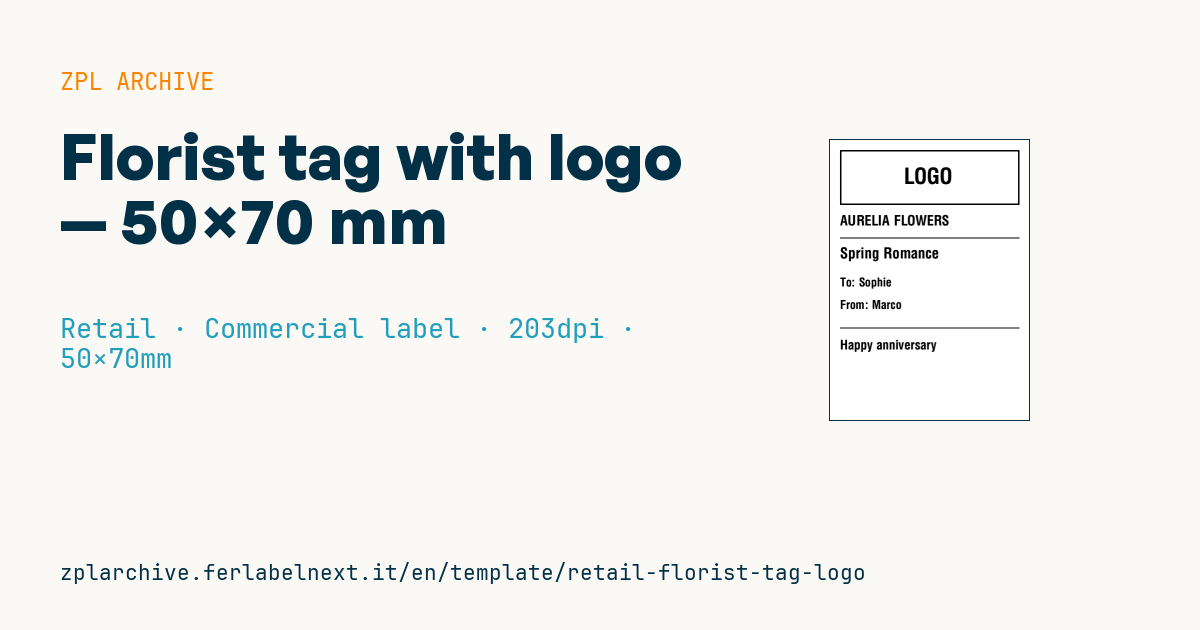
Florist tag with logo
50×70 mm @ 203 dpi. Tag to insert into the flower bouquet. At the top the logo area: a placeholder frame with "LOGO" text, to be replaced with the florist's real logo (^GF image).
Placeholders
brand— florist namebouquet_nameto_name— recipientfrom_name— sendermessage
The "LOGO" frame is a placeholder: replace it with your logo as a graphic (
^GF).
When to use it
Florists and flower delivery services use it to send bouquets, arrangements and plants with the sender's card, especially for phone and online orders where the message comes from the order system. The tag is slipped into a card holder or tied to the ribbon and lives in a harsh environment: cold rooms, wet stems, damp hands, delivery in the rain. Uncoated direct thermal paper smudges with water, so choose card or synthetic stock printed by thermal transfer, or direct thermal paper with a moisture-resistant top coating.
Standards and requirements
There is no specific standard for a florist's tag: the requirements are practical. The message must be complete, legible and free of wrong characters; use ^CI28 for accented letters and other languages, and remember that the printer's resident fonts contain no emoji. Use ^FB to set width, maximum number of lines and alignment: if the text exceeds the lines allowed, the overflow is printed over the last line, so cap the length in the order form. Sender and recipient names are personal data under Regulation (EU) 2016/679 (GDPR): do not keep print files longer than necessary.
Common mistakes
- Accepting messages of any length and finding out in the shop that the text is overprinted or cut.
- Printing emoji or special characters copied from the website: they come out as boxes or wrong symbols.
- Swapping sender and recipient when importing orders.
- Placing the ribbon hole over the text or the logo.
FAQ
How many characters can the message hold?
It depends on the font and height you choose. Test with the longest text you accept and set that limit in your online order form.
Can I use a script font?
Yes, by downloading a TrueType font to the printer and calling it with ^A@. Check that it contains every accented character you need.
ZPL code
^XA
^LL559
^CI28
^PW400
^FO20,20^GB360,110,3^FS
^CF0,44^FO135,55^FD LOGO ^FS
^CF0,28^FO20,150^FD{{brand}}^FS
^FO20,195^GB360,2,2^FS
^CF0,30^FO20,215^FD{{bouquet_name}}^FS
^CF0,24^FO20,275^FDTo: {{to_name}}^FS
^FO20,320^FDFrom: {{from_name}}^FS
^FO20,375^GB360,2,2^FS
^CF0,26^FO20,400^FD{{message}}^FS
^XZ- Industry: Retail
- Category: Commercial label
- DPI: 203
- Size: 50×70 mm
- Tags: Florist, Gift, Logo
What this label contains
Barcodes
This label contains no barcodes: it is made of text and graphics.
Elements
- 6 text fields
- 5 variable fields to fill in
- boxes and separator lines
Variable fields
| Field | Description | Example |
|---|---|---|
brand | Brand | AURELIA FLOWERS |
bouquet_name | Bouquet name | Spring Romance |
to_name | To | Sophie |
from_name | From | Marco |
message | Message | Happy anniversary |
Format and printing
50×70 mm (1.97×2.76″) at 203 dpi: 400×559 dots. Portrait.
Compatible Zebra printers
You need a printer with a 2″ printhead at 203 dpi, for example:
- Zebra ZD411 (desktop)
- Zebra ZD611 (desktop)
- Zebra ZQ220 (mobile)
- Zebra ZQ310 (mobile)
Any Zebra printer with a wider printhead and the same resolution works too.
The code is written for 203 dpi: on a printer with a different resolution the label prints larger or smaller and needs rescaling.
How to use it
- Open “Customize placeholders” and enter your data in the variable fields listed above.
- Check the preview: it is rendered from the same ZPL code you will send to the printer.
- Download the .zpl file or copy the code and send it to the printer: with “Print” through Zebra Browser Print, or as a raw file to port 9100 if the printer is on the network.
- Load 50×70 mm labels and make sure the printer is set to 203 dpi. For a different size use “Duplicate & edit” and adapt the layout in the builder.
Edit it in the editor
To change the layout, use “Duplicate & edit”: the template opens in the online ZPL editor, where you modify it and save it to your account for free.
Related templates
- Black Friday with offer QR — 50×40 mm 300 dpi · Retail · Commercial label
- Handmade soap label with logo — 50×40 mm 203 dpi · Retail · Commercial label
- EAN13 + bilingual IT/EN description — 60×40 mm 203 dpi · Retail · Commercial label
- -50% off sticker — 40×40 mm 203 dpi · Retail · Commercial label
- Basic EAN13 product — 50×30 mm 203 dpi · Retail · Commercial label
- Summer sale with EAN-13 — 60×40 mm 203 dpi · Retail · Commercial label
- Clearance window poster — 70×50 mm 203 dpi · Retail · Commercial label
- Candle label with logo — 60×40 mm 203 dpi · Retail · Commercial label