IT asset (laptop/server) — 50×25 mm
Compact IT inventory label for laptops, servers, peripherals: type, serial, user, asset barcode.
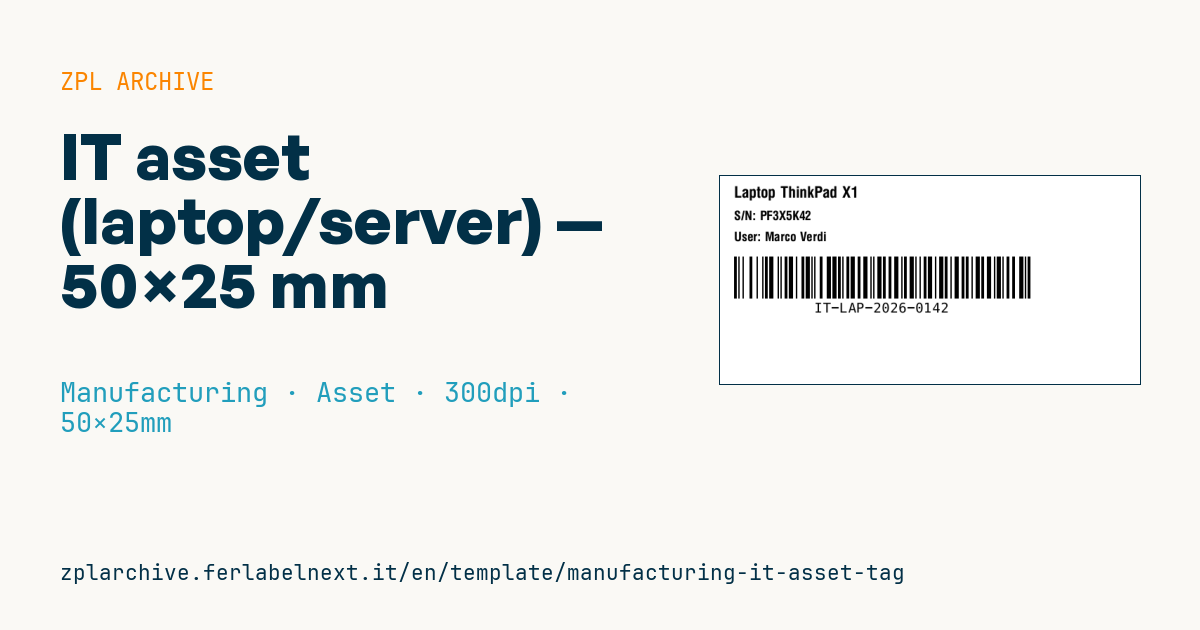
Compact IT asset
50×25 mm @ 300 dpi. Designed for laptops, servers, monitors — where space is limited and the only useful info is SN + user.
Placeholders
asset_type— e.g.ThinkPad X1 Laptop,Dell PowerEdge R750serial— hardware serial numberassigned_to— assigned userasset_id— internal asset id (barcode)
When to use it
You apply it when IT takes a device into inventory (laptop, server, monitor, docking station), before handing it to the user. It links the physical item to its record in the CMDB or asset management tool, so scanner audits, reassignments and disposals don't depend on the manufacturer's serial, which is often tiny or hidden.
On a laptop the label faces abrasion, hands, cleaning agents and heat: use polyester printed by thermal transfer with a resin ribbon, or tamper-evident stock. Direct thermal paper is only fine for temporary tags.
Standards and requirements
The ISO/IEC 19770 family covers IT asset management processes, not label layout, so the format is an internal decision. If the identifier must stay unique outside your company (leased or third-party-managed assets), GS1 defines the GIAI with AI (8004), encoded in GS1-128 with a leading FNC1 (>;>8 in the ^BC data); for an internal ID a plain Code 128 is enough.
With ^BY2 at 300 dpi the module is about 0.17 mm, readable by common scanners. Keep a quiet zone of at least 10 modules on each side.
Common mistakes
- Encoding the manufacturer's serial instead of the asset ID: its format varies by brand and uniqueness is not guaranteed.
- Placing the label near air vents or where users peel it off for looks.
- Reusing the ID of a retired asset, which mixes up the CMDB history.
- Not reprinting when the device is reassigned.
FAQ
Should the user's name be printed on an IT asset tag?
It helps visual checks, but it goes stale with every reassignment and exposes personal data. If devices change hands often, print only ID and type and keep the assignee in the software.
What label material survives on a laptop?
Polyester with a resin ribbon withstands abrasion and isopropyl alcohol. Tamper-evident versions leave a mark when removed, which helps in audits.
ZPL code
^XA
^PW591
^LL295
^CI28
^CF0,22^FO20,15^FD{{asset_type}}^FS
^CF0,18
^FO20,50^FDS/N: {{serial}}^FS
^FO20,80^FDUser: {{assigned_to}}^FS
^BY2,2,60
^FO20,115^BCN,60,Y,N,N^FD{{asset_id}}^FS
^XZ- Industry: Manufacturing
- Category: Asset
- DPI: 300
- Size: 50×25 mm
- Tags: Code 128, Serial number
What this label contains
Barcodes
- Code 128
- High-density linear barcode that encodes the full ASCII set: ideal for tracking numbers, internal codes and alphanumeric IDs.
Elements
- 3 text fields
- 4 variable fields to fill in
Variable fields
| Field | Description | Example |
|---|---|---|
asset_type | Type | Laptop ThinkPad X1 |
serial | Serial | PF3X5K42 |
assigned_to | Assigned to | Marco Verdi |
asset_id | Asset id | IT-LAP-2026-0142 |
Format and printing
50×25 mm (1.97×0.98″) at 300 dpi: 591×295 dots. Landscape.
Compatible Zebra printers
You need a printer with a 2″ printhead at 300 dpi, for example:
- Zebra ZD411 (desktop)
- Zebra ZD611 (desktop)
Any Zebra printer with a wider printhead and the same resolution works too.
The code is written for 300 dpi: on a printer with a different resolution the label prints larger or smaller and needs rescaling.
How to use it
- Open “Customize placeholders” and enter your data in the variable fields listed above.
- Check the preview: it is rendered from the same ZPL code you will send to the printer.
- Download the .zpl file or copy the code and send it to the printer: with “Print” through Zebra Browser Print, or as a raw file to port 9100 if the printer is on the network.
- Load 50×25 mm labels and make sure the printer is set to 300 dpi. For a different size use “Duplicate & edit” and adapt the layout in the builder.
Edit it in the editor
To change the layout, use “Duplicate & edit”: the template opens in the online ZPL editor, where you modify it and save it to your account for free.
Related templates
- Company asset tag with QR — 50×50 mm 203 dpi · Manufacturing · Asset
- Generic GS1-128 — 100×50 mm 203 dpi · Manufacturing · GS1-128
- Document control label — 60×40 mm 203 dpi · Manufacturing · Documents
- Kanban card — 100×70 mm 203 dpi · Manufacturing · Commercial label
- Fixed asset with QR — 50×30 mm 203 dpi · Manufacturing · Asset
- Preventive maintenance — 60×40 mm 203 dpi · Manufacturing · Asset
- Daily visitor pass — 100×70 mm 203 dpi · Manufacturing · Badge
- Machine asset DataMatrix — 40×25 mm 300 dpi · Manufacturing · Asset