Welcome card with logo — 90×50 mm
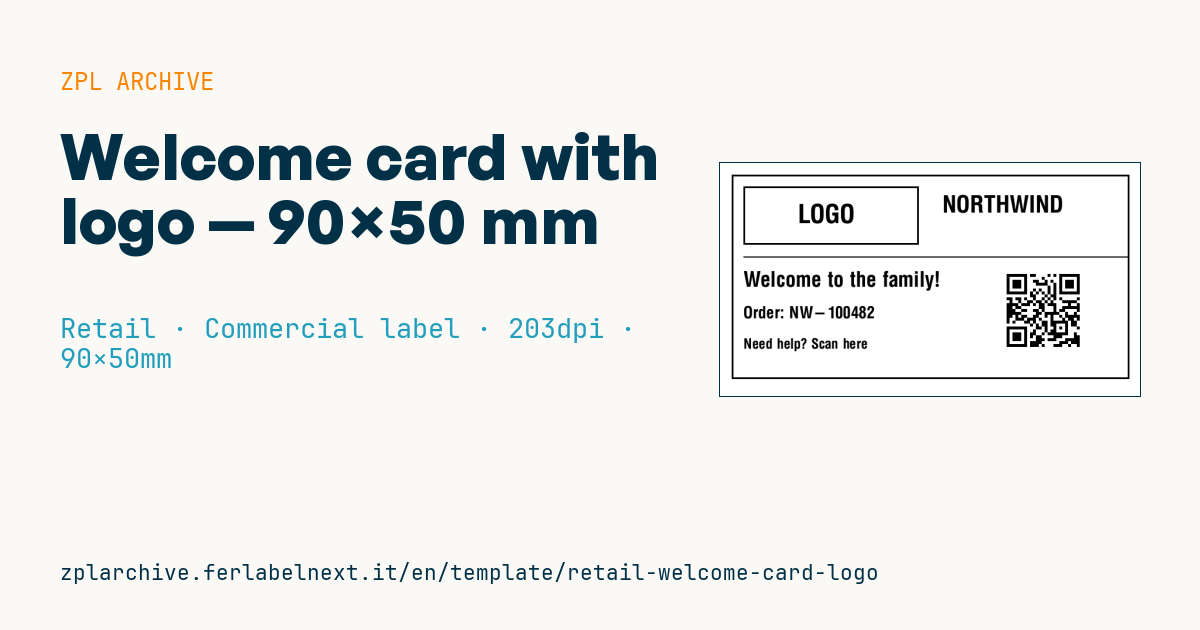
In-package welcome card with logo area, brand, welcome message, order number and support QR.
Welcome card with logo
90×50 mm @ 203 dpi (^PW720). Card to insert in the first-order package. At the top left the logo area: a placeholder frame with "LOGO" text, to be replaced with the real brand logo (^GF image). The QR links to customer support.
Placeholders
brandwelcome_msg— welcome message (e.g.Welcome to the family!)order_no— order numbersupport_url— URL in the QR (support)
The "LOGO" frame is a placeholder: replace it with your logo as a graphic (
^GF).
When to use it
E-commerce shops and direct-to-consumer brands that want to welcome customers on their first order use this card: it is printed at packing time, together with the delivery note, and placed in the parcel on top of the product. The order number ties the card to that specific parcel, and the QR leads to support, instructions or the returns process.
Since it is a non-adhesive card, it is usually printed on tag stock on a roll with a black mark on the back, by thermal transfer for a solid, durable black; direct thermal is fine if the card only matters when the parcel is opened.
Standards and requirements
There is no standard for a welcome card. It does not, however, replace the pre-contractual information and the confirmation on a durable medium required by Directive 2011/83/EU on consumer rights, including the right of withdrawal: these stay in emails and order documents. For privacy apply GDPR data minimisation: the order number is enough, avoid name, address or amount, and do not put personal data in clear in the QR URL.
In ZPL set ^MNM for black-mark stock and calibrate the printer. If printing happens at the packing bench, keep the card sequence aligned with the shipping labels.
Common mistakes
- Putting the card in the wrong parcel because printing does not follow the packing order.
- Encoding a link with the customer's email or address in the QR.
- Using gap sensing on continuous stock with a black mark: the print drifts.
- Pointing the QR to a generic page instead of support for that order.
FAQ
Can the welcome card contain withdrawal information?
It can refer to it, but the full information must be given before the contract and confirmed on a durable medium, such as email.
What media is a non-adhesive card printed on?
On tag stock on a roll, with a black mark or registration holes, with the matching sensor setting.
ZPL code
^XA
^LL400
^CI28
^PW720
^FO20,20^GB680,350,3^FS
^FO40,40^GB300,100,3^FS
^CF0,44^FO120,70^FD LOGO ^FS
^CF0,40^FO380,55^FD{{brand}}^FS
^FO40,160^GB660,2,2^FS
^CF0,36^FO40,185^FD{{welcome_msg}}^FS
^CF0,28^FO40,245^FDOrder: {{order_no}}^FS
^FO490,180^BQN,2,5^FDLA,{{support_url}}^FS
^CF0,24^FO40,300^FDNeed help? Scan here^FS
^XZ- Industry: Retail
- Category: Commercial label
- DPI: 203
- Size: 90×50 mm
- Tags: Logo, Packaging, Premium, QR Code
What this label contains
Barcodes
- QR Code
- 2D code for links, text and structured data, readable by any smartphone.
Elements
- 5 text fields
- 4 variable fields to fill in
- boxes and separator lines
Variable fields
| Field | Description | Example |
|---|---|---|
brand | Brand | NORTHWIND |
welcome_msg | Welcome | Welcome to the family! |
order_no | Order no. | NW-100482 |
support_url | Support URL | https://northwind.example/help |
Format and printing
90×50 mm (3.54×1.97″) at 203 dpi: 719×400 dots. Landscape.
Compatible Zebra printers
You need a printer with a 4″ printhead at 203 dpi, for example:
- Zebra ZD421 (desktop)
- Zebra ZD621 (desktop)
- Zebra GK420 (desktop)
- Zebra ZT231 (industrial)
- Zebra ZT411 (industrial)
- Zebra ZT610 (industrial)
- Zebra ZQ521 (mobile)
- Zebra ZQ630 (mobile)
Any Zebra printer with a wider printhead and the same resolution works too.
The code is written for 203 dpi: on a printer with a different resolution the label prints larger or smaller and needs rescaling.
How to use it
- Open “Customize placeholders” and enter your data in the variable fields listed above.
- Check the preview: it is rendered from the same ZPL code you will send to the printer.
- Download the .zpl file or copy the code and send it to the printer: with “Print” through Zebra Browser Print, or as a raw file to port 9100 if the printer is on the network.
- Load 90×50 mm labels and make sure the printer is set to 203 dpi. For a different size use “Duplicate & edit” and adapt the layout in the builder.
Edit it in the editor
To change the layout, use “Duplicate & edit”: the template opens in the online ZPL editor, where you modify it and save it to your account for free.
Related templates
- Black Friday with offer QR — 50×40 mm 300 dpi · Retail · Commercial label
- Handmade soap label with logo — 50×40 mm 203 dpi · Retail · Commercial label
- EAN13 + bilingual IT/EN description — 60×40 mm 203 dpi · Retail · Commercial label
- Basic EAN13 product — 50×30 mm 203 dpi · Retail · Commercial label
- Summer sale with EAN-13 — 60×40 mm 203 dpi · Retail · Commercial label
- Clearance window poster — 70×50 mm 203 dpi · Retail · Commercial label
- Candle label with logo — 60×40 mm 203 dpi · Retail · Commercial label
- Price + product name — 70×40 mm 203 dpi · Retail · Commercial label